Your Home and Bio pages work the same way: a title, a box of text, and a button that saves them. This is where you write your welcome and your story.
Open Home in the Pages menu. The Page Control box at the top renames the page in your menu and, on Home, chooses what the page shows. The title and text boxes are below it.
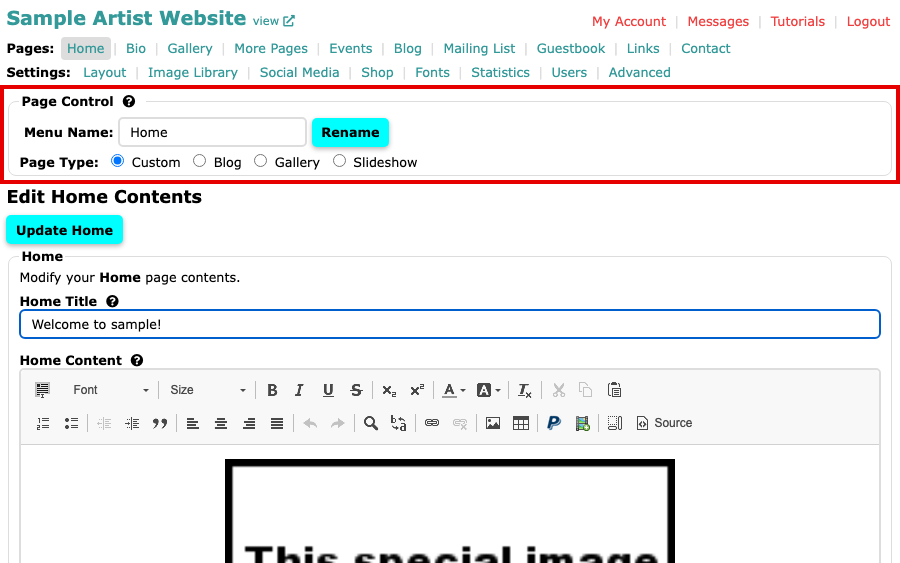
The Home screen with Page Control, Home Title and the Home Content editor Change the Home Title. It shows above your text and in the browser's title bar.
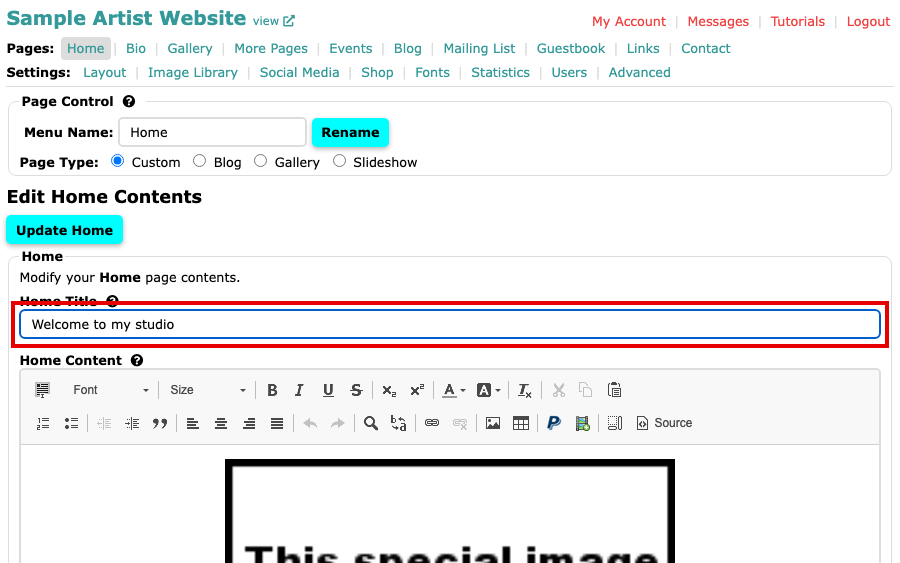
The Home Title field with Welcome to my studio typed in Click in Home Content and write your text. The content editor has buttons for styling, images, links and more.
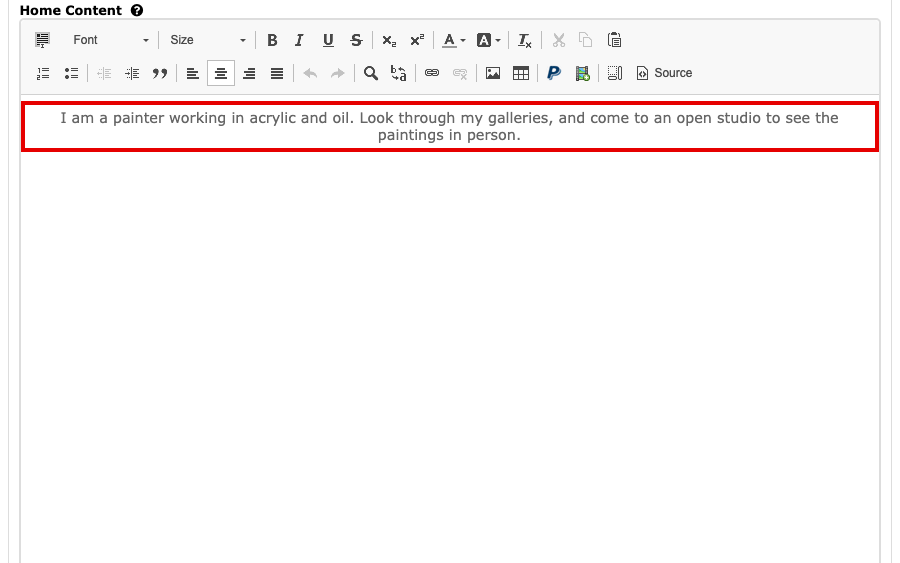
The Home Content editor with a welcome paragraph typed in Select Update Home, at the top and bottom of the screen, to save. Nothing is saved until you do.
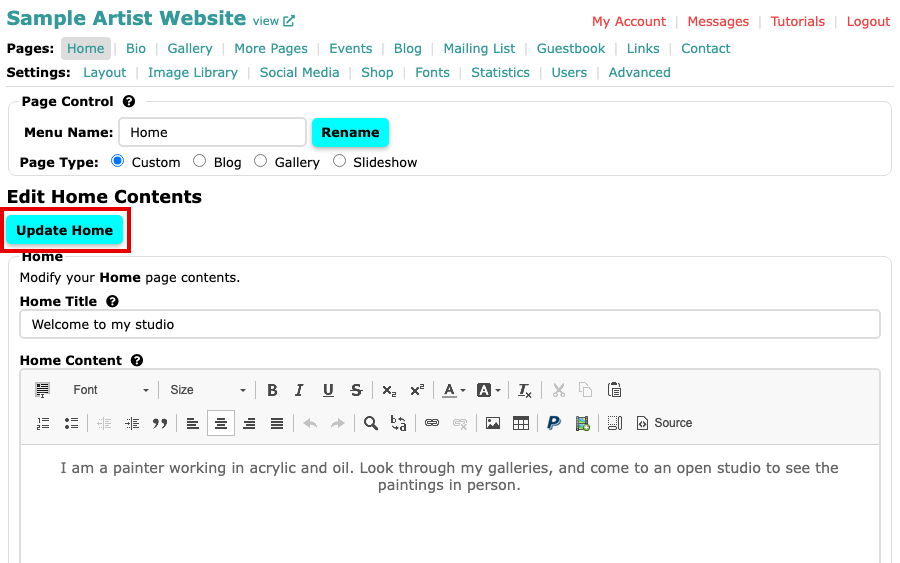
The Update Home button above the Home box Open Bio in the Pages menu. Type a Bio Title and your story in Bio Content, then select Update Bio.
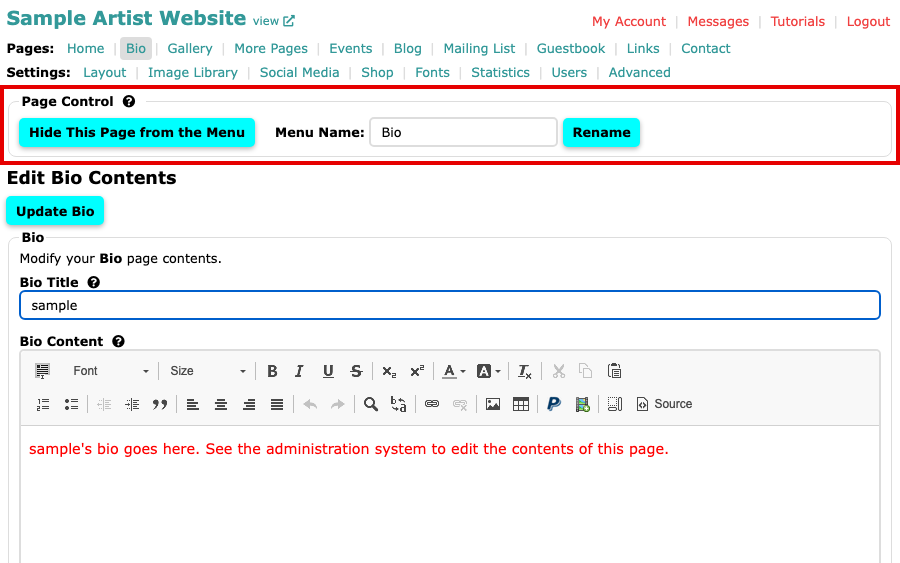
The Bio screen with Page Control, Bio Title and Bio Content 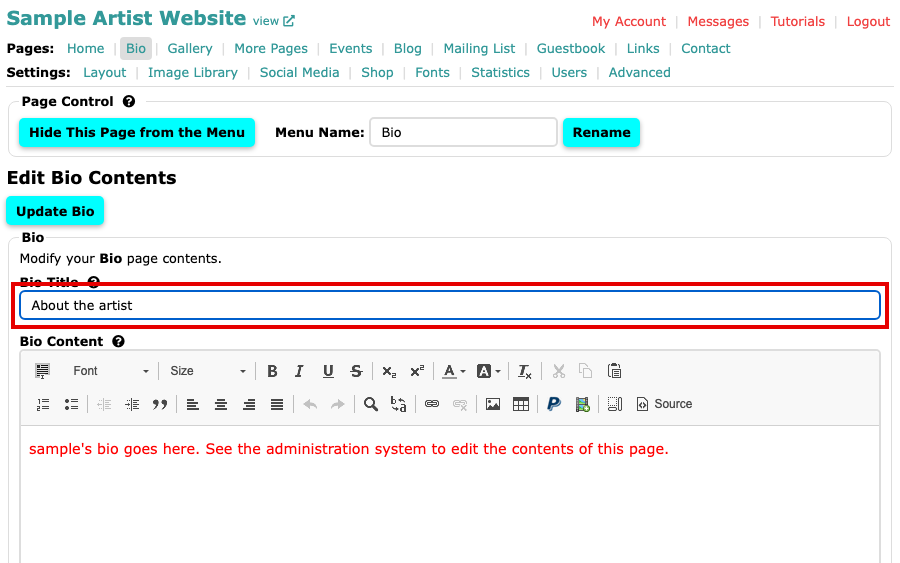
The Bio Title field with About the artist typed in 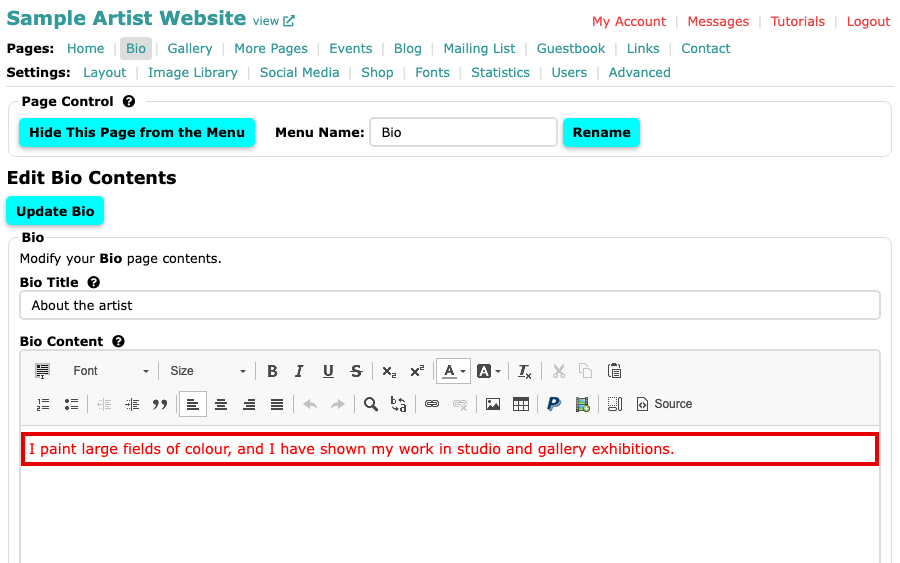
The Bio Content editor with a paragraph about the artist typed in 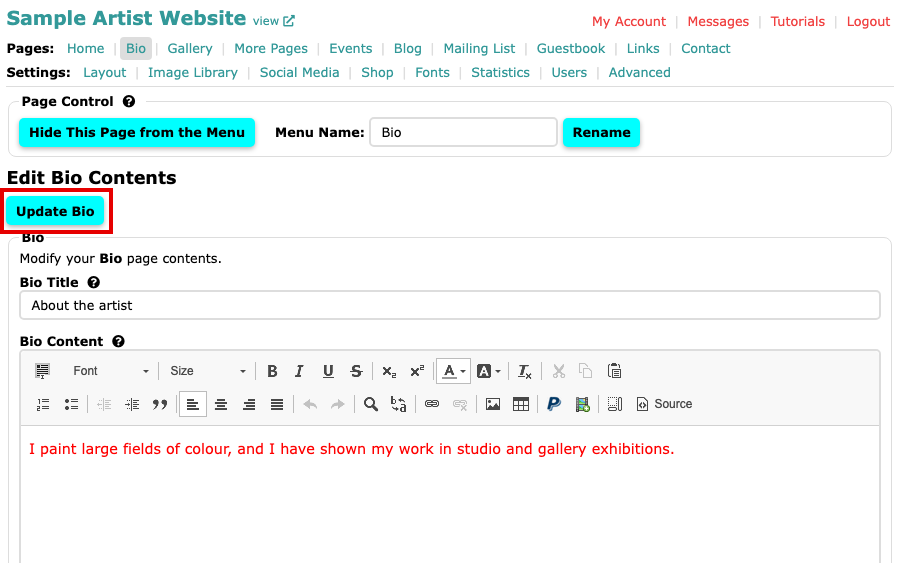
The Update Bio button above the Bio box
For ideas on what to write, see Writing Your Bio.
Page Control
Hide a Page or Change Its Menu Name shows these buttons step by step on another page.
- Menu Name is the page's name in your website's menu. Type a new one and select Rename.
- On Bio, Hide This Page from the Menu takes the page out of the menu. The page is still reachable by its address, and the button then reads Show This Page in the Menu.
- On Home, Page Type chooses what the page shows. Custom shows your own title and text. Blog shows your blog, Gallery your gallery and Slideshow a full-page slideshow. With one of these the text box goes away, and the screen says what your home page will display. Choosing a type changes the page at once. Some plans do not show Page Type; our pricing page has the plans.