Choose how far apart two lines sit in the content editor. Pressing Enter leaves a gap, and pressing Shift+Enter does not.
Open the page, such as Bio in the Pages menu, and click at the end of the line you want to follow with another.
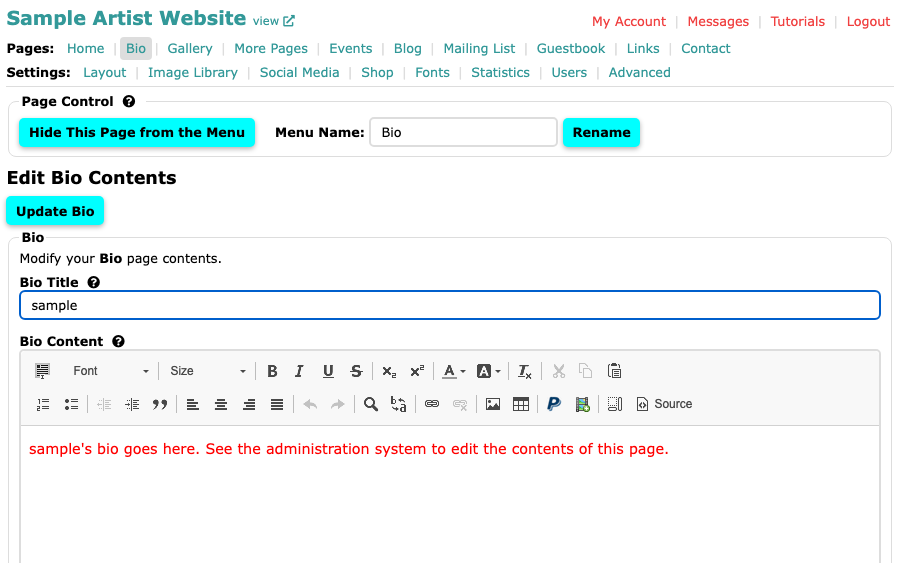
The Bio page with the content editor open For a gap between the lines, a "double space", press Enter (Return on a Mac). The editor starts a new paragraph with space above it.
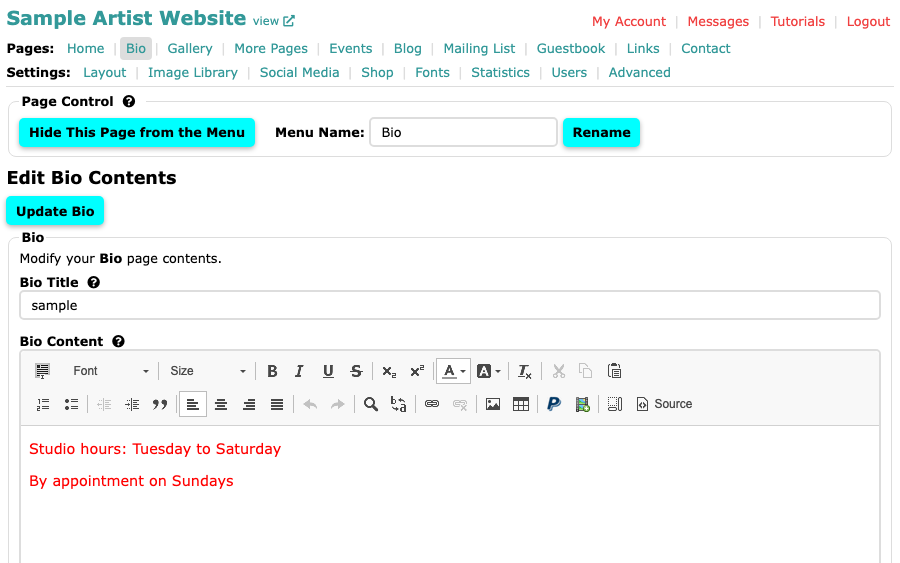
Two lines in the editor, Studio hours: Tuesday to Saturday and By appointment on Sundays, with a gap between them For no gap, a "single space", hold Shift and press Enter (Return on a Mac). The next line starts directly beneath the first. An address or a short list of lines reads better this way.
Select the page's own button, such as Update Bio, to save.
Use Enter between paragraphs and Shift+Enter inside one.