Your Contact page tells visitors how to reach you and gives them a form to write to you. Choose what it shows, and who receives what visitors send.
Open Contact in the Pages menu. The Manage Contact Information Page screen opens. Above the boxes, Messages: Inquiries and Contact Requests opens the messages visitors have sent.
Type a Contact Name, the person visitors should contact. Under Contact Page Message, write anything you want to add, such as how soon you answer. Visitors can read everything on this page, so think before adding an address or other private details.
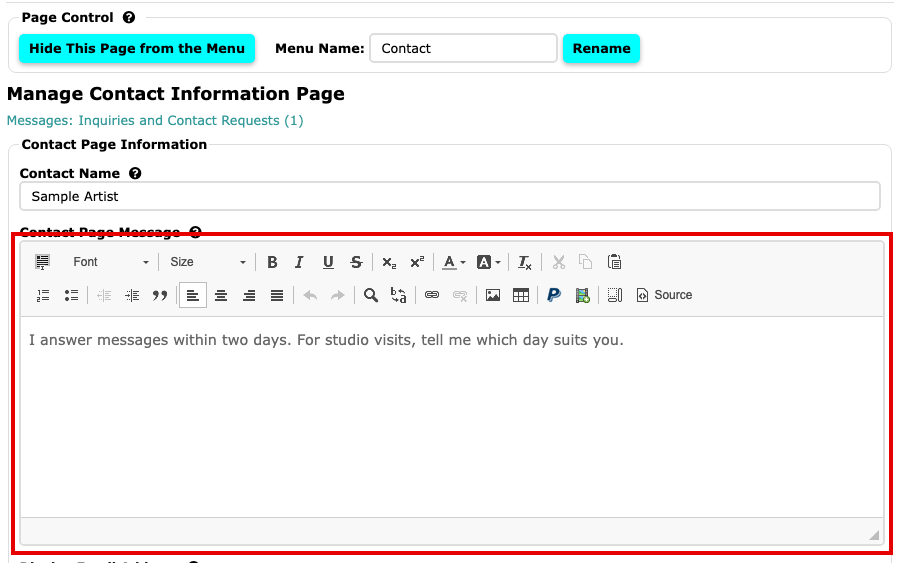
The Contact Name box and the Contact Page Message editor with a message typed in Open Display Email Address to choose which of your website's email addresses shows on the page. DO NOT display an email address shows none, and visitors use the form instead. To offer another address, add a website user.
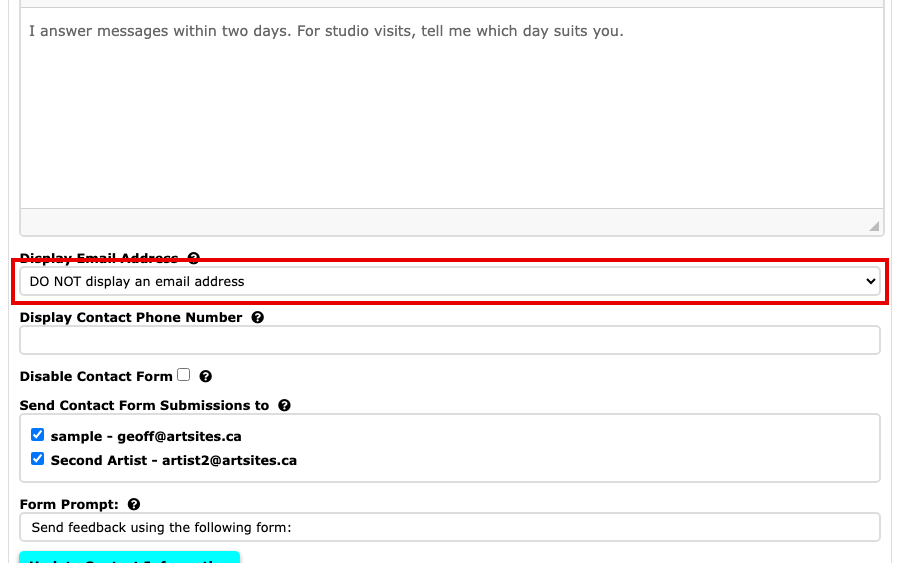
The Display Email Address menu set to DO NOT display an email address, with the phone number, contact form and form prompt below Type a number in Display Contact Phone Number if you want one shown. Leave it empty to show none. Visitors can read it too.
Tick Disable Contact Form to remove the form from the page. Under Send Contact Form Submissions to, the form's messages go to the address shown. If your website has more than one user, tick each address that should get them; only people who have confirmed their email address are listed, and The People on Your Account explains who they are. Form Prompt: is the sentence that introduces the form.
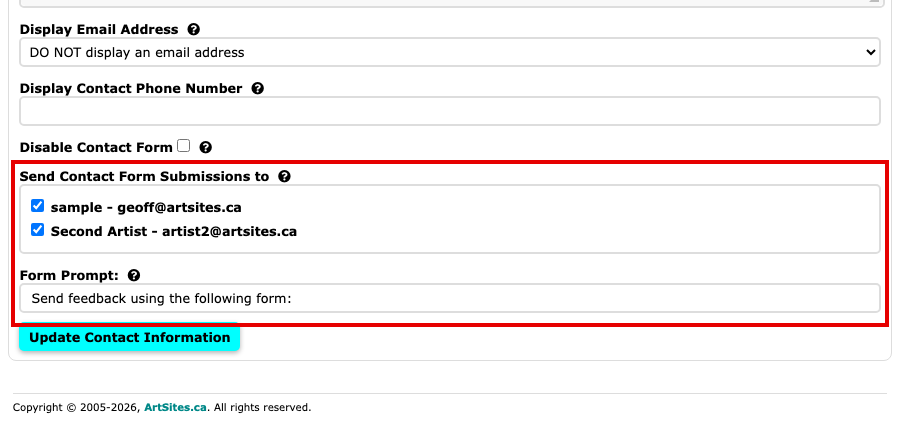
The Disable Contact Form box, a tick box for each address messages can be sent to, and the Form Prompt box above the Update Contact Information button Select Update Contact Information to save. Nothing is saved until you do.
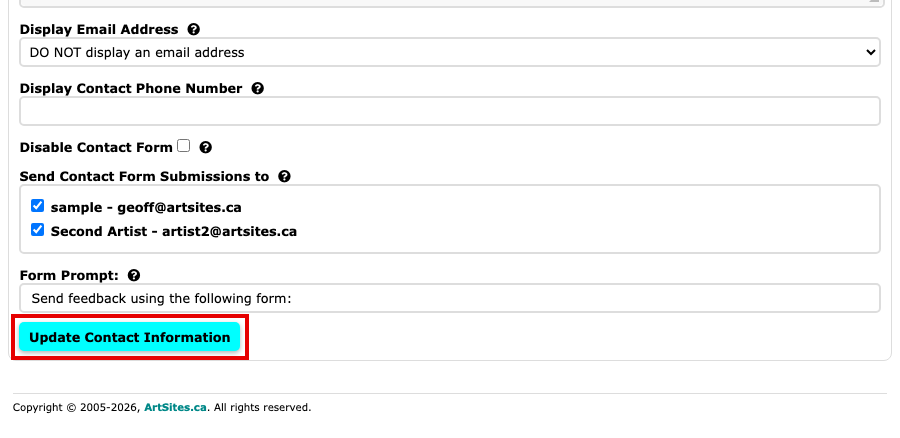
The Update Contact Information button under the Form Prompt box
Your Contact page now shows what you chose. To read and answer what visitors send, see Read and Answer Messages.