Place an image on the left or right of your text so the words flow around it, instead of sitting above or below it.
Before you start: have an image in your text. Insert an Image on a Page shows how.
Open the page, such as Bio in the Pages menu, and click in the text box. Write your words if they are not there already.
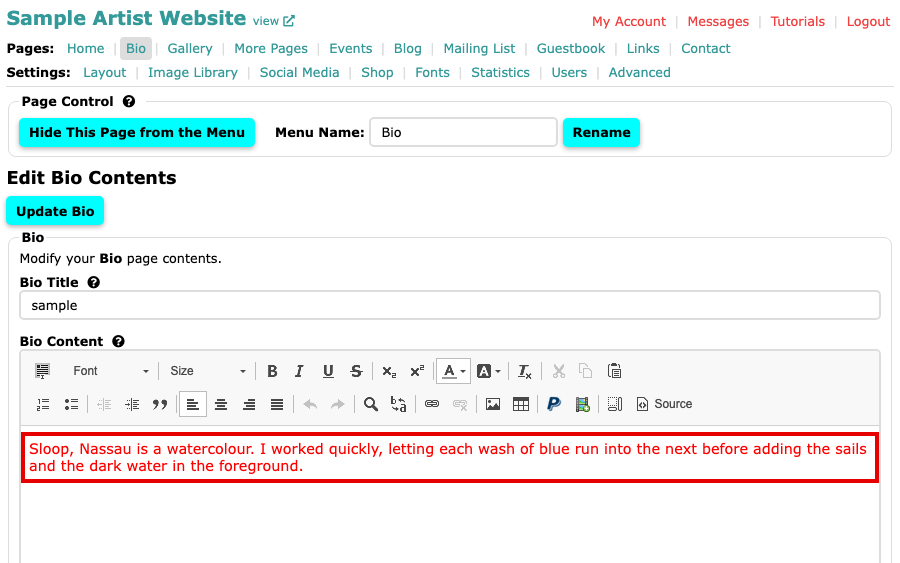
The Bio page with a paragraph of text typed into the content editor Click the image once to select it. A pale tint covers a selected image.
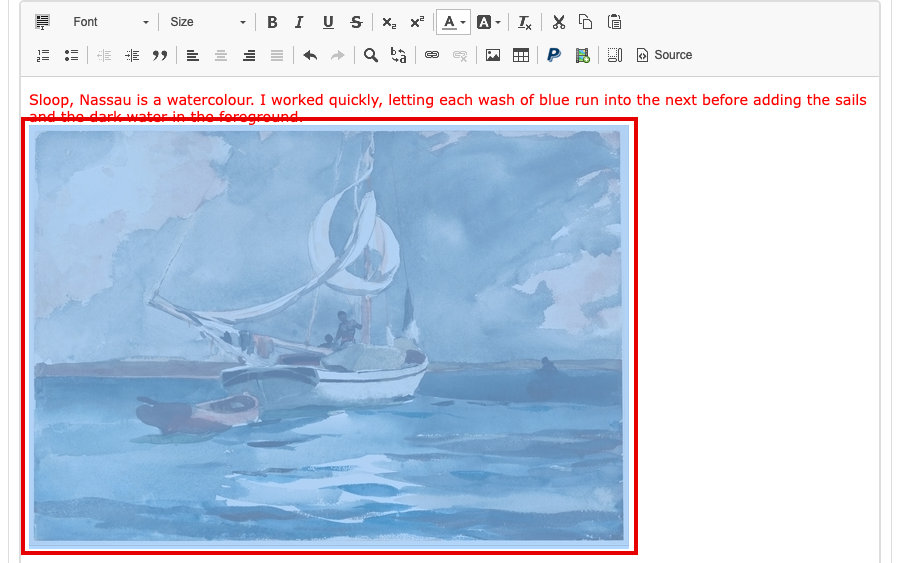
The Bio editor with the image selected beneath the text Select the Image button in the editor's second row, or double-click the image. The Image Properties box opens.
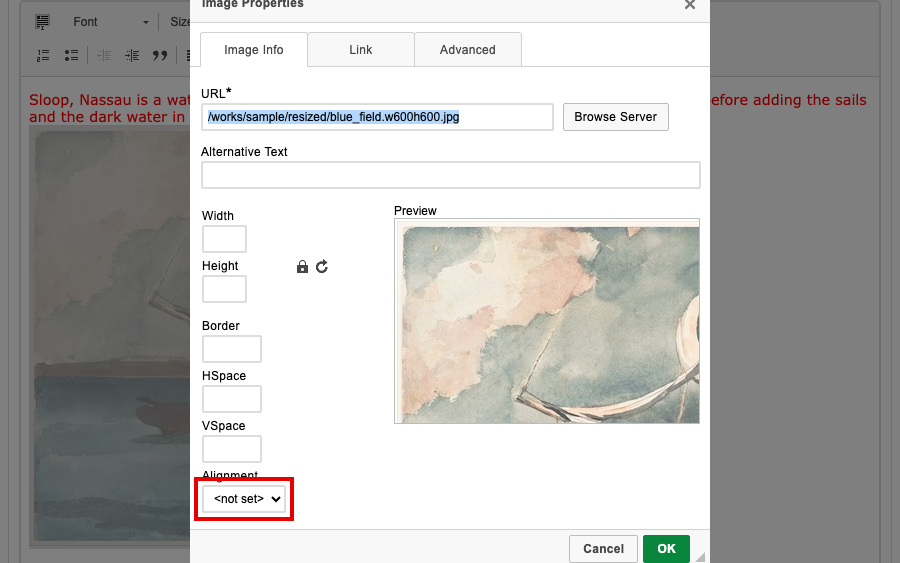
The Image Properties box for the selected image, with the Alignment menu at the bottom of the left column Open the Alignment menu and choose Left or Right. The image goes to that side and the words wrap along the other.
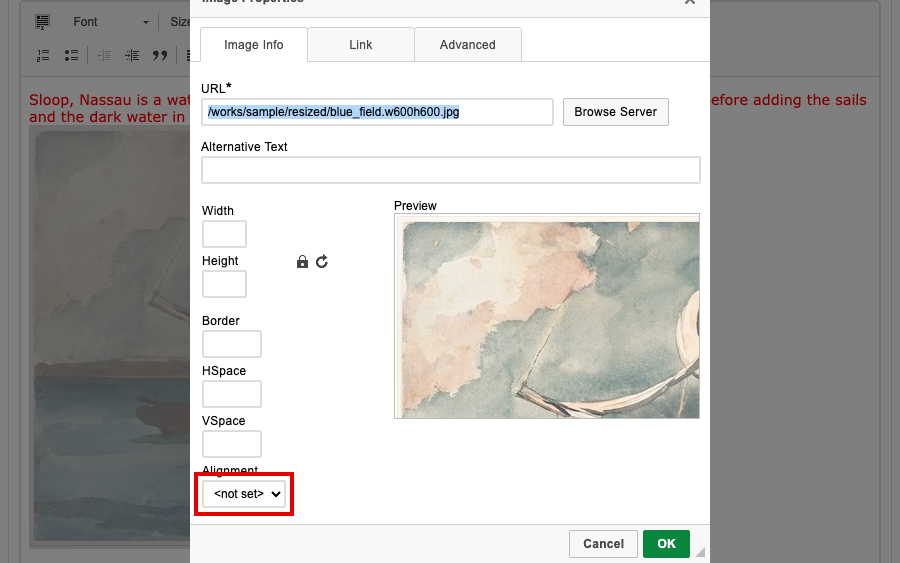
The Alignment menu in Image Properties, closed, under Border, HSpace and VSpace Select OK, then the page's own button, such as Update Bio, to save. If you do not like the result, open Image Properties again and try the other side.
The words now flow around your image.