Every page in your website's menu can be shown under a name of your choosing, or left out of the menu altogether. Both are set in the Page Control box at the top of the page's screen in your administration area. This tutorial uses Events; Bio, Gallery, Blog, Mailing List, Guestbook, Links and Contact work the same way.
Open Events in the Pages menu. The Page Control box is at the top, above the page's own settings. It holds Hide This Page from the Menu, a Menu Name box and Rename.
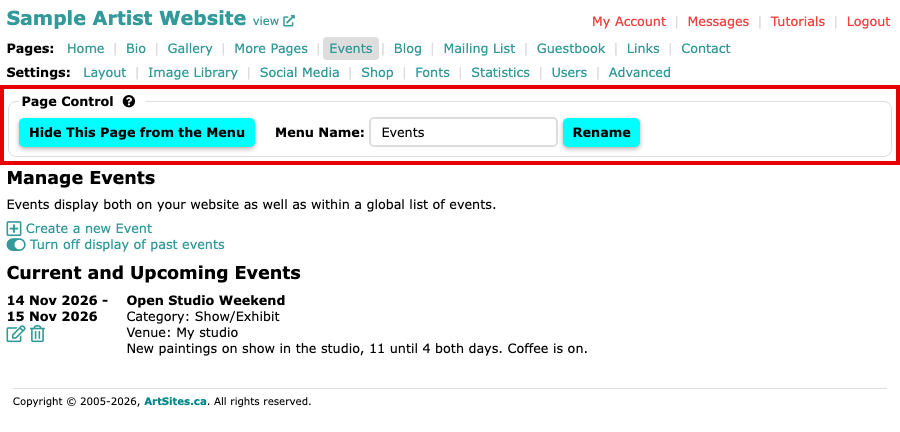
The Events screen with the Page Control box showing Hide This Page from the Menu and Menu Name set to Events To change the name your visitors see, type it in Menu Name and select Rename. The change is saved at once. The menu at the top of your administration screen takes the new name, and so does the menu on your website.
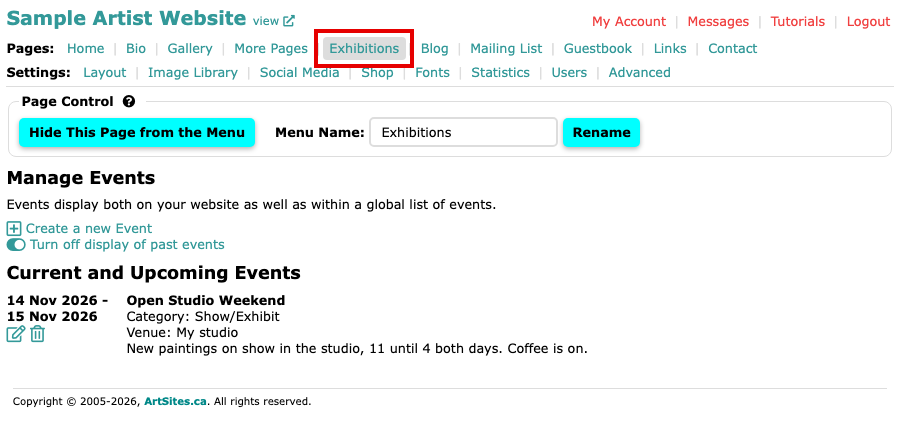
The Events screen after Rename, with Exhibitions as the Menu Name and in the Pages menu 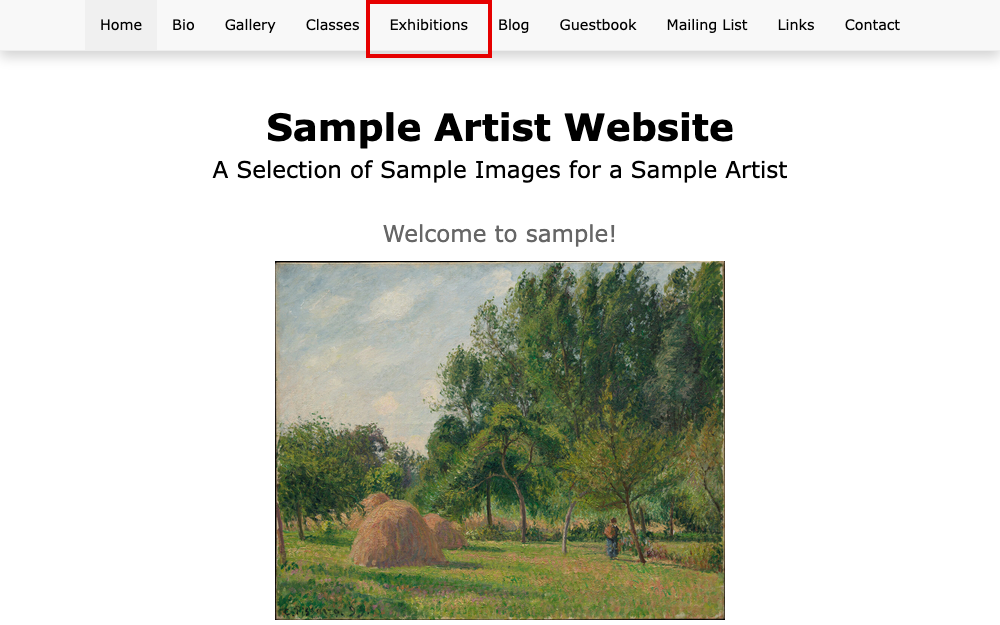
Your website's menu with Exhibitions where Events was To take the page out of the menu, select Hide This Page from the Menu. The button changes to Show This Page in the Menu, and the Menu Name box goes away until you show the page again.
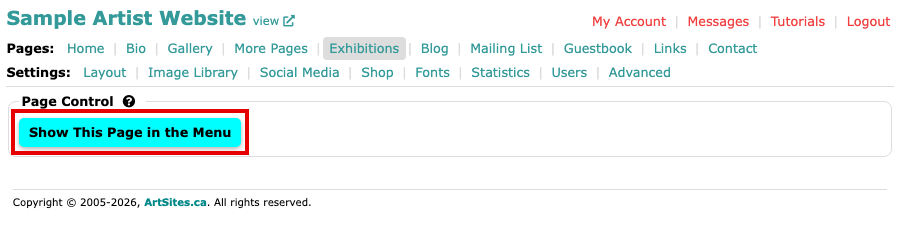
The Page Control box with only the Show This Page in the Menu button Your website's menu no longer lists the page.
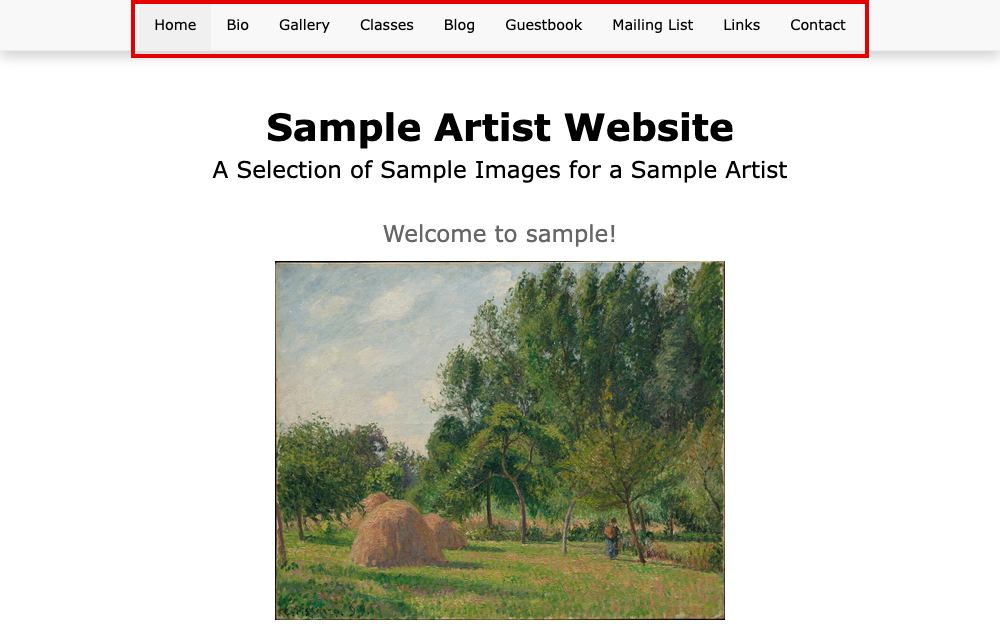
Your website's menu without Exhibitions Hiding a page does not remove it. The page still opens from its web address, so a link you have shared keeps working.
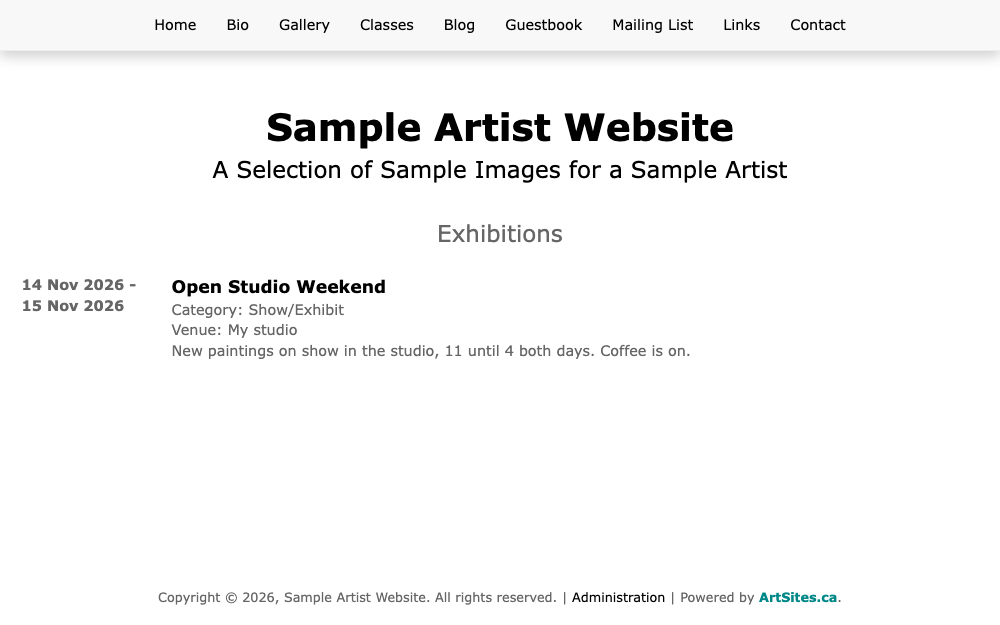
The Exhibitions page open on its own, with its event, while it is out of the menu To put the page back, select Show This Page in the Menu. The Menu Name box returns with the name you last chose, and you can change it again with Rename.
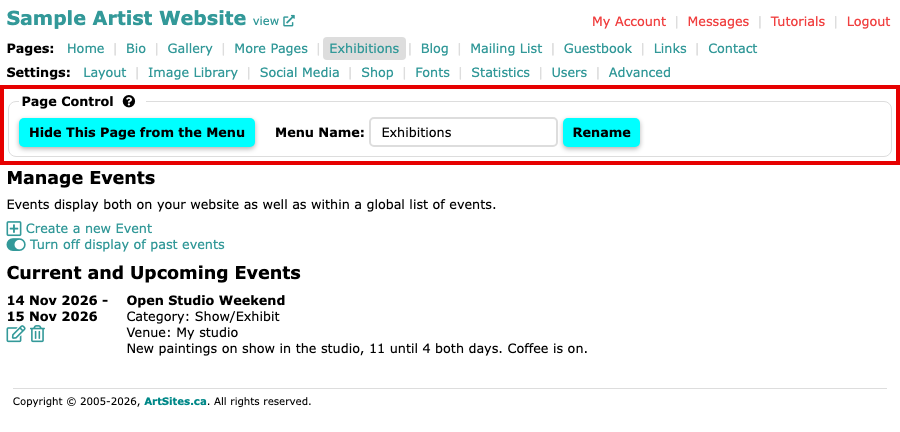
The Page Control box after showing the page again, with Hide This Page from the Menu and the Menu Name Exhibitions
Pages that work differently
- Home has no hide button. It chooses what it shows instead: your own text, your blog, a gallery or a slideshow. Edit Your Home and Bio Pages explains Page Type.
- A page you added under More Pages has no Page Control. It leaves the menu when you empty its Menu Name. Change, Reorder and Delete Your More Pages shows where.