Upload several images in one go. Each one goes into your Image Library, and into a gallery too if you choose one.
Before you start: save your images on your computer as JPEG, PNG or HEIC files. Name each file with the title you want, such as Poppies in the Field.jpg. ArtSites makes each image's title from its file name, turning dashes and underscores into spaces, so well-named files save you typing titles later. What Image File Types and Resolution Should I Upload? explains which files to choose.
Open Image Library in the Settings menu at the top of your admin.
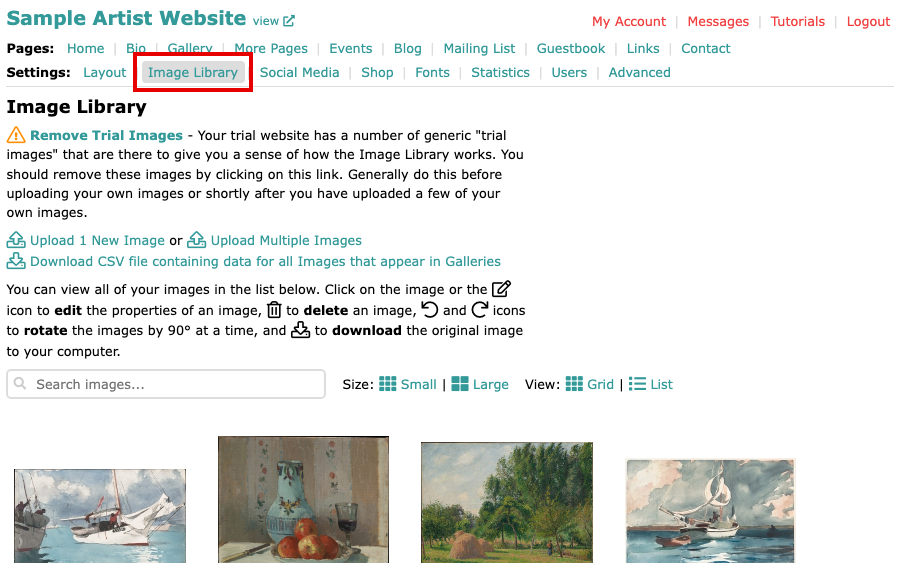
The Image Library page with Image Library selected in the Settings menu Select Upload Multiple Images.
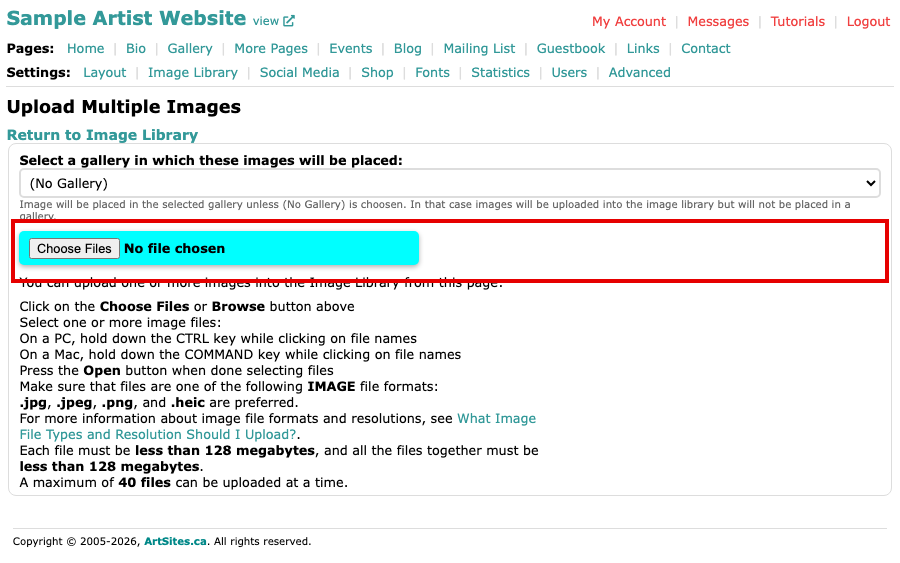
The Upload Multiple Images page, with a gallery menu and a Choose Files button If you want the images in a gallery, pick it from Select a gallery in which these images will be placed. Leave (No Gallery) to put them in the Image Library only and choose their galleries later.
Select Choose Files (some browsers call it Browse) and pick your files. To pick several, hold down the Ctrl key on a PC, or the Command key on a Mac, while selecting file names, then select Open. The upload starts as soon as you have chosen the files, so check your choices first.
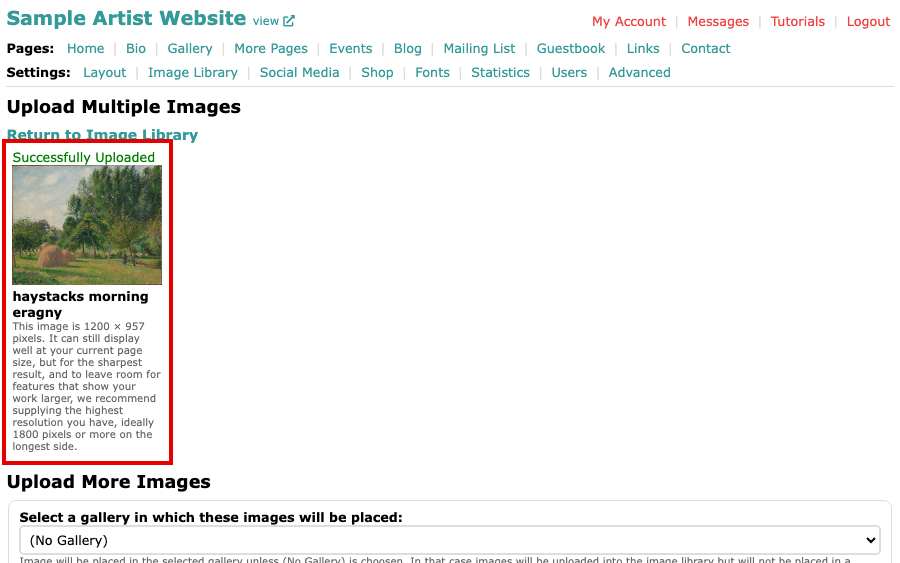
The page after an upload, showing Successfully Uploaded above the uploaded image Read the list under the page title. Each image that uploaded shows Successfully Uploaded with its picture and title, and a note if the file is smaller than we recommend. Anything that did not upload shows an error message. Your page then offers Upload More Images below the list, so you can send another batch straight away.
Limits
The page lists the limits for your website: the largest size of one file, the largest size of all the files together, and how many files you can send at a time. If you choose more files than that, the page tells you how many were left out, and you can send the rest in another batch. Stick to JPEG, PNG and HEIC files, the types the page recommends.
Images you uploaded are in your Image Library, where The Image Library explains what you can do with them. To place them in galleries afterwards, see Add, Remove or Move Images into Other Galleries.