The content editor is the box you write your pages in. Wherever your admin asks for text, the same editor opens, so once you know one you know them all.
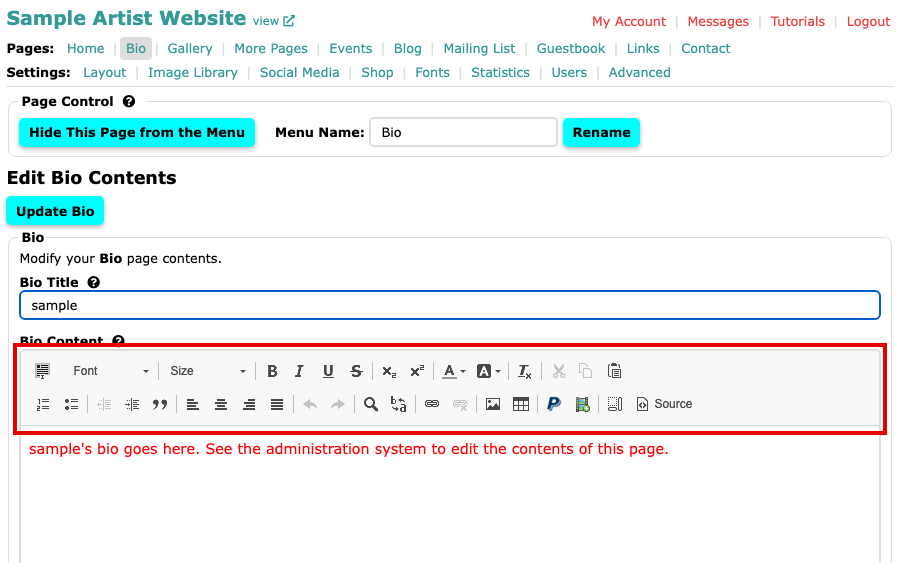
Where you will find it
- The Home, Bio and More Pages screens, where it holds the page's content.
- The Contact screen's Contact Page Message, the Links screen's Description and the Blog screen's Message.
- A gallery's Description and Extra Text, and an image's Description and Additional Text. Your layout may not show the extra text, so a note there can be invisible on your website.
The box has a different name on each screen, but it behaves the same way everywhere.
How it works
Click in the writing area and type, as you would in a word processor. Hold your mouse over any button for a moment and its name appears, so you do not need to remember them.
Nothing you write is saved until you select the screen's own button, such as Update Bio or Update Page. Leave the screen without it and your changes are lost.
The buttons
- Font and Size change the typeface and its size.
- Bold, Italic, Underline, Strikethrough, Subscript and Superscript style selected text. Text Color and Background Color colour it, and Remove Format clears all styling from the selected text.
- Cut, Copy and Paste move text around. Paste Text from Word explains pasting from a Word document.
- The list buttons make a numbered or bulleted list, and the indent buttons and Block Quote move text in from the margin.
- Align Left, Center, Align Right and Justify line text up.
- Undo and Redo step back and forward through your changes. Find and Replace look for words in the box.
- Link and Unlink make and remove text that links to another page.
- Image puts an image in your text, and Table lines text and images up in columns.
- Embed Code adds a video or code from another website.
- Insert Purchase Button adds a button that lets visitors buy from your shop.
- Show Blocks outlines each paragraph, which helps you see why text is spaced the way it is. Source shows the page's HTML code, for people who know it.
Line spacing
Pressing Enter starts a new paragraph, with a gap above it. To start a new line without the gap, hold Shift and press Enter. Single and Double Line Spacing shows both.
Ask us
If something in the editor does not behave as you expect, select Contact Us at the bottom right of your admin and ask.