Put an image into the text of your Home, Bio or any other page, or into a gallery or image description, using the content editor.
Before you start: the image must be in your Image Library. Upload One Image and Put It in Galleries shows how. You do not need to put it in a gallery.
Open the page, such as Bio in the Pages menu, and click in the text box where the image should go.
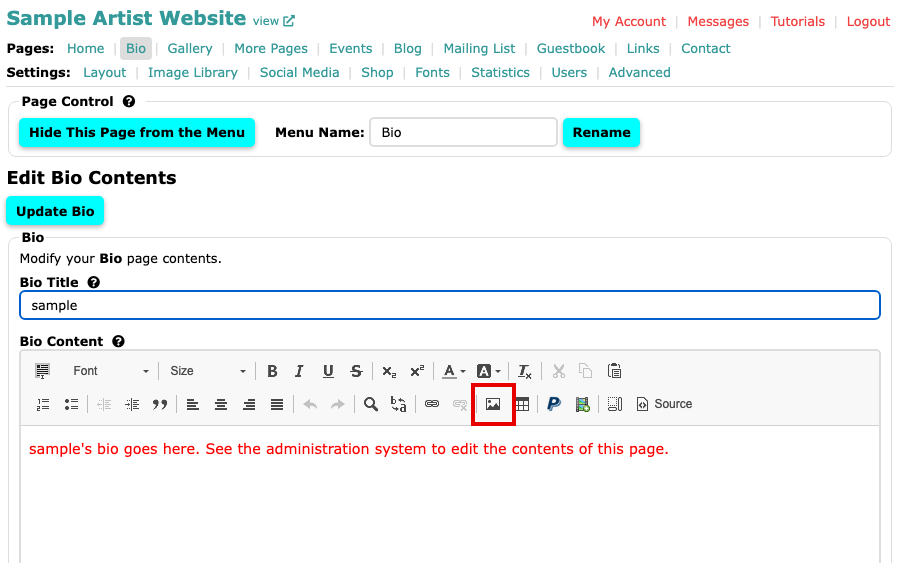
The Bio page with the content editor open Select the Image button in the editor's second row. The Image Properties box opens on its Image Info tab. Select Browse Server.
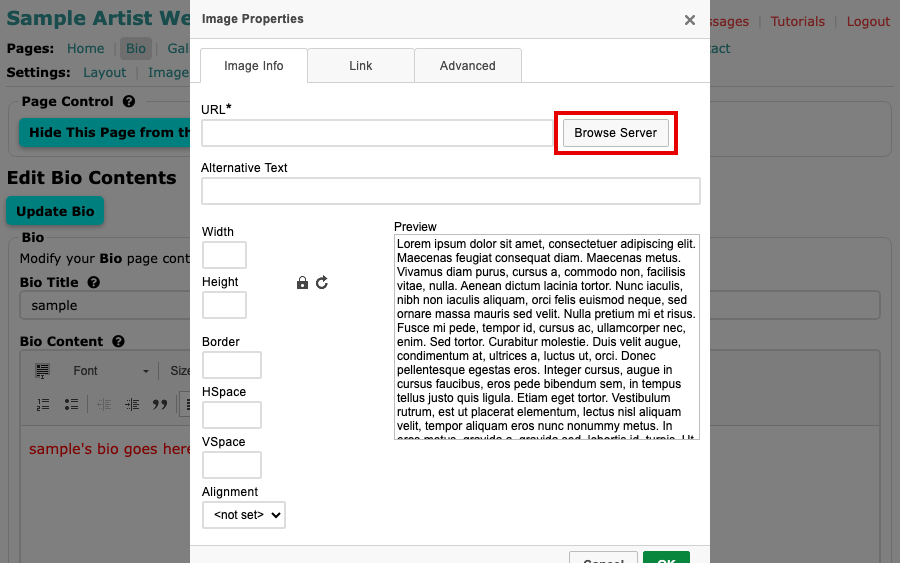
The Image Properties box with an empty URL field and the Browse Server button beside it The Image Browser lists the images in your Image Library. Select Normal or the picture itself to use the largest copy that fits a 600 by 600 pixel square, which suits most pages. Select Original only for a very large image, because the full-size file loads slowly.
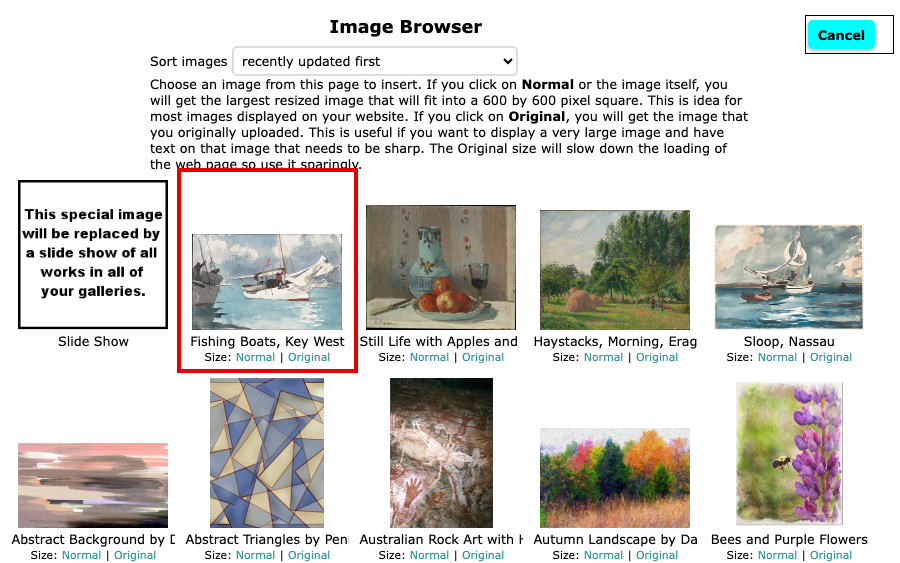
The Image Browser, showing the library images with Normal and Original links under each The image's address appears in URL. Type a short description of the picture in Alternative Text. People who cannot see the image have it read to them, and search engines use it.
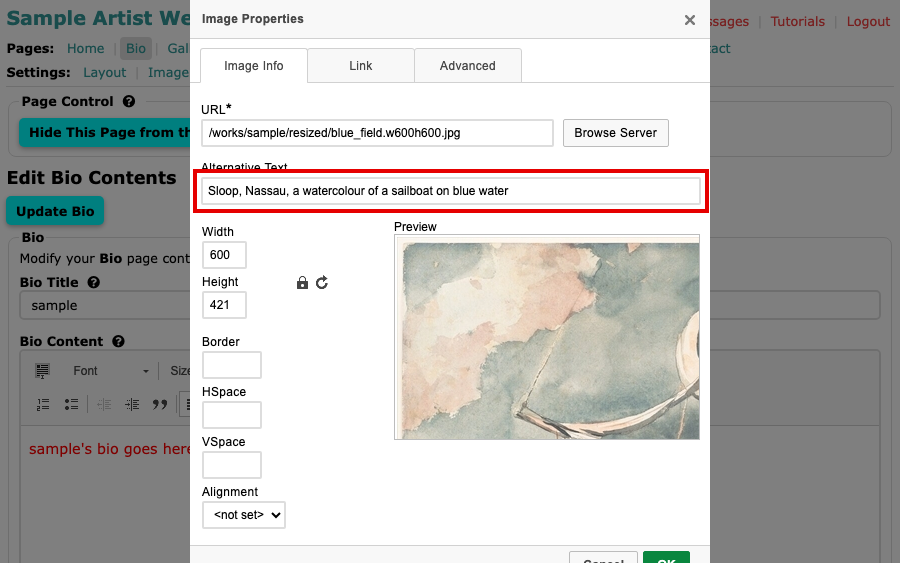
The Image Properties box with the image's address in URL and a description in Alternative Text Optional: to make the image open a web page when someone clicks it, select the Link tab and type the full address, starting with https://, in URL. Under Target, choose New Window (_blank) to open the page in a new tab.
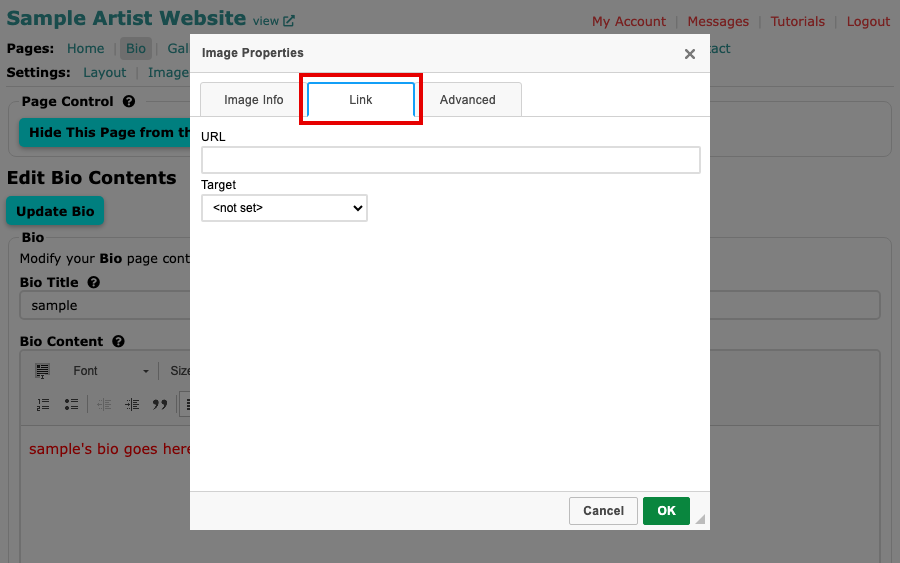
The Link tab with a URL field and a Target menu Select OK. The image appears in the text, and the Width and Height boxes in Image Properties can resize it later. Keep the padlock between them closed so the picture does not stretch.
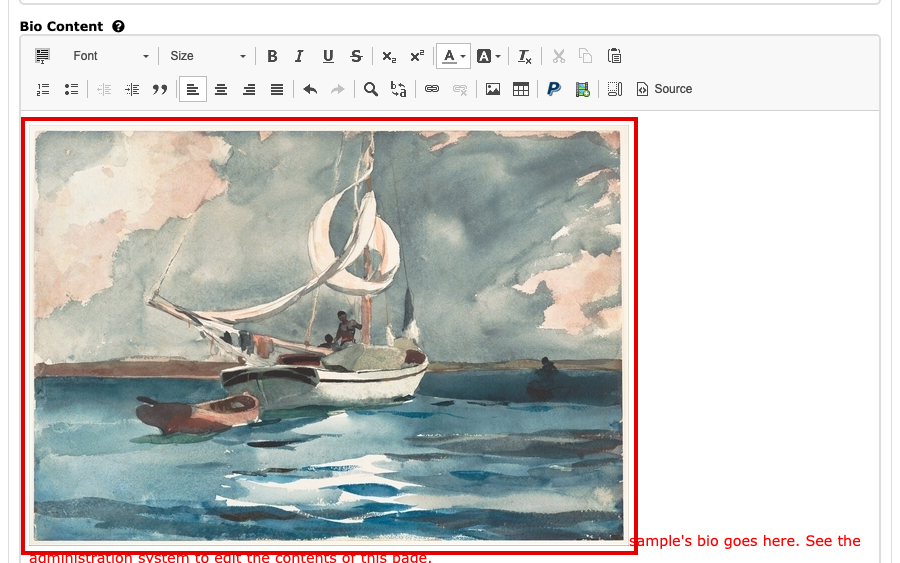
The image in the Bio editor Select the page's own button, such as Update Bio, to save.
The image is on your page. To put words beside it, see Wrap Words Around an Image. To change it for a different image later, see Replace an Image in a Page.