Paste text you wrote in Microsoft Word into a page, and keep your website's own fonts and spacing instead of Word's.
Before you start: have your Word document open.
In Word, select the text you want and copy it: press Ctrl+C on a PC or Command+C on a Mac, or right-click the text and choose Copy.
In your admin, open the page, such as Bio in the Pages menu, and click in the text box where the text should go.
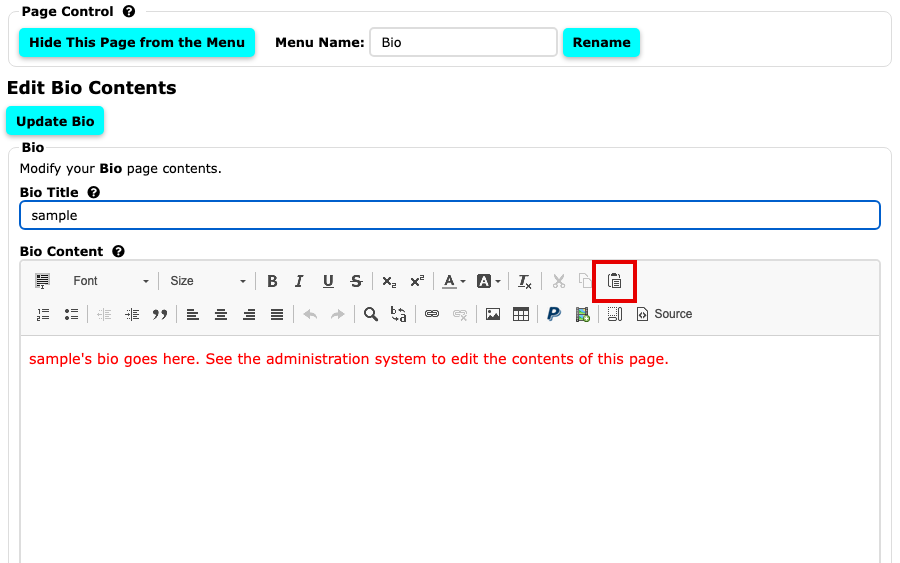
The Bio page with the content editor, and the Paste button at the right end of the first row of buttons Paste the text with Ctrl+V on a PC or Command+V on a Mac. Your browser asks: "The text you want to paste seems to be copied from Word. Do you want to clean it before pasting?" Choose OK. The editor removes Word's styling, so the text takes on your website's look.
Read the pasted text and fix anything you want to change. All of the editor's buttons work on it.
Select the page's own button, such as Update Bio, to save.
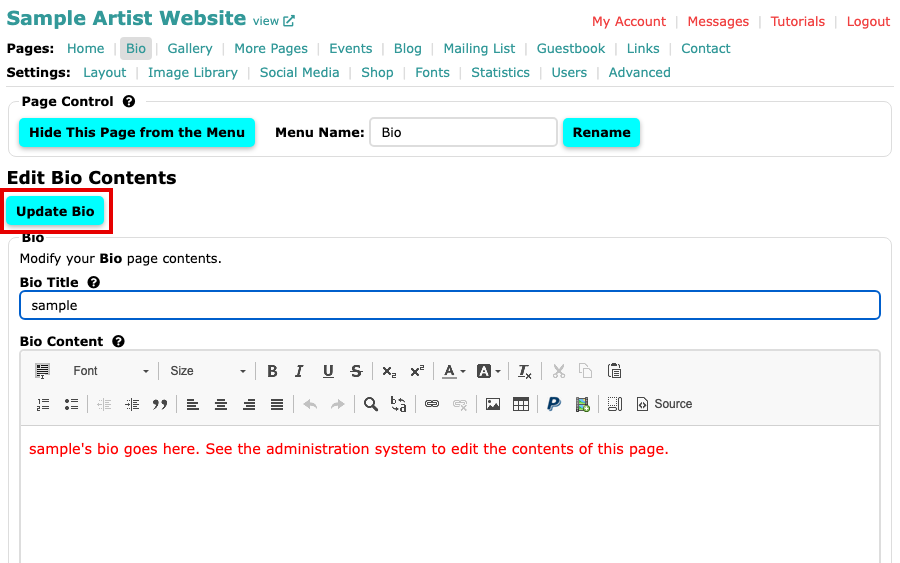
The Update Bio button at the top of the Bio page
Your Word text is on the page.
If odd characters show up
Curly quotes and apostrophes from Word sometimes arrive as codes, such as ' where an apostrophe should be. To avoid it, paste as plain text and then format the text in the editor:
- Copy the text in Word as before.
- Click in the text box and press Ctrl+Shift+V on a PC or Command+Shift+V on a Mac (in Safari, Control+Option+Shift+V). The text arrives with no styling and no hidden Word codes.
- Add bold, headings and other formatting with the editor's buttons.
If a code has already landed in a page, retype the apostrophe or quote mark by hand over the code, then save.