When a visitor uses the form on your Contact page, or asks about one of your works, their message waits in Messages. You also get a notification email.
About the notification email
The notice comes from ArtSites support, not from your visitor. If you reply to it, your reply reaches us, not them. To answer the visitor, use reply on the Messages screen (step 3 below), or write to the visitor's email address yourself.
Unless we have switched on a setting that puts the message in the email, the notice holds only a link to the message. Select the link, or follow the steps below.
The notice goes to the people on your account marked Contact, once they have confirmed their email address. The People on Your Account explains who they are and how to change them.
Read and answer a message
Select Messages at the top of the admin, beside My Account. The New list opens. You can also reach it from the Contact screen, with the link Messages: Inquiries and Contact Requests.
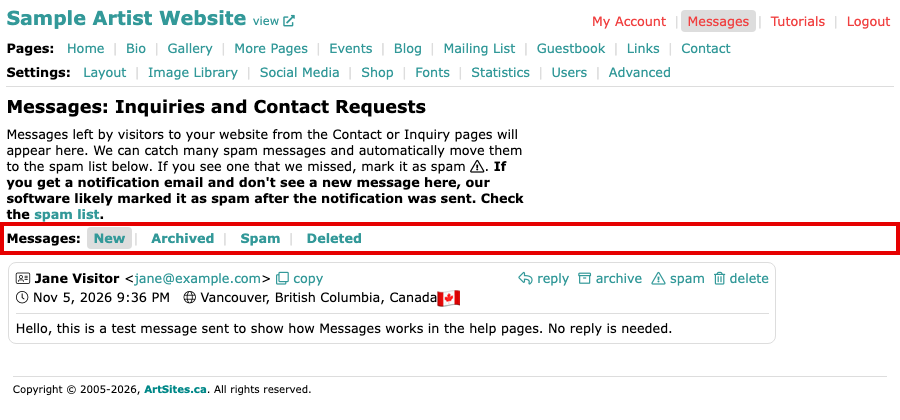
The Messages page with the New list selected and one message in it Read the message. It shows the visitor's name and email address, when they sent it, roughly where they were, and what they wrote. copy puts their email address on your clipboard. On the right are four buttons: reply, archive, spam and delete. When a visitor asked about a particular work, the message shows that work's picture, with a link to its page. On a phone the buttons show as small icons, and a key above the list says what each one does.
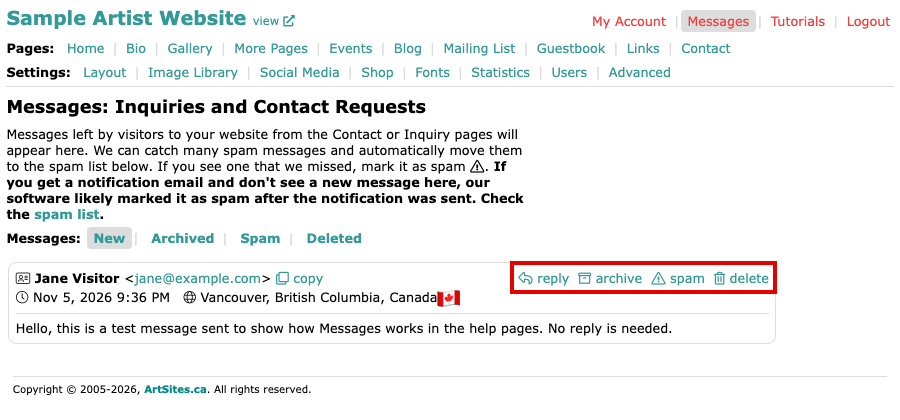
A message in the New list with reply, archive, spam and delete buttons on its right To answer, select reply (or the visitor's email address). Your email program opens with a reply already started, addressed to the visitor, and their words quoted below. This needs your browser to be set up to open email links. If it is not, use copy and paste the address into your email.
If the message is junk, select spam. It moves to the Spam list, which you open from the list of links under the heading. If a real message is there, select not spam to send it back to New.
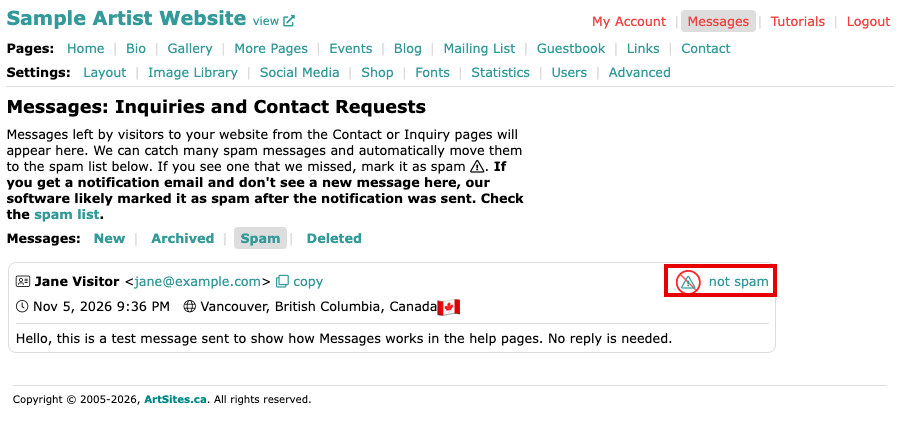
The Spam list with one message and a not spam button on its right Select archive on a message you have dealt with but want to keep. It moves to the Archived list, and unarchive there sends it back to New. An empty list says No messages.
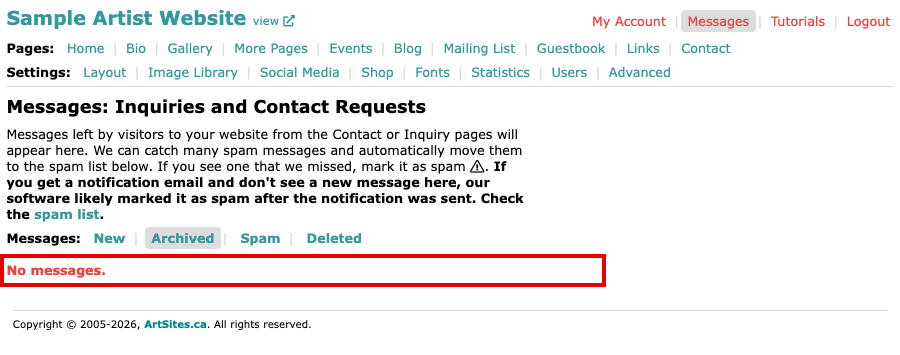
The Archived list with the words No messages Select delete to remove a message from view. It moves to the Deleted list, where undelete sends it back to New.
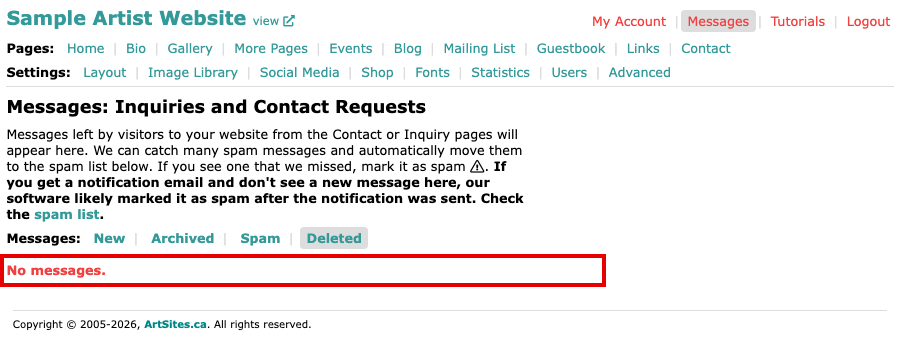
The Deleted list with the words No messages
New messages stay in New until you archive, mark as spam or delete them.
How spam is handled
We check each message as it arrives. An obvious spam message is refused and never saved. A message that looks suspicious is saved to Spam and you get no notice for it. Every other message is saved to New and you are told. A notice can still arrive for a message that has since moved to Spam, so if you cannot find a message in New, look in Spam.
Not every scam is caught this way, because a scam message often reads like a real one. Is this inquiry real? helps you tell.