Add a piece of another website to your page, such as a widget, a button or a map, by pasting the code that site gives you.
Before you start: get the code from the other website, usually under a button called Embed, Share or Get code, and copy all of it. The other website's code decides how the content looks and behaves, so check your page on your website after you save, and ask us if something does not appear.
In your admin, open the page, such as Bio in the Pages menu, and click in the text box where the code should go.
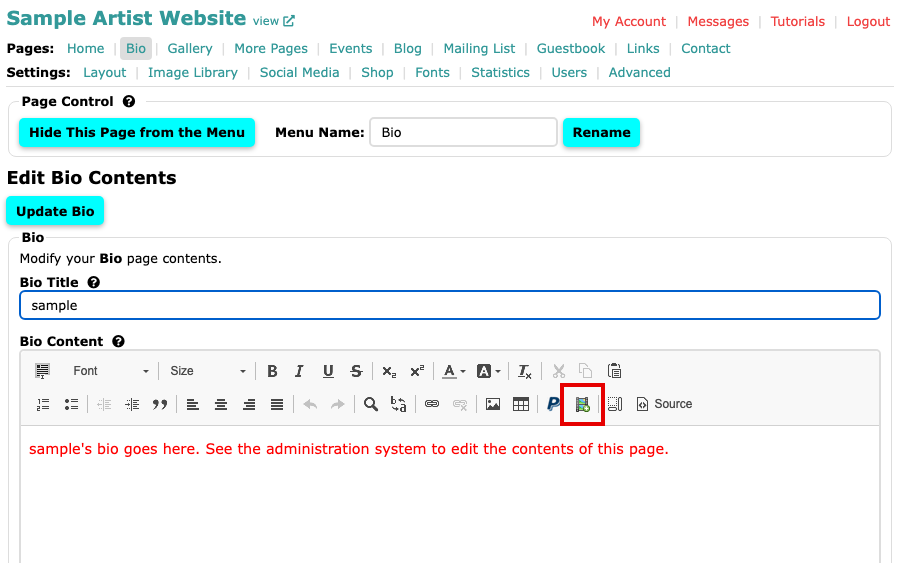
The Bio page with the content editor open Select the Embed Code button, the filmstrip icon in the editor's second row. The Embed Dialog opens.
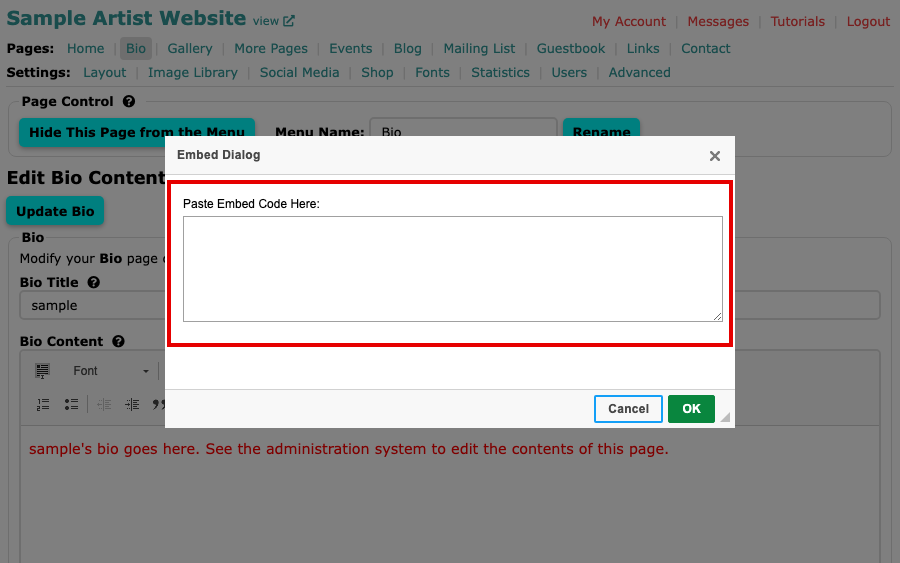
The Embed Dialog with an empty box under Paste Embed Code Here Click in the box and paste the code with Ctrl+V on a PC or Command+V on a Mac.
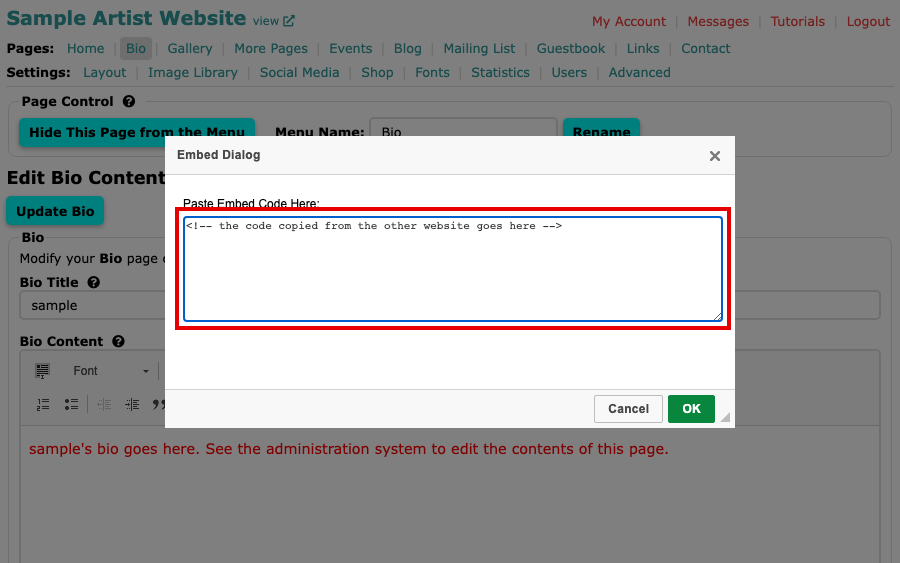
The Embed Dialog with a piece of code pasted in Select OK. The editor may show only blank space where the code will appear.
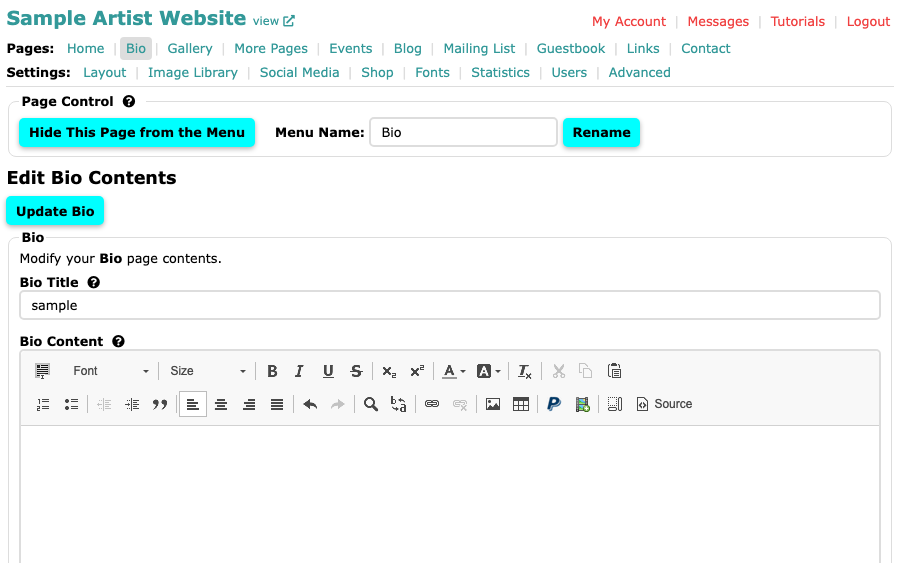
The Bio editor after the code is added Select the page's own button, such as Update Bio, to save. Use view at the top left to open the page and see the result.
The code is on your page. For videos from YouTube or Vimeo, Embed a Video on a Page has a few more details.