Your website starts with a few galleries, and you can add as many more as you like. You might want one for New Works, or for Sold Items.
Open Gallery in the Pages menu at the top of your admin.
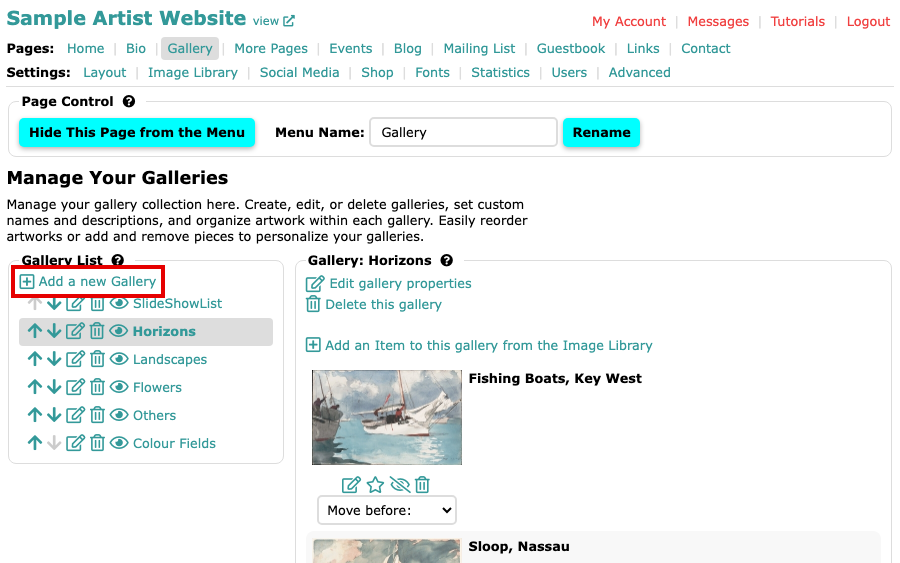
The Manage Your Galleries page, with the Gallery List on the left Under Gallery List, select Add a new Gallery.
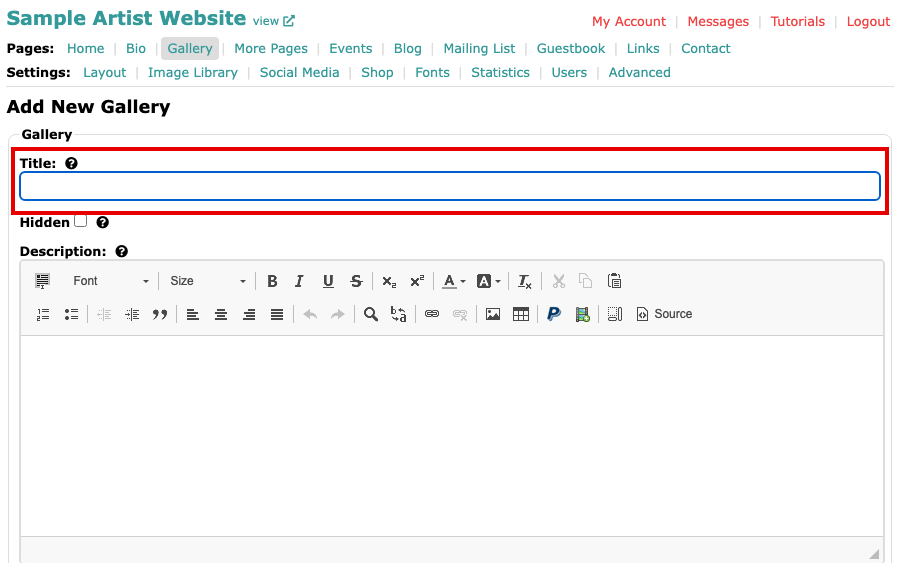
The Add New Gallery form, with a Title field Type a Title for the gallery. The title is the gallery's name in your website's menu. Description and Extra Text are optional, and some layouts do not show them. Tick Hidden to keep the gallery out of your website's gallery list; visitors who have its direct link can still reach it.
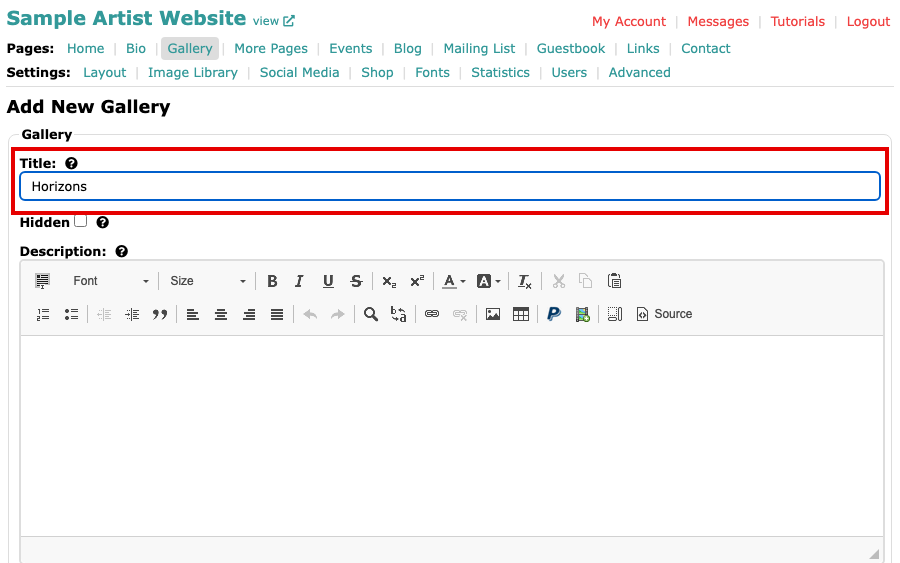
The Title field with Horizons typed in Select Add New Gallery, at the bottom of the form.
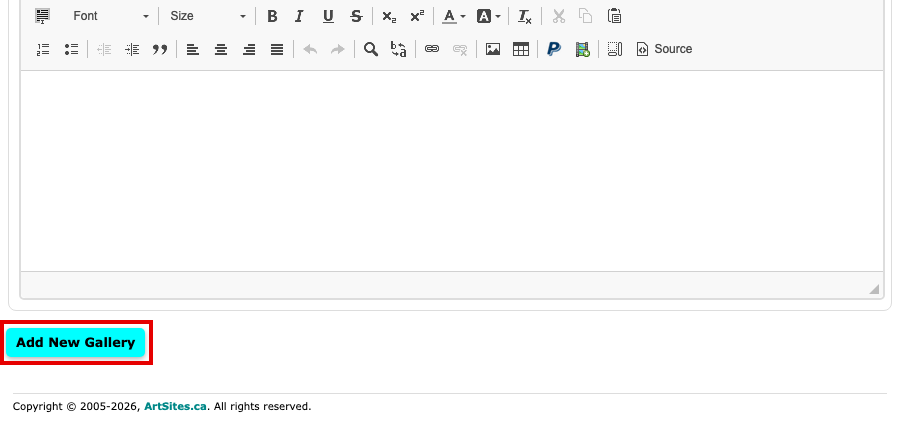
The Add New Gallery button below the Description box 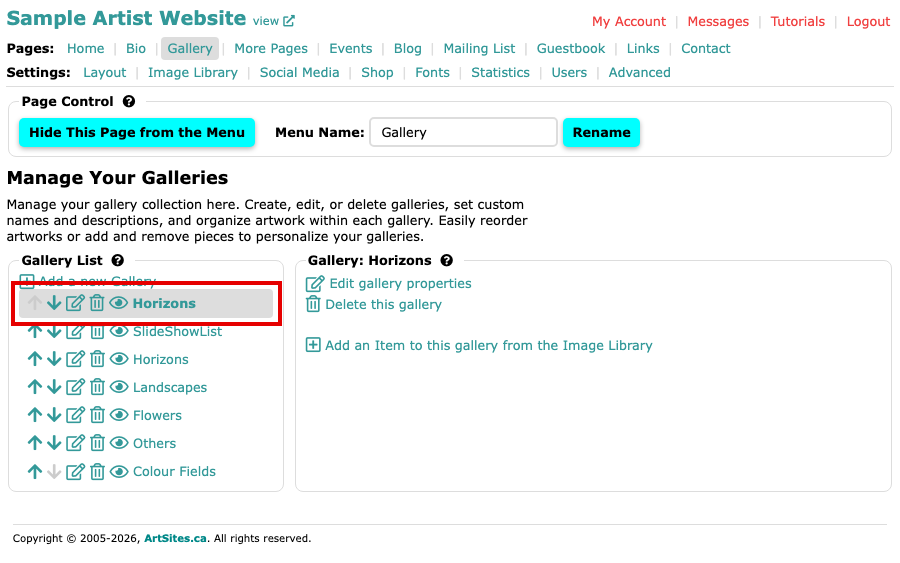
The Gallery page with the new gallery in the Gallery List and selected
Your new gallery appears in the Gallery List, with no images yet. To fill it, select Add an Item to this gallery from the Image Library and choose images, or tick the gallery on an image's edit page, as Add, Remove or Move Images into Other Galleries shows.