Put the images in a gallery in the order you want visitors to see them. A newly added image goes to the top of the gallery, so this is how you move it somewhere else.
Open Gallery in the Pages menu at the top of your admin, then select the gallery in the Gallery List. The gallery's images are listed on the right.
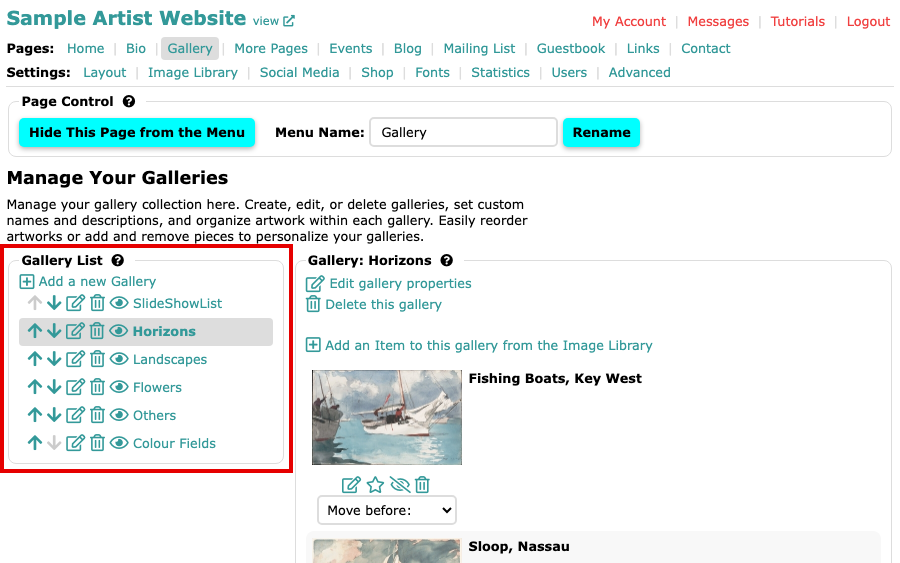
The Manage Your Galleries page, with the Gallery List on the left 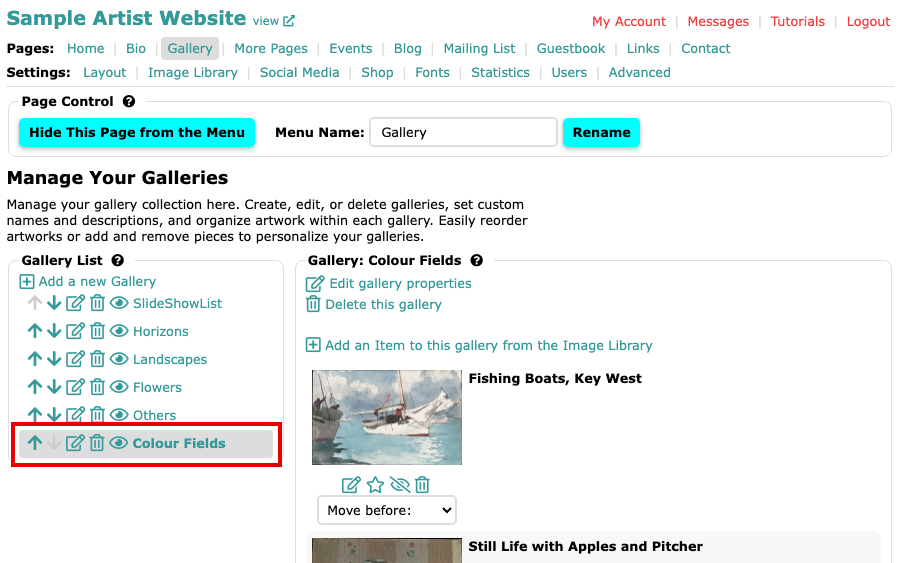
The Colour Fields gallery with its images listed one under another Find the image you want to move. Under its picture is a menu that reads Move before:.
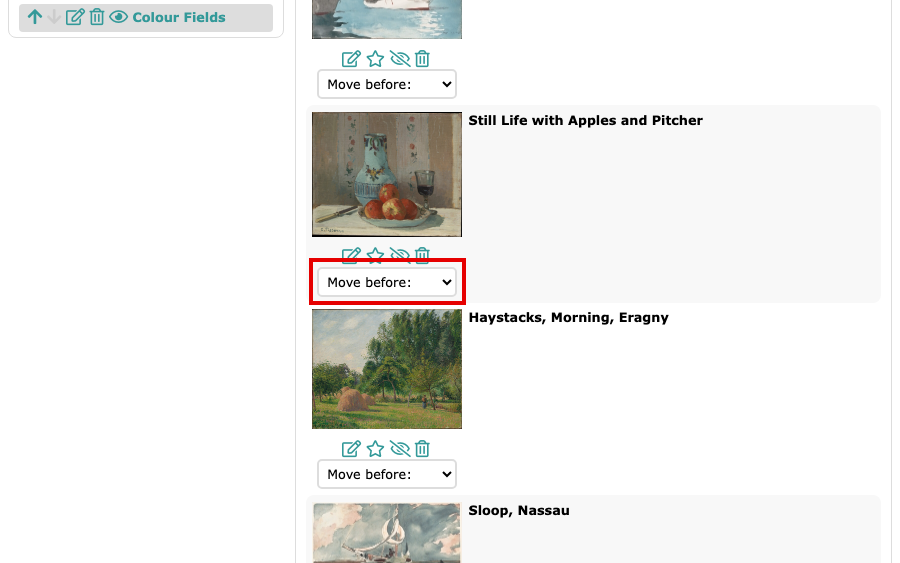
The Move before: menu under the Still Life with Apples and Pitcher image Open the menu and choose the image your image should come before. Choose **after last** to put it at the end. The page reloads straight away, says Image moved, and shows the new order.
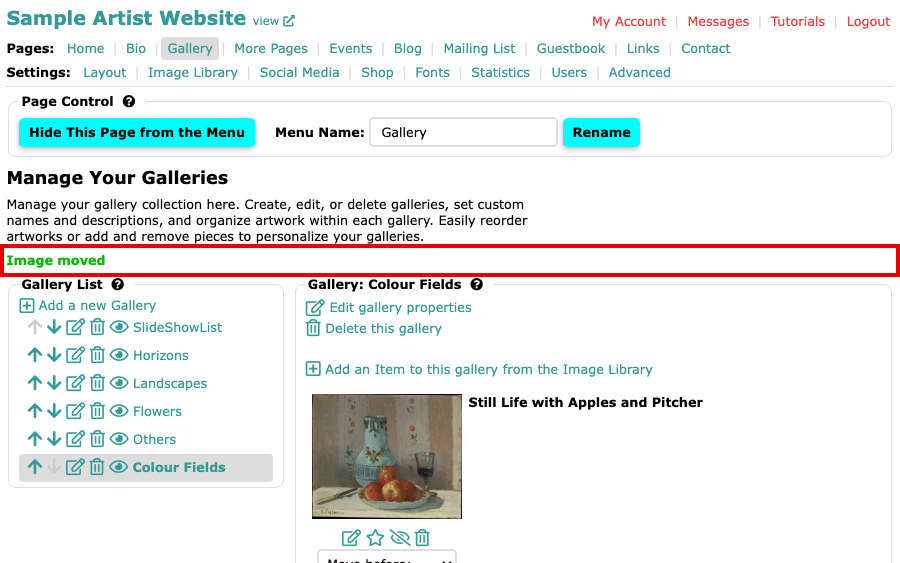
The gallery after the move, with Still Life with Apples and Pitcher now first and Image moved above the list
Repeat for any other image that needs to move. The same order is used on your website's gallery pages.