The Image Library holds every image you have uploaded to your website, whether or not the image is in a gallery. Open it from Image Library in the Settings menu at the top of your admin.
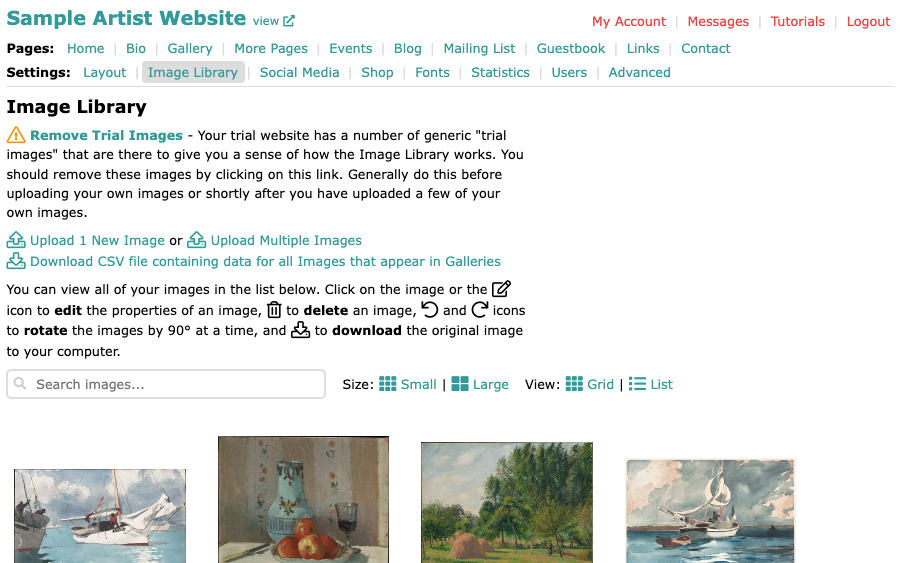
What you can do from the page
Near the top of the page are three links:
- Upload 1 New Image, to upload one image with its title, description and galleries. Upload One Image and Put It in Galleries shows how.
- Upload Multiple Images, to upload several at once. Upload Multiple Images shows how.
- Download CSV file containing data for all Images that appear in Galleries, which gives you a spreadsheet file. Export Image Data as a CSV File shows how.
The images you added or changed most recently come first. Below the links, use the Search images... box to narrow the list as you type, Small or Large to change the size of the pictures, and Grid or List to switch between pictures in rows and one image per line. The list view also shows each image's description.
The icons under each image
- The edit icon opens the image's edit page, as does selecting the picture itself. There you change the title, description and Additional Text, replace the file with Change Image, and choose the galleries the image is in. Add, Remove or Move Images into Other Galleries shows the galleries part.
- The bin icon deletes the image. An image you delete is removed from every gallery it was in, so keep it if you only want it out of one gallery. To take an image out of one gallery, untick that gallery on the image's edit page.
- The two curved arrows rotate the image 90 degrees to the left or to the right.
- The download icon saves the original image you uploaded to your computer.
Trial images
A new website comes with a set of generic trial images so you can see how the Image Library works. While they are still there, the page shows Remove Trial Images at the top. Selecting it deletes those images, and the notice goes away. Remove them before you start filling your galleries, or soon after.
File types and sizes
For the file types ArtSites accepts and the best size to upload, see What Image File Types and Resolution Should I Upload?.