Email a blog post to everyone on your mailing list as a newsletter. Send one now and then, for an exhibition or another event you want people to know about, rather than for every post.
Before you start: have a blog post saved and at least one name on your mailing list.
Open the Pages menu and select Blog. The Blog Posts list opens.
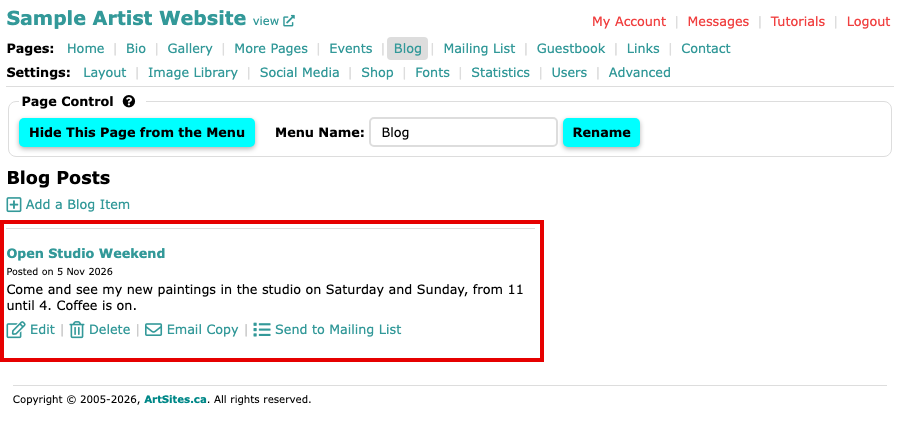
The Blog Posts list, with the post and the links under it Find Send to Mailing List under the post you want to send. A post you have already sent says Sent to Mailing List on and the date, and its link reads Resend to Mailing List.
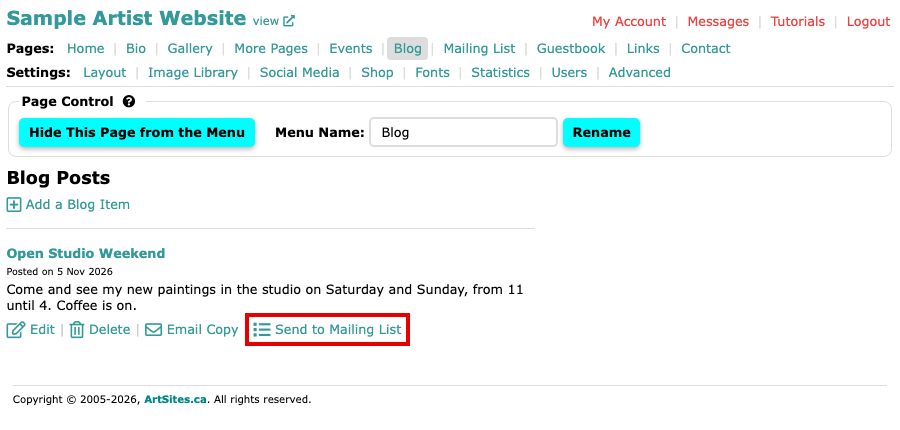
The post's Edit, Delete, Email Copy and Send to Mailing List links Select Send to Mailing List. The Send To Mailing List screen opens. Nothing has been sent yet. It shows who the newsletter comes from, one of the people on your account who has confirmed their email address, and that replies go to the address you chose as Newsletter Send from Email Address on your Mailing List page.
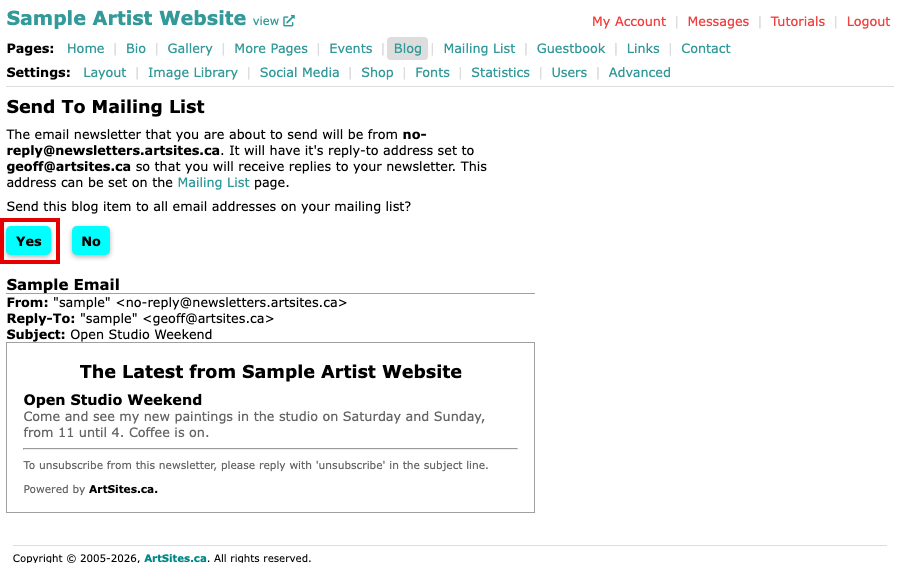
The Send To Mailing List screen, with the Yes and No buttons above a Sample Email Read the Sample Email below the buttons. It is exactly what your readers will get: your post under the heading "The Latest from" and your website's title, with a line telling them how to unsubscribe.
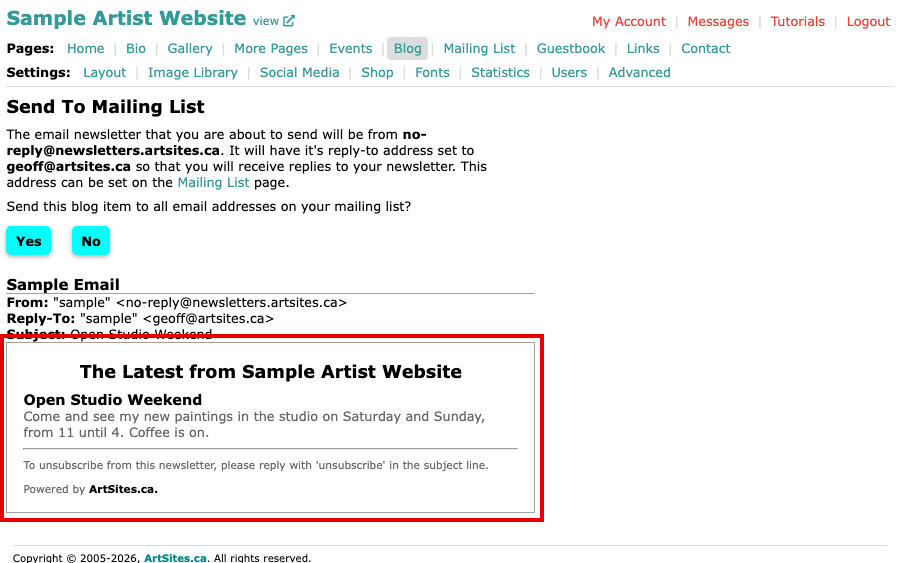
The Sample Email section of the Send To Mailing List screen, with the post inside the email Select Yes to send the post to every address on your mailing list, or No to go back without sending. A Yes cannot be taken back, so check the sample first.
To see the email in your own inbox before it goes to everyone, select Email Copy under the post instead. It asks for one email address, with your reply address filled in, and sends the post to that address only.
When the send finishes, the Blog Posts list names the addresses it reached. If any address fails, it names those too, and the post is not marked as sent. To change the address replies go to, or the title at the top of the email, use your Mailing List page.
If the Send To Mailing List screen asks you to verify your sending address first, follow what it says, then the same steps apply. If you get stuck, contact us.