Add an event, such as an exhibition or a class, to your website's Events page from Manage Events in your admin.
Before you start: sign in to your website's admin and have the event's name, dates and place ready.
Open the Pages menu and select Events. Manage Events opens.
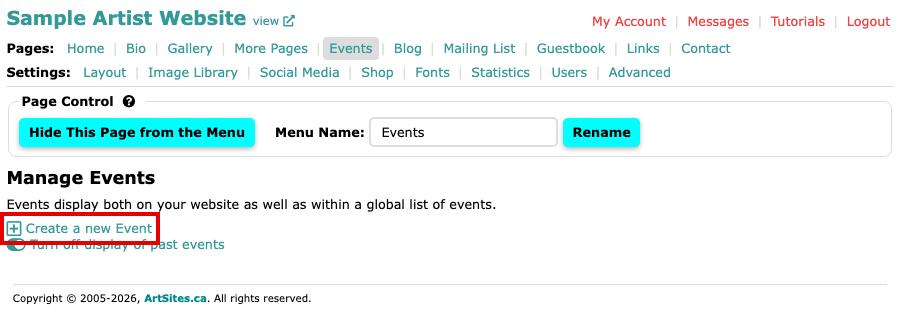
The Manage Events screen with the Create a new Event link and no events yet Select Create a new Event. The Create New Event form opens. Most fields are optional, and the form asks you to fill in as many as you can.
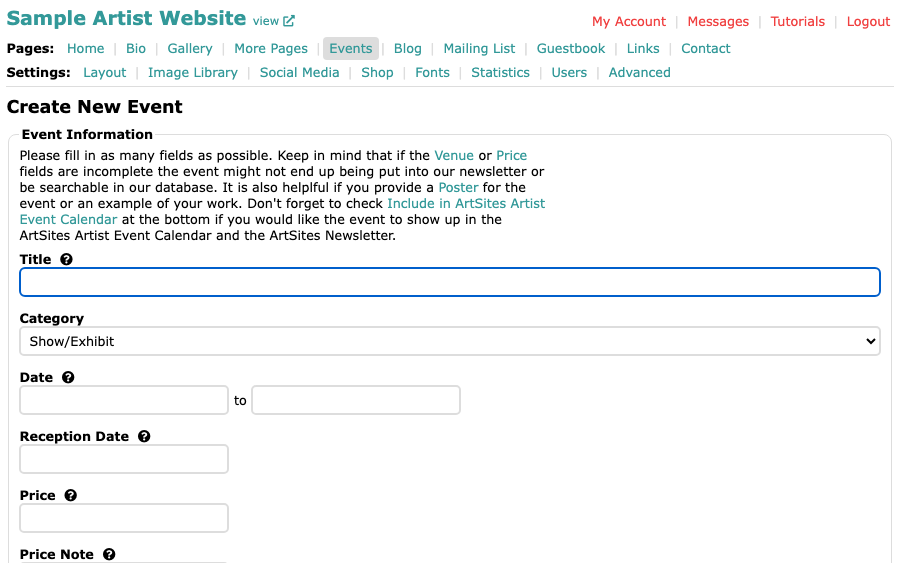
The Create New Event form with its empty fields Type the event's name in Title. Choose a Category if Show/Exhibit, the starting choice, does not fit; the others are Workshop/Class and Other.
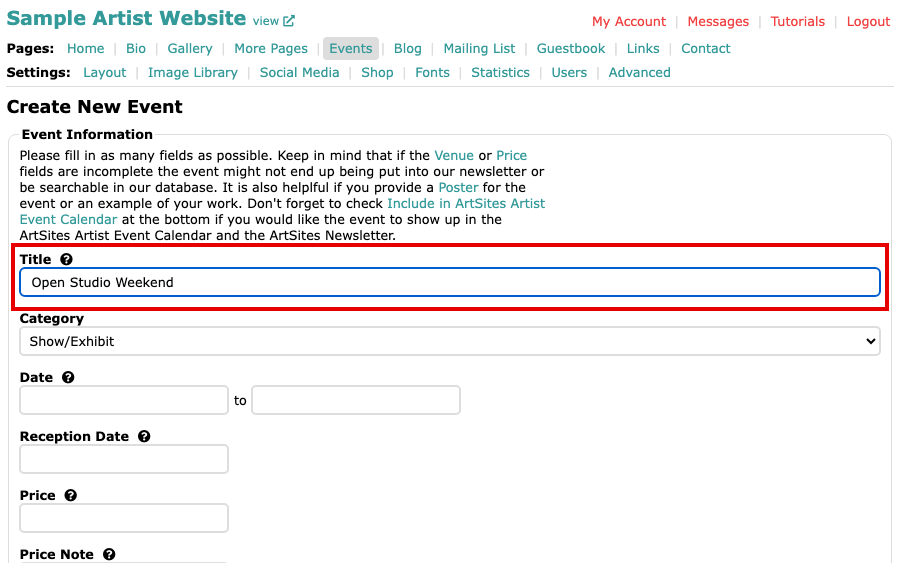
The Title field with an event title typed in Under Date, type or pick the first day. For a one-day event, use the same day for both dates.
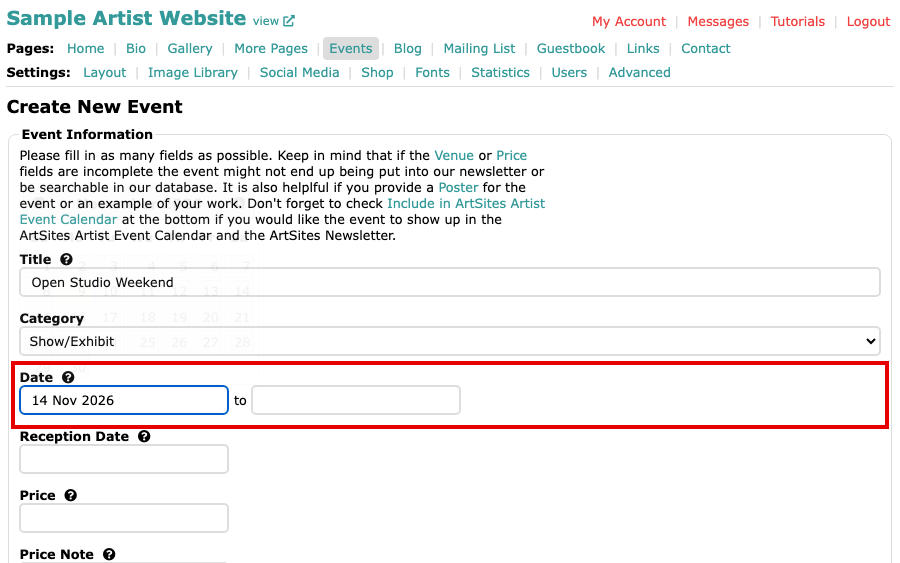
The first Date field with the start day filled in Fill in the last day after to. It cannot be earlier than the first day.
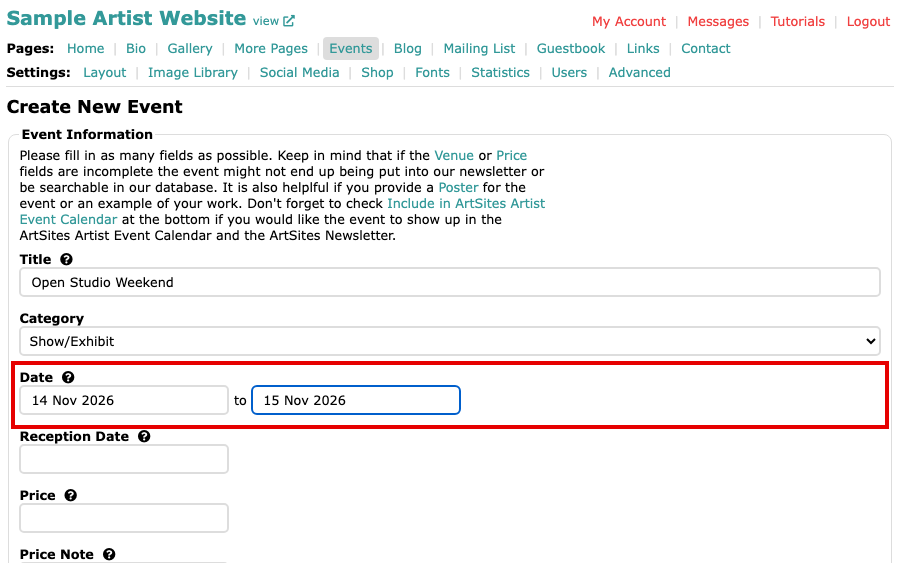
Both Date fields filled in Type where the event is in Venue. Pick one of the suggestions that appear as you type if one matches, so the place can be shown on a map. Venue Link, Event Page Link, Reception Date, Price, Price Note and a Poster from your Image Library are optional.
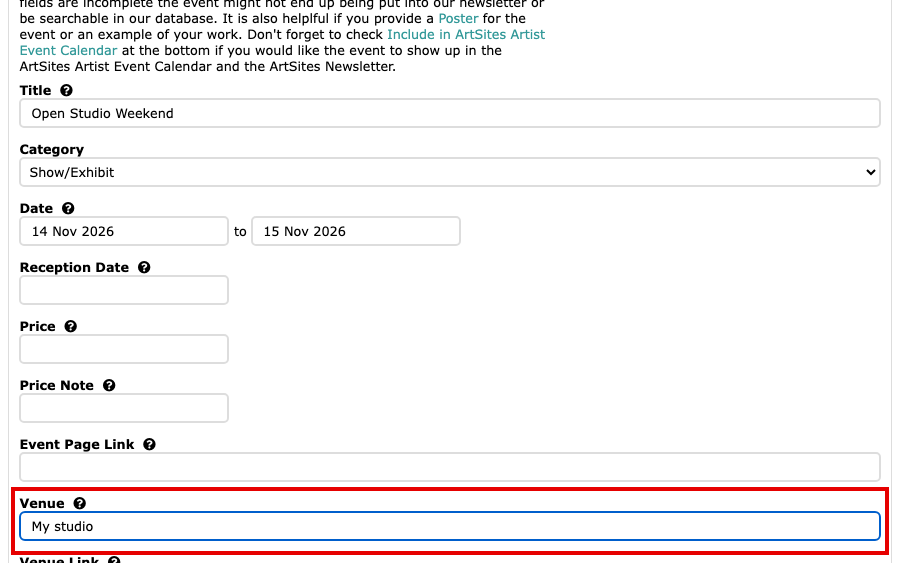
The Venue field with a venue typed in Write the details in Description. Only line breaks are kept as formatting.
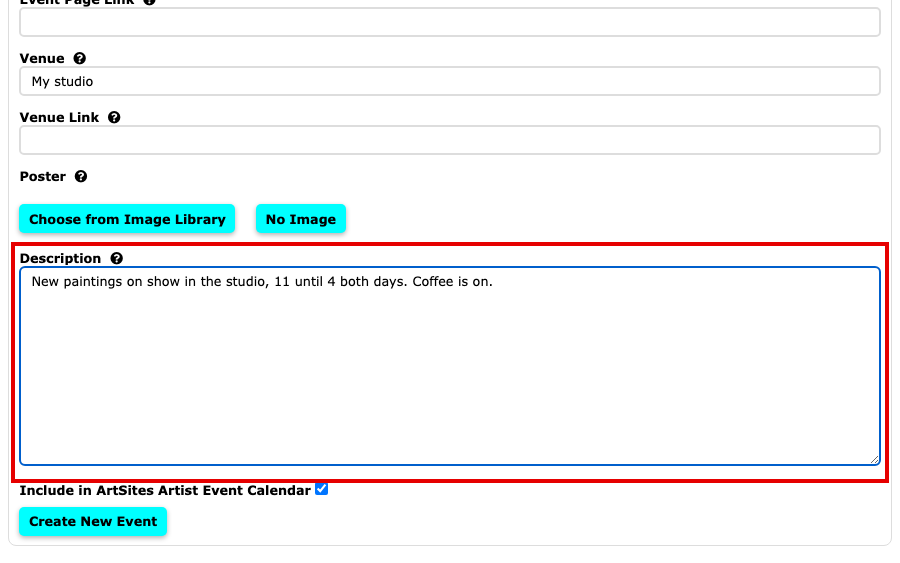
The Description box with the event's details typed in Decide about Include in ArtSites Artist Event Calendar. It starts checked. Leave it checked if you want the event to show up in the ArtSites Artist Event Calendar and the ArtSites Newsletter, and clear it if you do not.
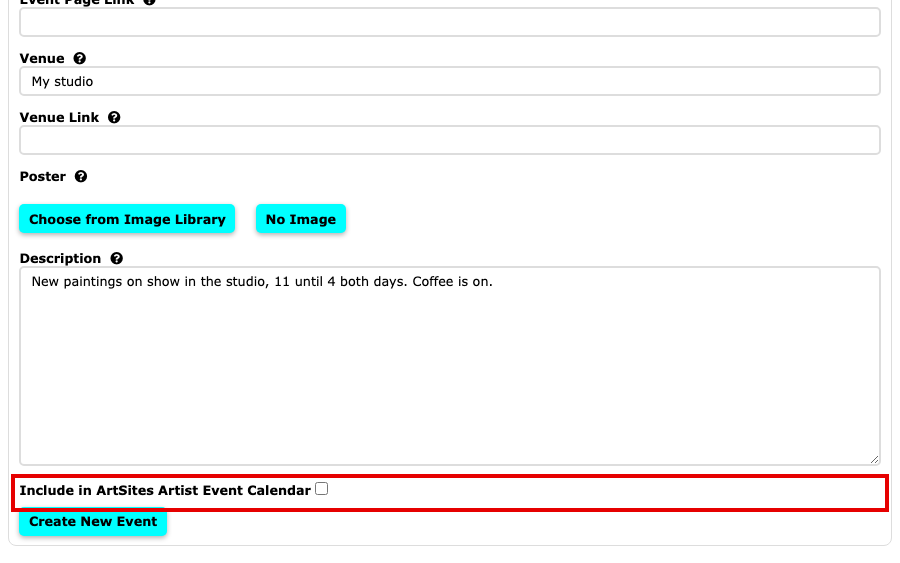
The Include in ArtSites Artist Event Calendar box, cleared Select Create New Event at the bottom of the form.
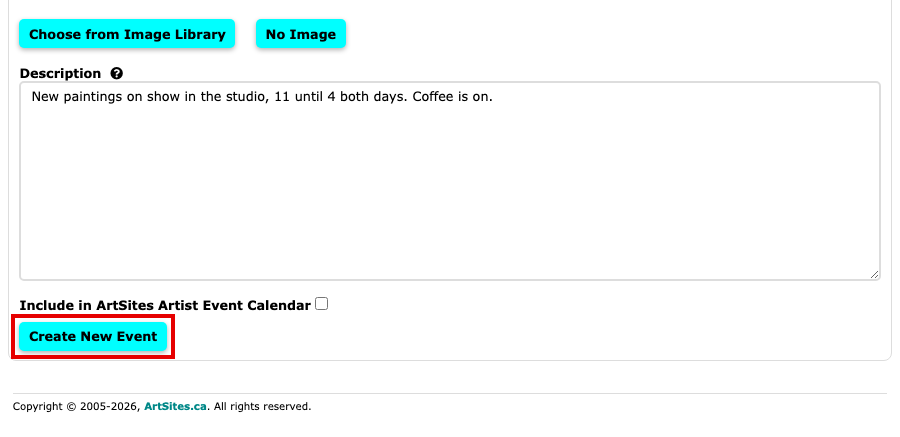
The Create New Event button at the bottom of the form Manage Events lists the event under Current and Upcoming Events.
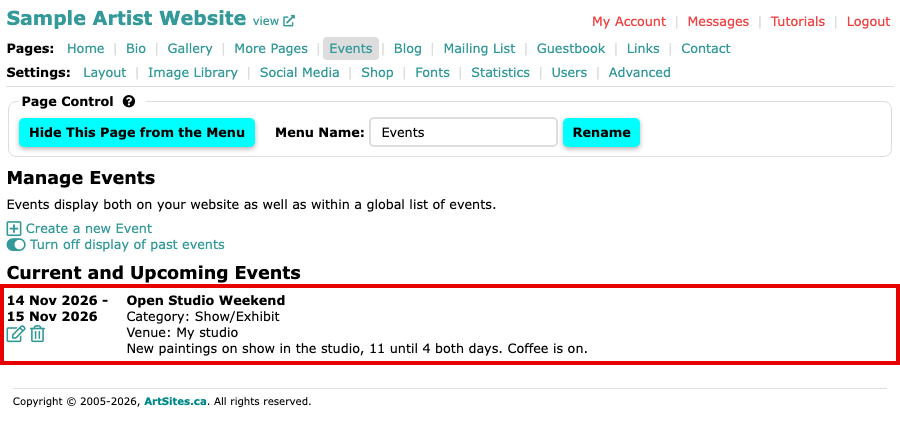
Manage Events with the new event listed under Current and Upcoming Events
The event now shows on your website's Events page. To change it, select the pencil icon beside it, make your changes and select Update Event. To remove it, select the bin icon and confirm. Once an event's dates pass, it moves under Past Events, and Turn off display of past events hides those from your website.