Upload one image with its title and galleries on a single form. The image goes into your Image Library and into every gallery you tick.
Before you start: have the image saved on your computer as a JPEG, PNG or HEIC file, and have your galleries ready. What Image File Types and Resolution Should I Upload? explains which file to choose, and Add a New Gallery shows how to make a gallery.
Open Image Library in the Settings menu at the top of your admin.
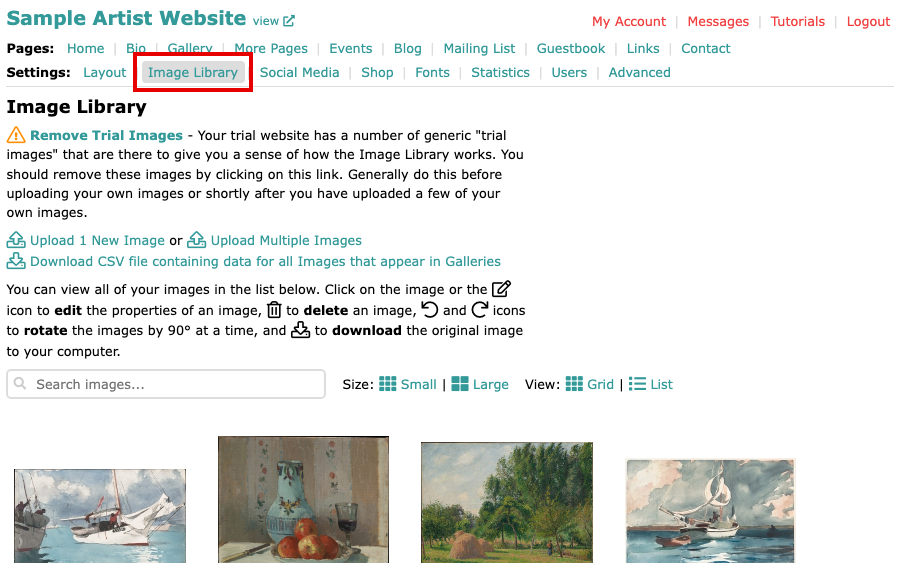
The Image Library page with Image Library selected in the Settings menu Select Upload 1 New Image.
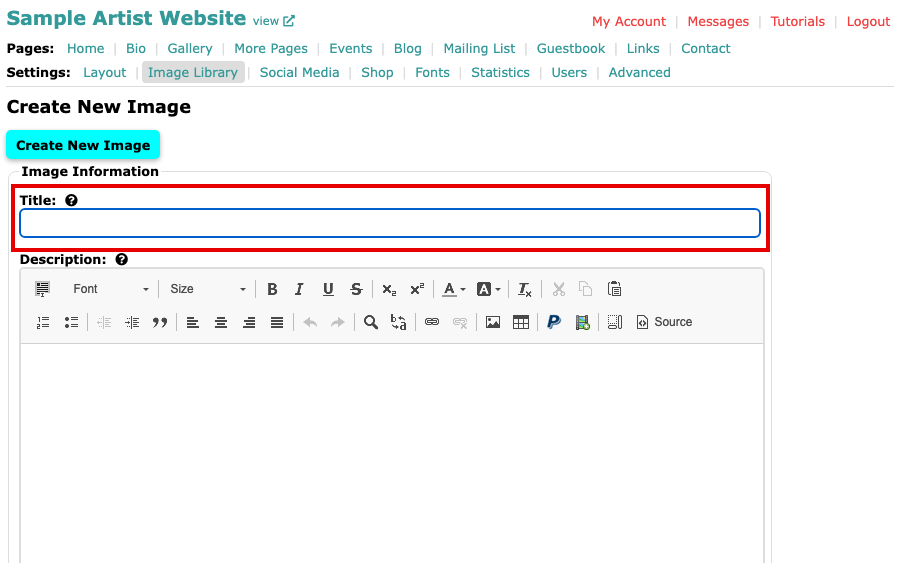
The Create New Image page, with an empty Title field Type a Title if you have one. A title is optional.

The Title field with Still Life with Apples and Pitcher typed in Select Choose Image and pick the file from your computer. Its name shows beside the button, and a preview of the image appears above it.
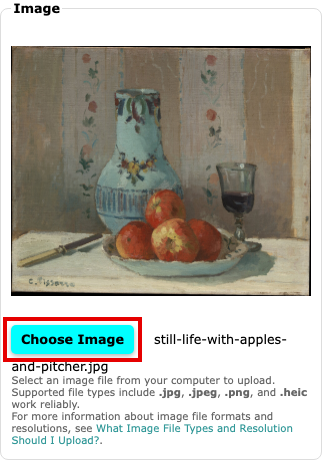
The Image box showing a preview of the chosen image, with the Choose Image button boxed below it Under Include in Galleries, tick each gallery the image should be in. One image can be in several galleries.
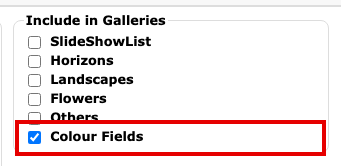
The Include in Galleries list with Colour Fields ticked 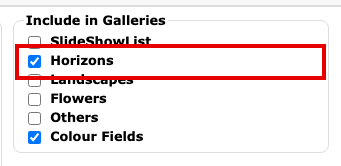
The Include in Galleries list with Colour Fields and Horizons ticked Select Create New Image. The button is at the top and at the bottom of the form. Wait for the upload to finish, which can take a minute or two for a large image on a slow connection, and select the button only once.
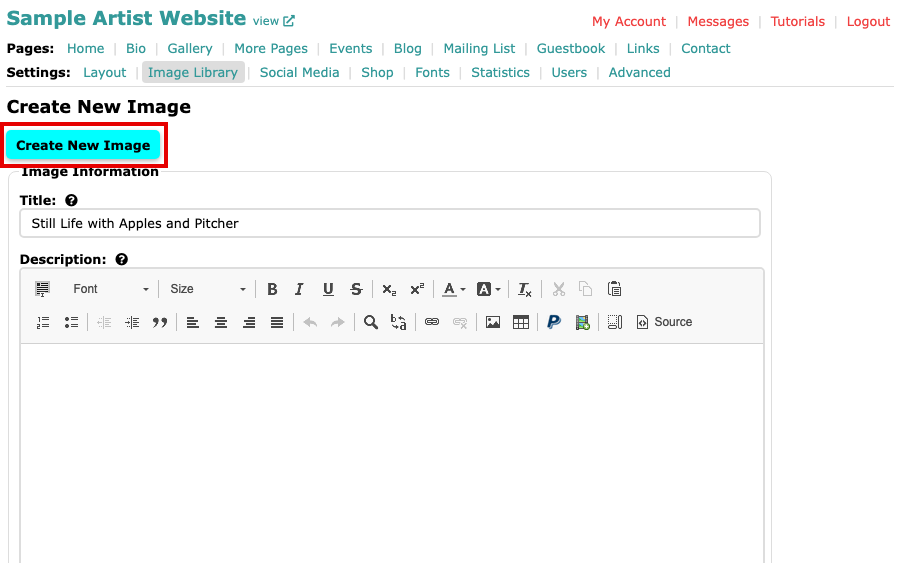
The Create New Image button at the top of the form, with the title filled in 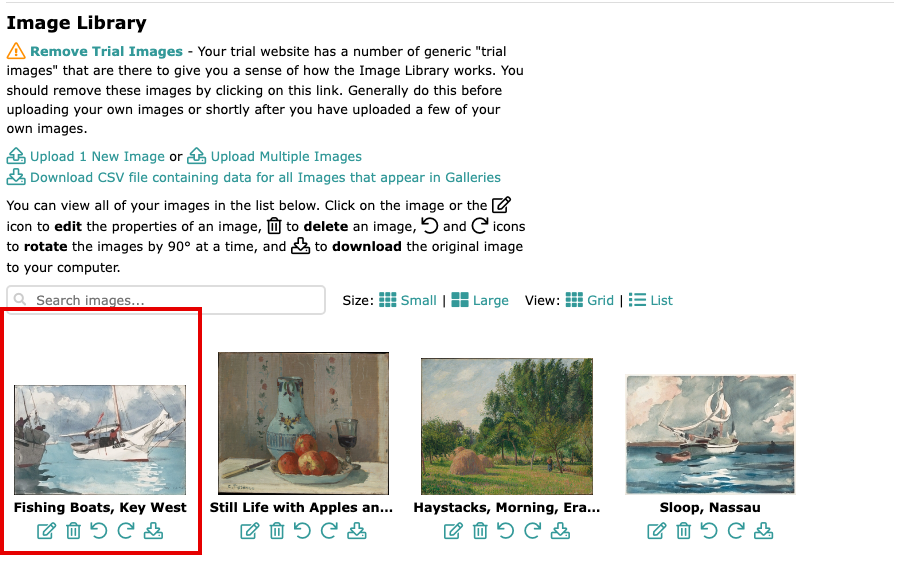
The Image Library, with the new image among your images
The page returns to your Image Library, says Successfully inserted new image, and shows the new image at the start of the library.
Other things on the form
The Description box is for the details of the work, such as its size and materials. Additional Text is shown below the image in some layouts, so if you fill it in and see nothing on your website, your layout does not show it.