Renew your website from My Account. The renewal page shows every way to pay, and nothing is charged until you select a payment button. Ways to Pay for Your Website explains which suits you.
Before you start: if you pay monthly, you do not renew by hand. Your card is charged automatically, and My Account says when. Renewal notices go to the people with Billing on your account, see The People on Your Account.
Select My Account at the top right of any admin screen. It opens on Status & Renewal, which says when your website expires.
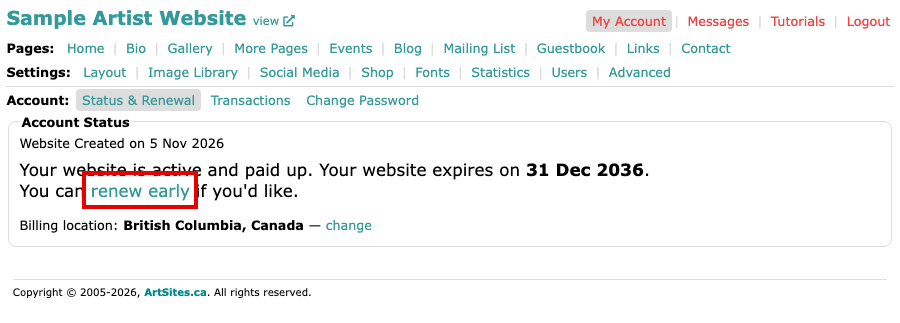
My Account on Status and Renewal, with the website's expiry date and a renew early link Select Renew here. When your renewal is not yet close, the link reads renew early and works the same way. The renewal page opens.
Check your Billing location at the top of the renewal page. If it is wrong, select change beside it and save the new one, so the right tax is added.
Look at the one-year choice. It shows what you will pay for a year, with the Pay by Credit Card or PayPal button below it. Select it to pay by card. PayPal's secure page opens, where you choose to pay as a guest. You do not need a PayPal account, and you can skip PayPal's offer to save your details.
Look at the monthly choice below it, with the Subscribe with PayPal button. It needs a PayPal account, and it is the only choice that renews by itself.
To pay by Interac e-Transfer or cheque instead, read the details under the buttons. They give the total to pay and where to send it. If you are outside Canada, only the cheque is offered. After you send a cheque, email us so we know it is coming.
Your renewal is complete once the payment goes through. If you are unsure whether it did, see Questions About Paying and Renewing.