Your website's title and tag line appear at the top of every page. Change either whenever you like.
Open Layout in the Settings menu at the top of your admin, and scroll down to the Website Header box.
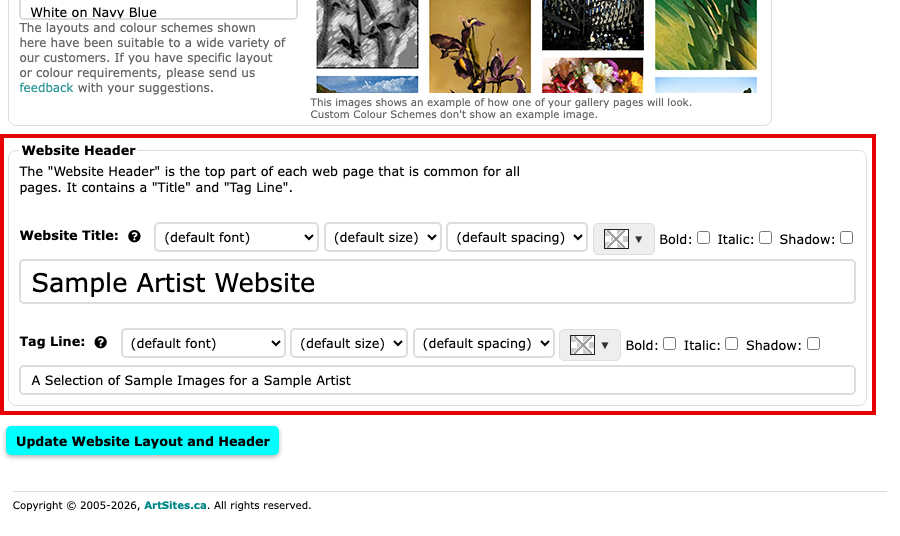
The Website Header box, with the Website Title and Tag Line boxes Type your new Website Title.
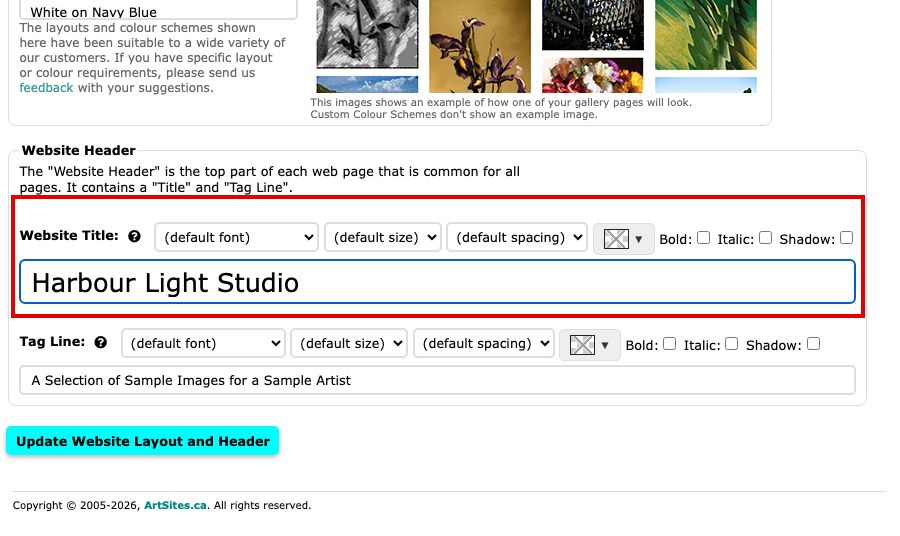
The Website Title box with a new title typed in Type your new Tag Line, a short phrase that describes your website. Search engines read it, so choose the words with care.
Select Update Website Layout and Header to save. The button is at the top and at the bottom of the page.
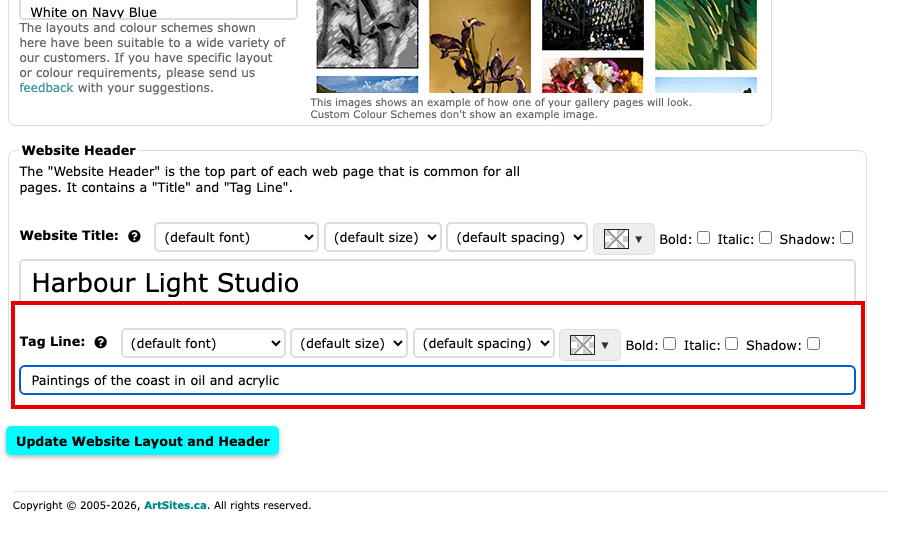
The Website Title and Tag Line boxes with new words typed in, above the Update Website Layout and Header button
Your new title and tag line now show at the top of every page. Beside each box are choices for its font, size, spacing and colour, and Bold, Italic and Shadow boxes; Changes We Make for You says more. To show an image in place of your title, see Add a Title Image.