Your layout is the overall design of your website, and your colour scheme is the set of colours it uses. Change either one whenever you like. Your content stays as it is.
Open Layout in the Settings menu at the top of your admin.
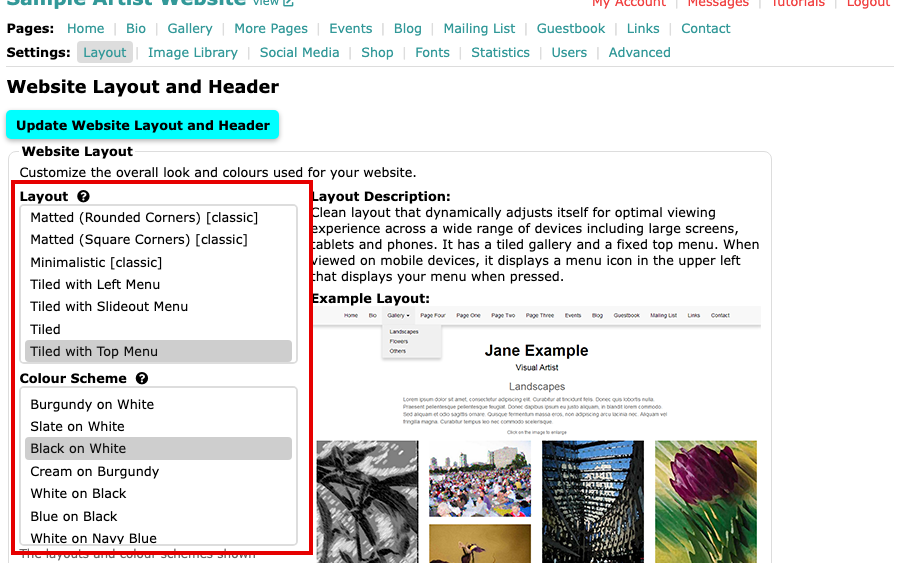
The Website Layout and Header page, with the Layout and Colour Scheme boxes Select a layout in the Layout box. The Layout Description beside the boxes changes to describe it.
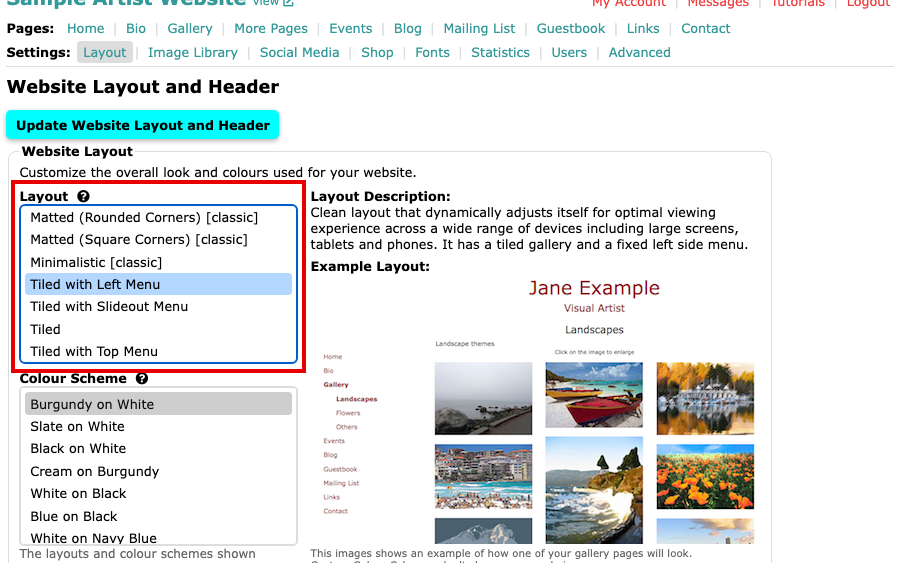
The Layout box with Tiled with Left Menu selected and its description beside it Select a colour scheme in the Colour Scheme box. The schemes on offer belong to the layout you chose, so the list changes when you choose another layout. The last item in the list, Custom, is for choosing every colour yourself: see Create a Custom Colour Scheme. If your list has no Custom, your plan does not include it, and our pricing page has the plans.
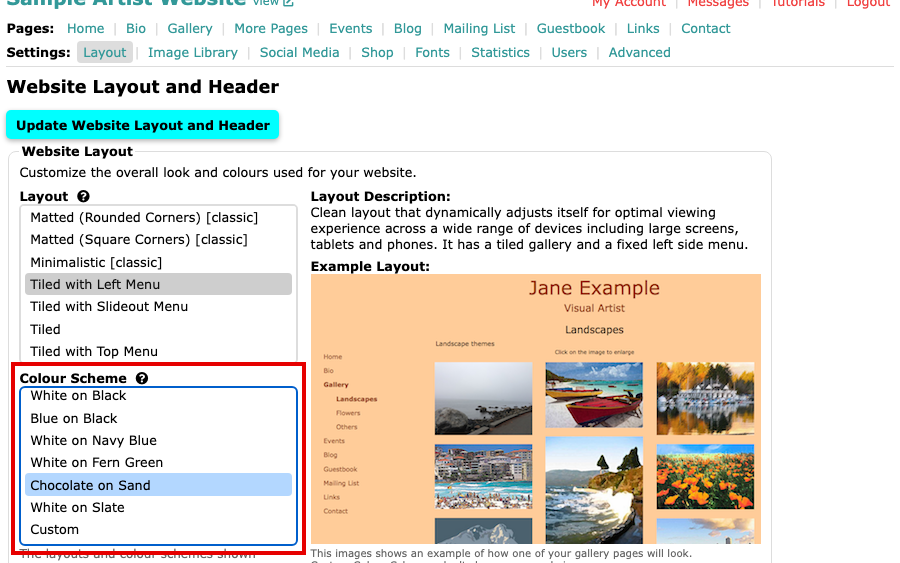
The Colour Scheme box with Chocolate on Sand selected Check the Example Layout, a picture of how one of your gallery pages will look with your choices. Then select Update Website Layout and Header to save. The button is at the top and at the bottom of the page. Nothing changes on your website until you do.
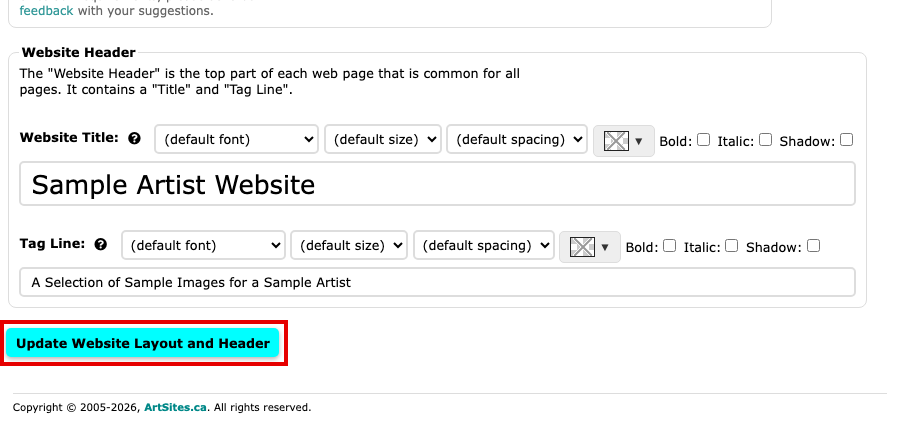
The Website Header box, above the Update Website Layout and Header button
To see what each layout does with your images, and why the gaps and sizes in a gallery are set for you, read How Gallery Layouts Place Your Images.
Select view beside your website's title at the top left of the admin to see your website with its new look. To change the words at the top of every page, see Change Your Title and Tag Line.