A title image replaces the title text at the top of every page with a picture, such as your signature or logo.
Before you start: make the image outside ArtSites in an image editor, about 500 pixels wide by 100 pixels high. The image is not resized, and a larger one may look cropped, so how it looks depends somewhat on your layout. Choose a background that matches your colour scheme's background.
Upload the image to your Image Library, and give it a Title. You choose it by that title in step 3. You do not need to put it in a gallery.
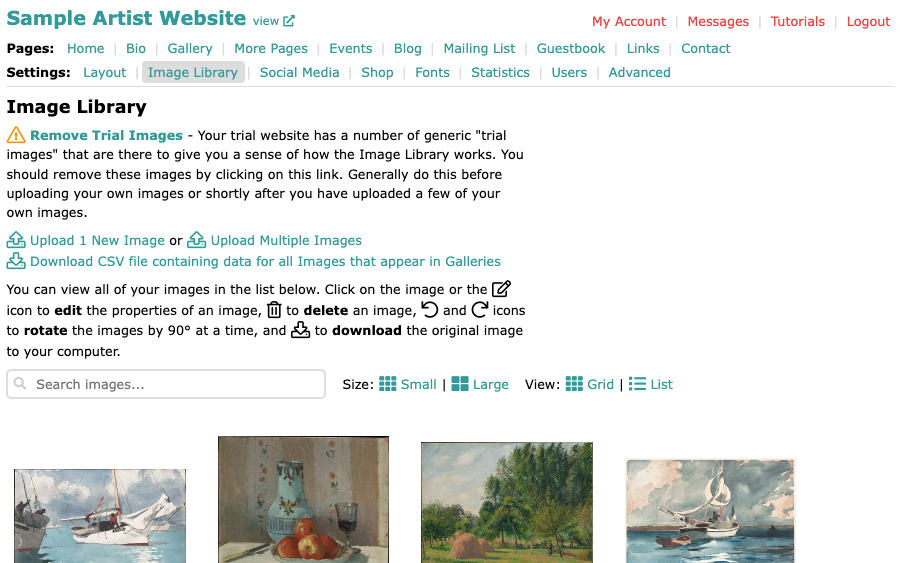
The Image Library, with its upload links and the first row of images Open Advanced in the Settings menu and find Title Image.
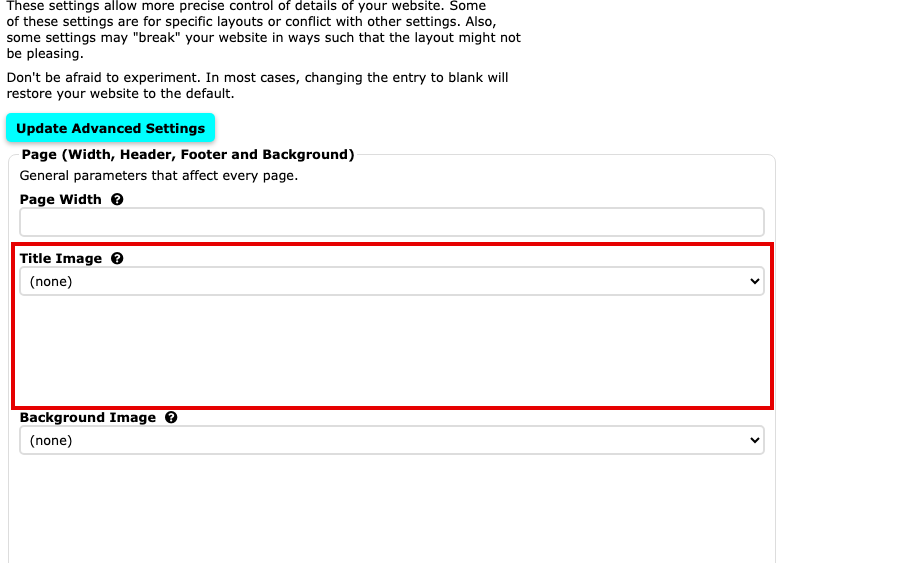
The Title Image box on the Advanced Settings page, showing (none) Open the Title Image list and choose your image by its title. A preview of the image appears below the list.
Select Update Advanced Settings to save. The button is at the top and at the bottom of the page.
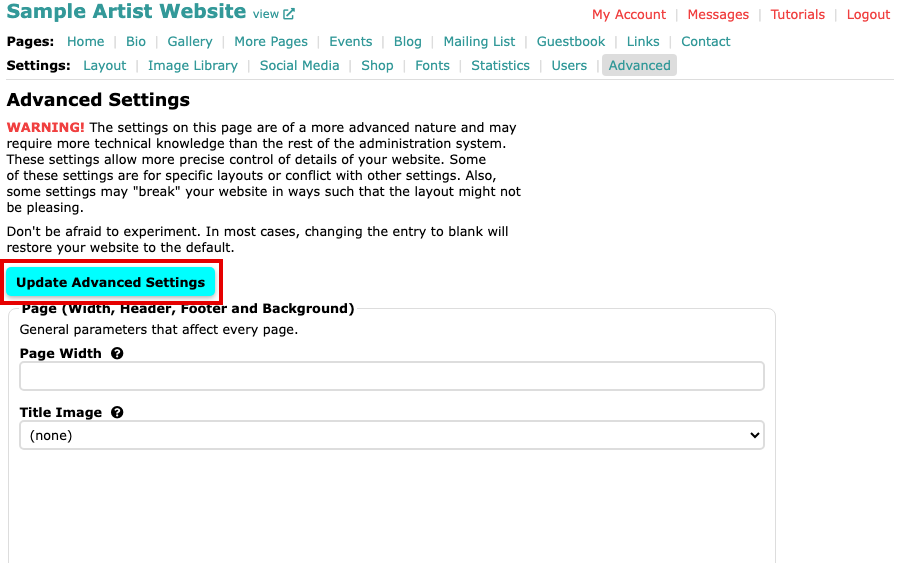
The Update Advanced Settings button at the top of the Advanced Settings page
Your image now shows at the top of every page in place of your Website Title. To go back to the title text, choose (none) in the Title Image list and save again.