Email a person on your account a link to choose a password, or to confirm that their email address is theirs. The people on your account explains why both matter.
Before you start: you need the person on your account already. To add one, see Add a Website User. Each link below sends a real email as soon as you select it, so select it once and wait a few minutes.
Select Users in the Settings menu. The Website Users screen lists the people on your account.
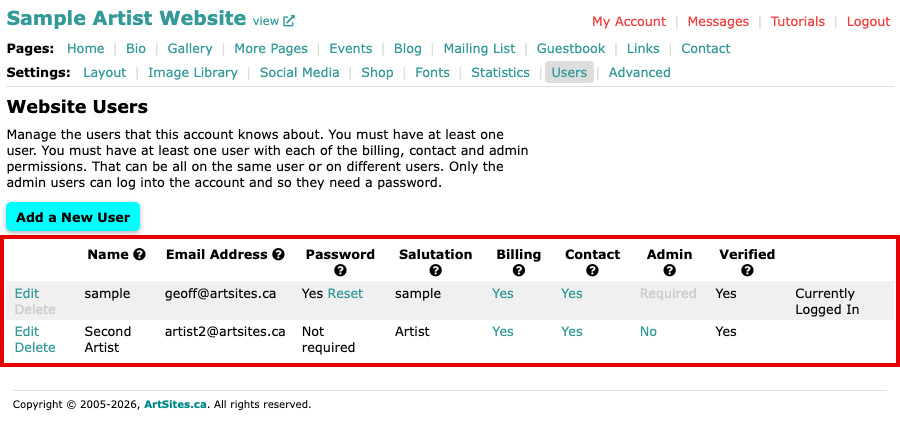
The Website Users screen, with the Password and Verified columns Look at the Password column. It applies only to people with Admin, because only they sign in; for everyone else it reads Not required. Select the question mark beside Password to read what the column means.
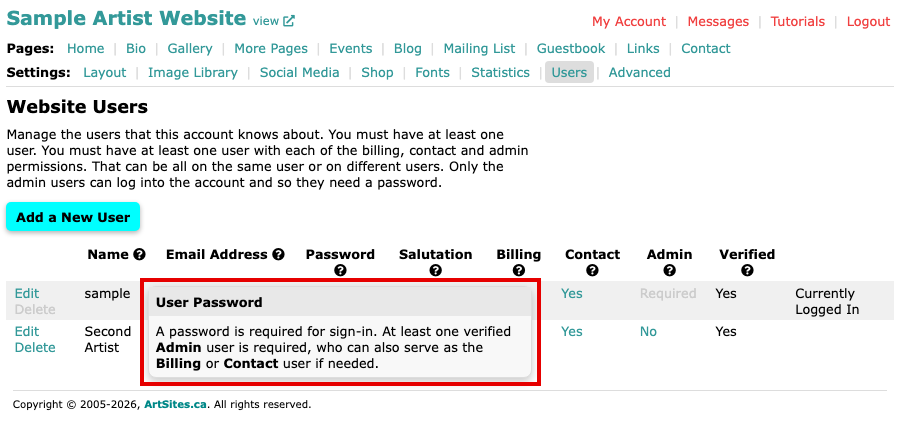
The help box for Password, open over the Users list Beside an Admin, select Set if the column says No because they have no password yet, or Reset if it says Yes and they have forgotten it. We email them a link, and a message above the list says where it went. The link lets them choose a password.
If the person's email address is not yet confirmed, the Verified column shows a link instead of Yes. It reads Verify when the last email's link has run out, or "Verification email expires" and how long is left while it still works. Select it to send the confirmation email again. The person selects the link in the email to confirm the address belongs to them. An Admin with no password is then asked to choose one.
When the email arrives, the person follows its link and the Verified column shows Yes. If it does not arrive, ask them to check their spam folder.
The sign-in page's Forgot your password? works for anyone with Admin too, so a person can ask for the email themselves. See Sign In to Your Website's Admin, and Reset a Forgotten Password.