Take someone off your account, for example when a bookkeeper or assistant moves on. They can no longer sign in to your admin or receive your account's emails. The people on your account explains the roles they held.
Before you start: make sure someone else holds every role the person holds. Your account always needs one person with each of Billing, Contact and Admin.
Select Users in the Settings menu. Each row of Website Users has Edit and Delete at its left.
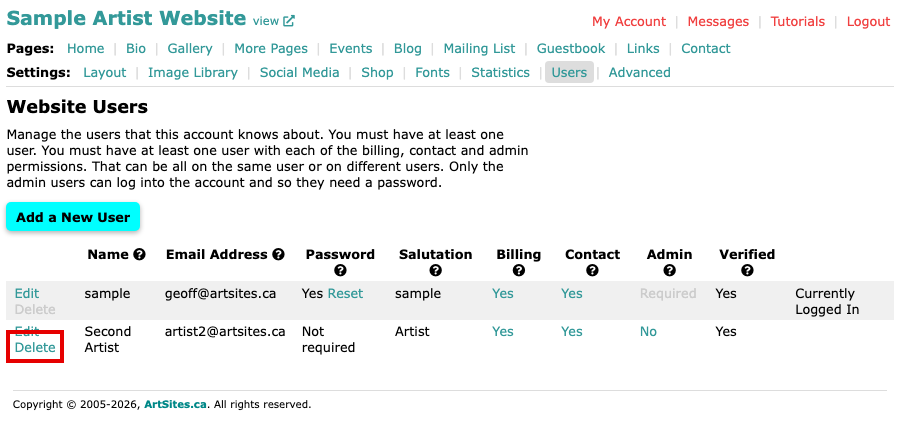
The Website Users screen, with Delete as a link beside the second person and greyed out beside the signed-in person Select Delete beside the person. A box asks whether to delete that email address from the account.
Confirm in the box. The person is removed from the list straight away. It cannot be undone, but you can add them again with Add a New User.
When Delete is greyed out
Delete is grey, with no link, in these cases:
- It is your own row, the person you are signed in as.
- The person is the only one on the account.
- The person is the only one with Billing, Contact, or the only confirmed person with Admin.
Move the role to someone else first with the Yes and No links, as Change What a Website User Can Do shows, and Delete comes back. To remove yourself, ask another Admin to sign in and do it.