Change what a person on your account does: who gets your renewal notices, who gets visitors' messages and who can sign in. You can also correct a name or an email address. The people on your account explains what each role means.
Before you start: you need a second person on your account. To add one, see Add a Website User.
Select Users in the Settings menu. Website Users lists everyone on your account. The Billing, Contact and Admin columns show what each person does.
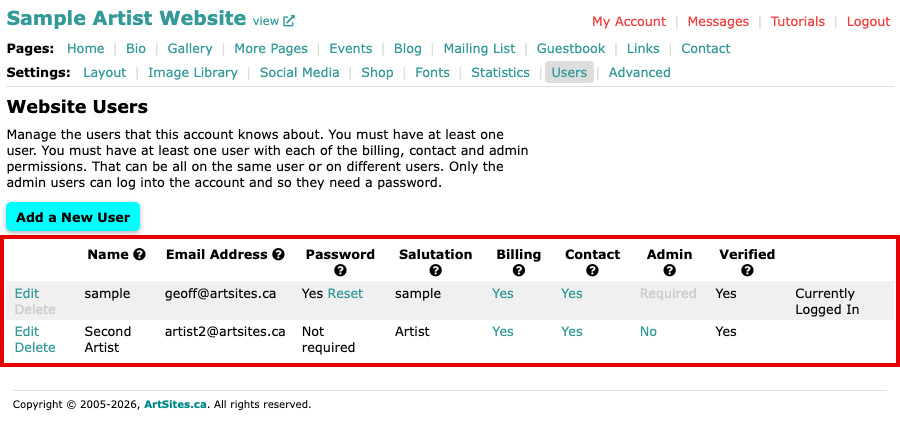
The Website Users screen, with two people and their Billing, Contact and Admin columns Select Yes in a column to switch that role off for the person, or No to switch it on. It happens at once, and a message above the list says what changed. No email goes to the person.
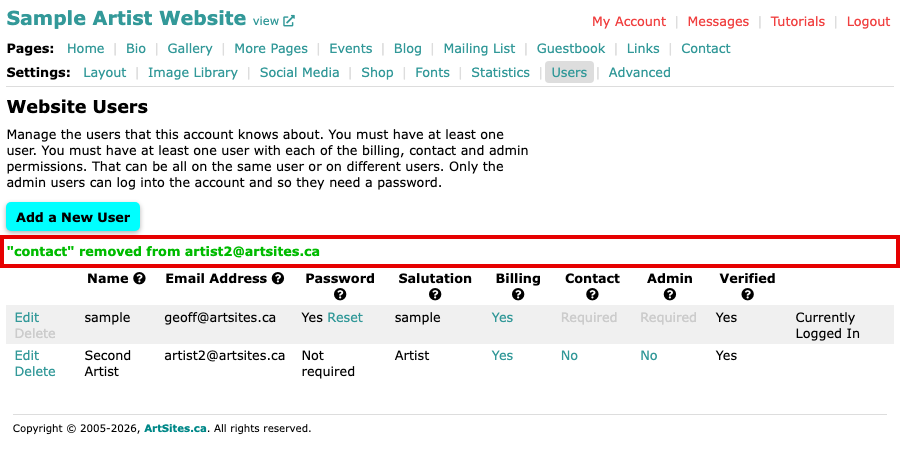
The Contact column set to No for the second person, with a message above the list saying contact was removed from them Switch it back the same way. The message now says the role was added.
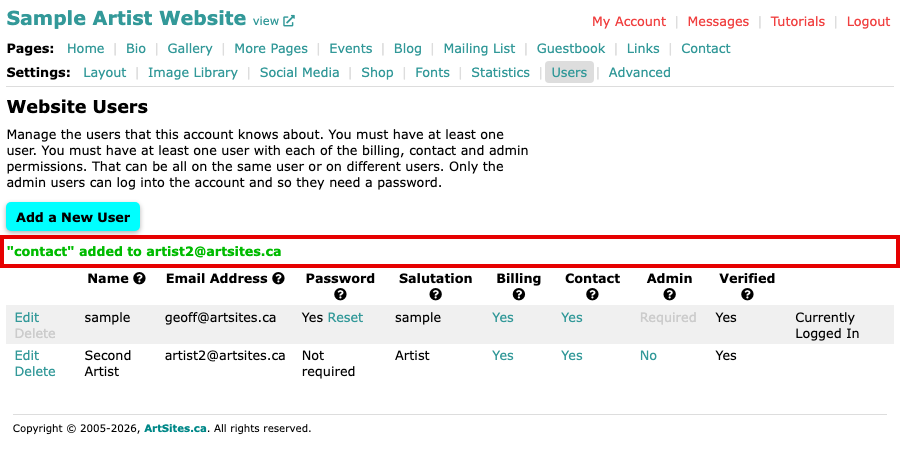
The Contact column set back to Yes, with a message above the list saying contact was added To change a person's details, select Edit beside them. The Edit a User form opens with Name, Salutation and Email Address, and the three roles as boxes.
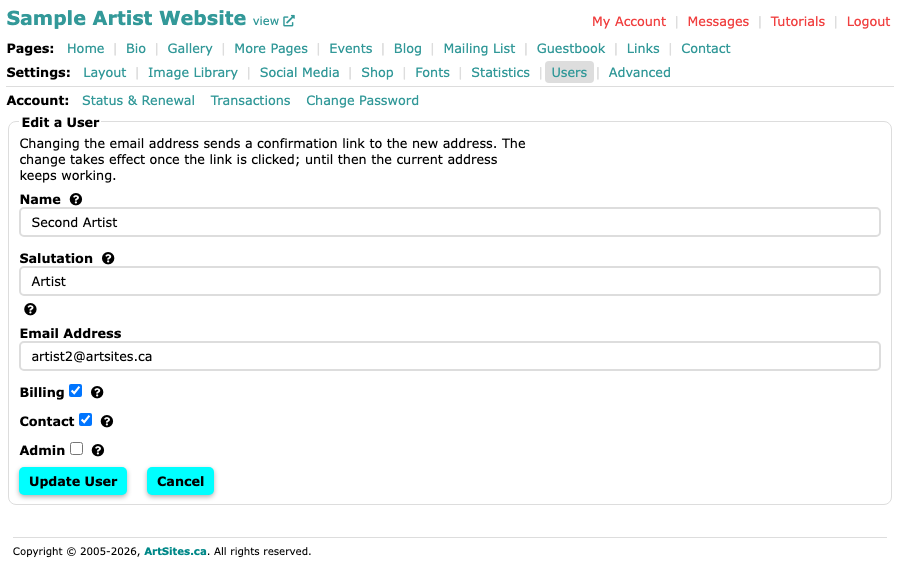
The Edit a User form with the person's name, salutation, email address and roles Make your changes, then select Update User.
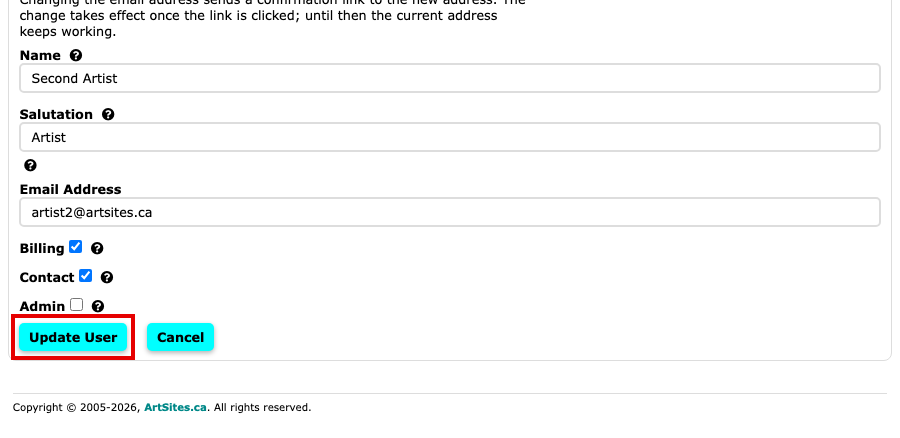
The Update User button under the form
Why a cell says Required or Logged In
Your account always needs someone with each role, so a column reads Required in grey, with no link, beside the only person who holds that role. In the screenshot above, you can see it for Contact and Admin beside the signed-in person once the second person's Contact is off. Give the role to someone else first, then switch it off.
In the Admin column, the person who is signed in reads Logged In when others hold Admin too, because you cannot remove your own admin rights while you are signed in as yourself.
If you change an email address
When you change someone's Email Address and select Update User, we send a confirmation email to the new address. The change waits until they select the link in it, and until then their current address keeps working, for signing in and for your account's emails. If you changed your own address, check the new inbox for the email.
While the change waits, the Website Users screen shows it beside the person, with Send again to send the link once more and Cancel to drop the change. If you mistyped the address, cancel the change, or select Edit and type the right one.