If none of the ready-made colour schemes suits your work, choose your own colours for the background, text, links and more.
Open Layout in the Settings menu at the top of your admin. At the end of the Colour Scheme box, select Custom. Edit custom colour scheme appears in place of the example picture, because a custom scheme has no example. If your list has no Custom, your plan does not include it, and our pricing page has the plans.
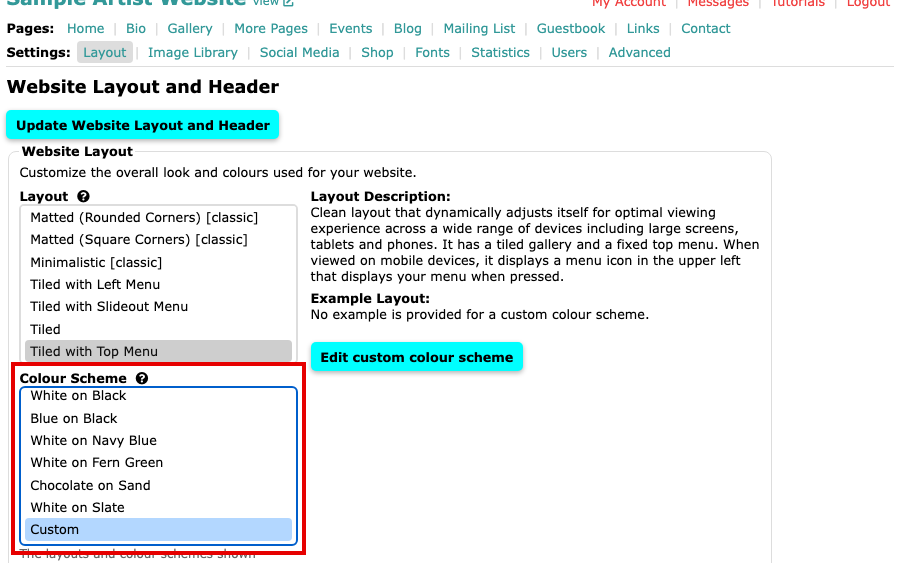
The Colour Scheme box with Custom selected and the Edit custom colour scheme button beside it Select Edit custom colour scheme. This saves your layout and your choice of Custom, and opens the Custom Colour Scheme page. Each colour sits in a box with a small arrow.
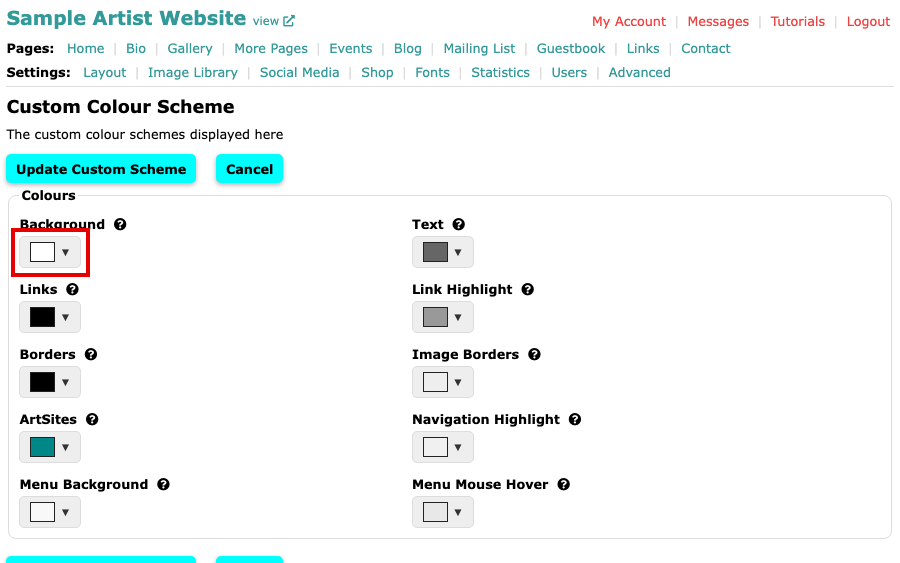
The Custom Colour Scheme page with a box for each colour Select the box of a colour you want to change, such as Background. A palette of colours opens. Select a colour in it. Select more under the palette to choose a colour that is not in it.
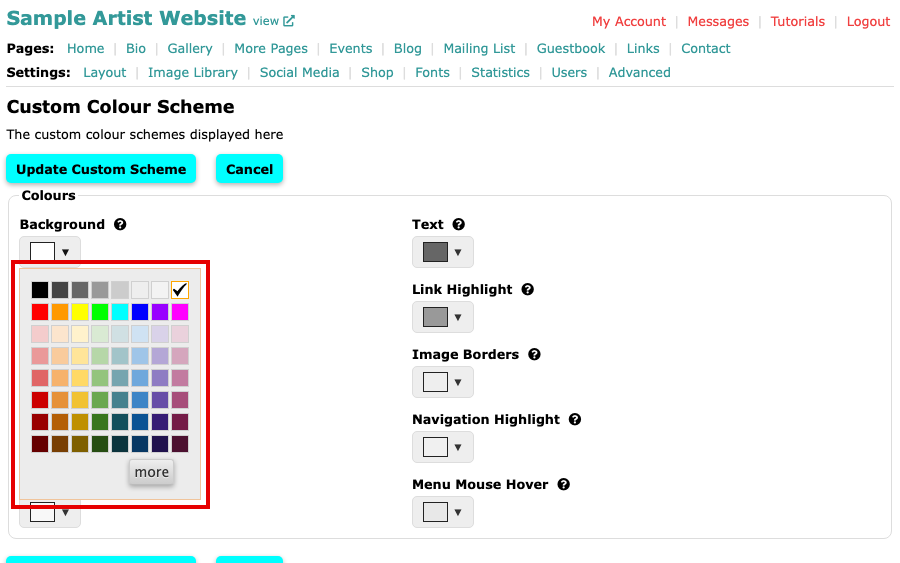
The palette open under the Background box 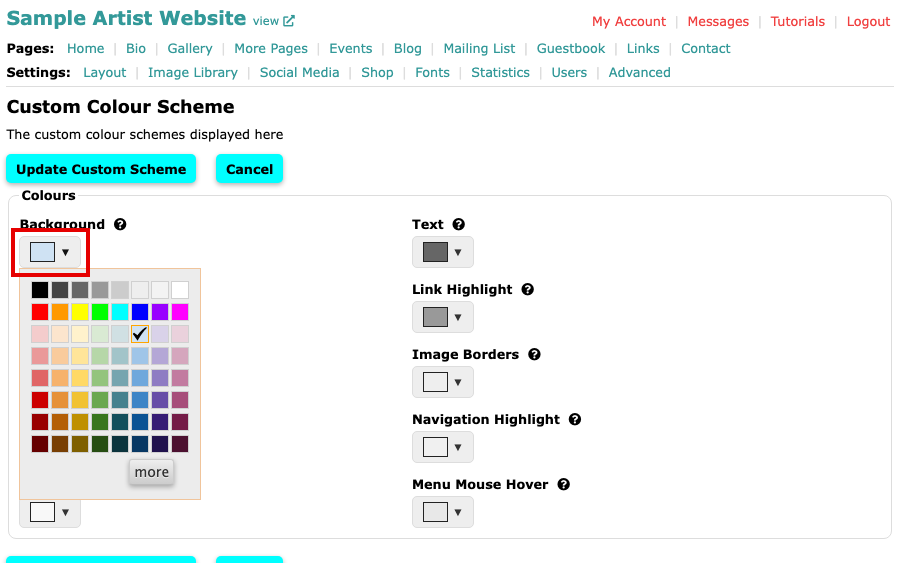
The Background box with a light blue colour chosen in the palette Do the same for the other colours. The page lists the colours your layout uses, and each question mark beside a name explains what it colours.
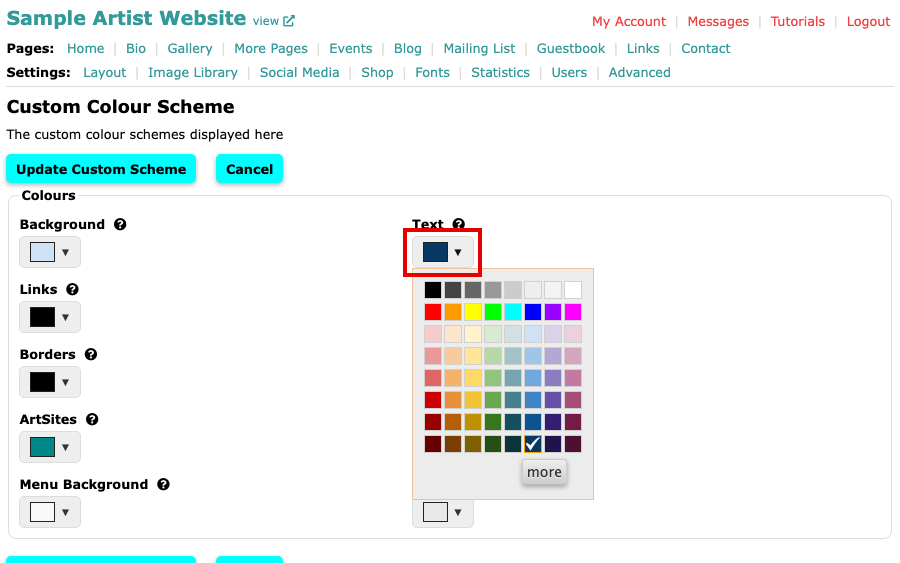
The palette open under the Text box with a dark blue chosen Select Update Custom Scheme to save. The button is at the top and at the bottom of the page. Cancel returns to Layout.
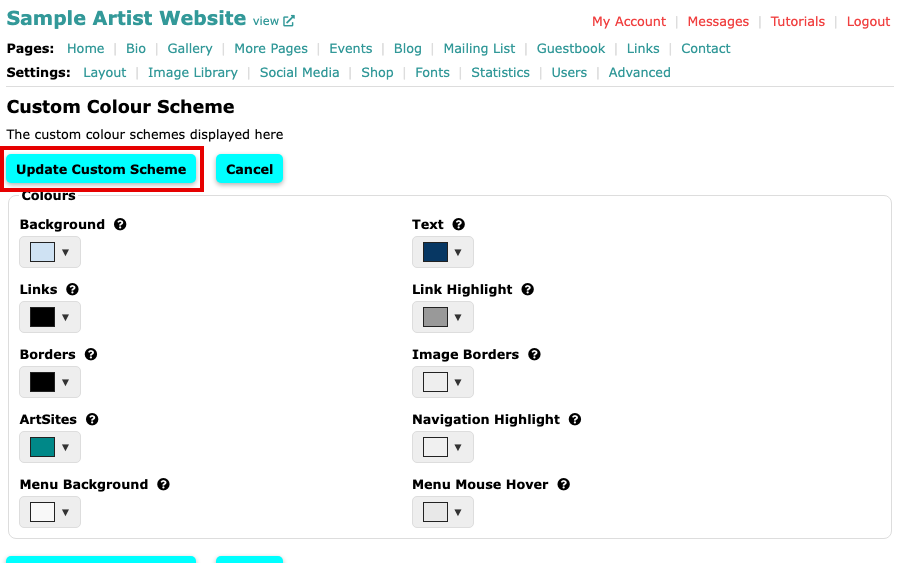
The Custom Colour Scheme page with a new Background and Text colour, above the Update Custom Scheme button
Select view beside your website's title to see your colours. To go back to a ready-made scheme, choose it in the Colour Scheme list on Layout and save. For the other choices there, see Change Your Layout and Colour Scheme.