Join cells of a table into one when something should stretch across several columns or rows, such as a heading above a row of images.
Before you start: have a table in your text. Line Up Text with a Table shows how to make one.
Open the page, such as Bio in the Pages menu, and find your table in the text box. Click in one of its cells.
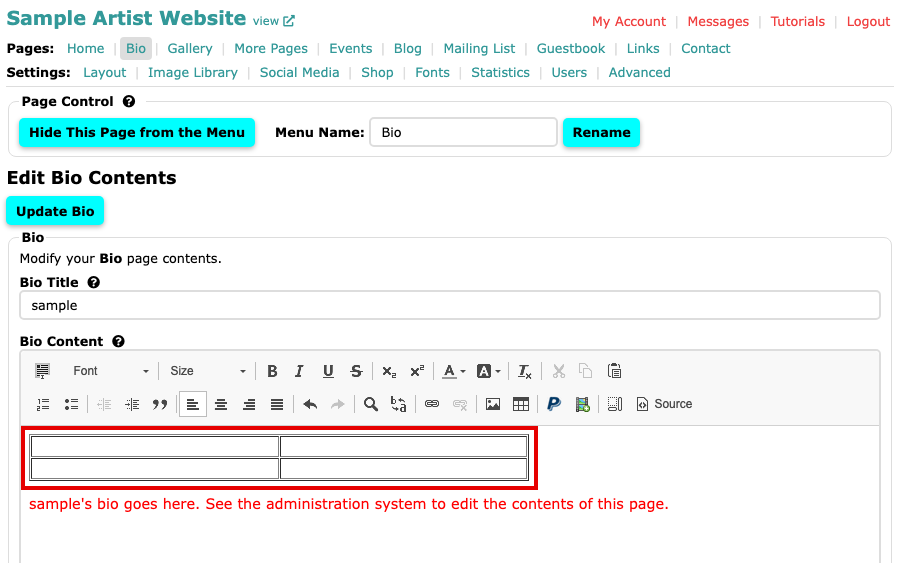
A two by two table at the top of the Bio editor, with the cursor in its first cell To join several cells, drag across them with your mouse so they are all selected. To join just one cell with its neighbour, you can skip this.
Right-click in the selected cells. A menu opens with Paste, Cell, Row, Column, Delete Table and Table Properties.
Choose Cell. A second menu opens. Choose Merge Cells to join all the selected cells. Or choose Merge Right or Merge Down to join the cell you clicked in with the one beside or below it.
Fill in the merged cell with text, an image or a video.
Select the page's own button, such as Update Bio, to save.
The same Cell menu can also split a merged cell again, with Split Cell Horizontally and Split Cell Vertically.