Your website comes with nine fonts. Install more from a large collection, and each one you install can then be used for your text and your titles.
Open Fonts in the Settings menu at the top of your admin. Manage Fonts lists your Currently Installed Fonts, each shown in its own style. The built-in ones say built-in.
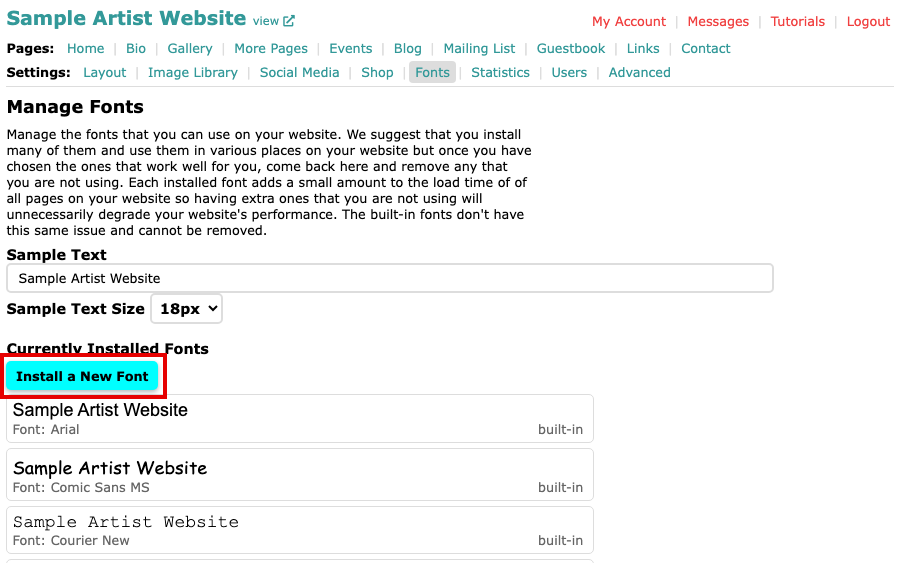
Manage Fonts with the Install a New Font button above the list of built-in fonts Select Install a New Font. Fonts Available to Install shows the fonts you can add, each one set in its own style, 100 to a page. First Page, Previous Page, Next Page and Last Page above them move through the collection. Type your own words in Sample Text to see them in every font.
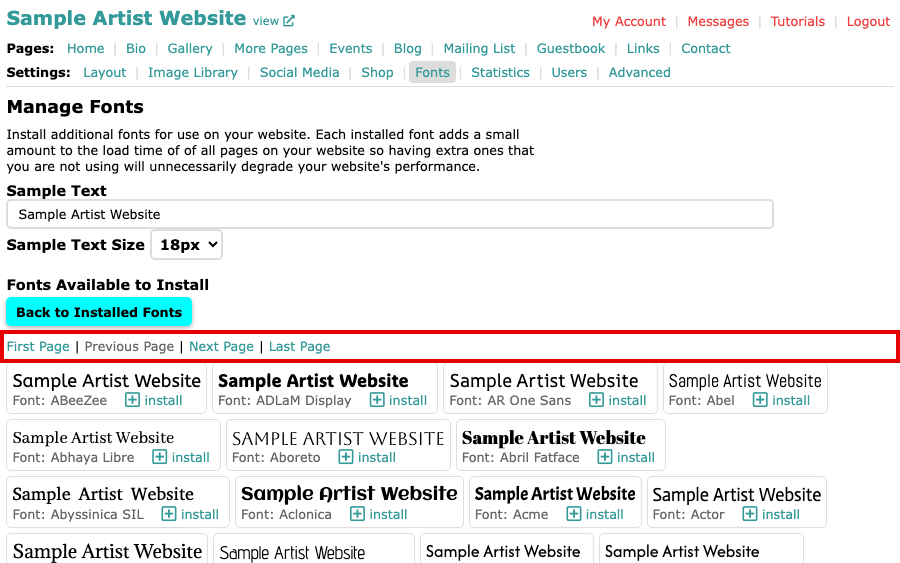
Fonts Available to Install, with each font shown in its own style Select install beside the font you want.
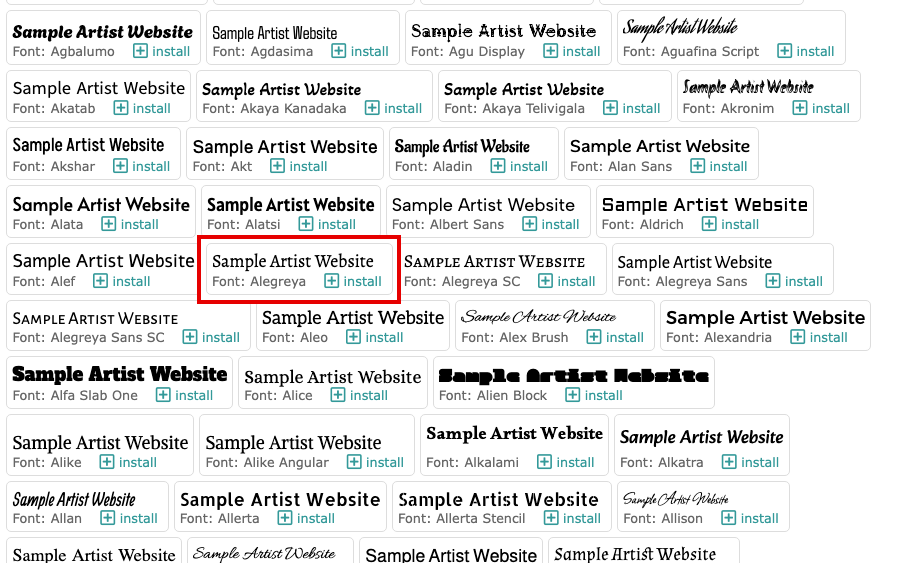
Fonts Available to Install scrolled to Alegreya, with an install link beside it The font now appears in Currently Installed Fonts, with remove beside it.
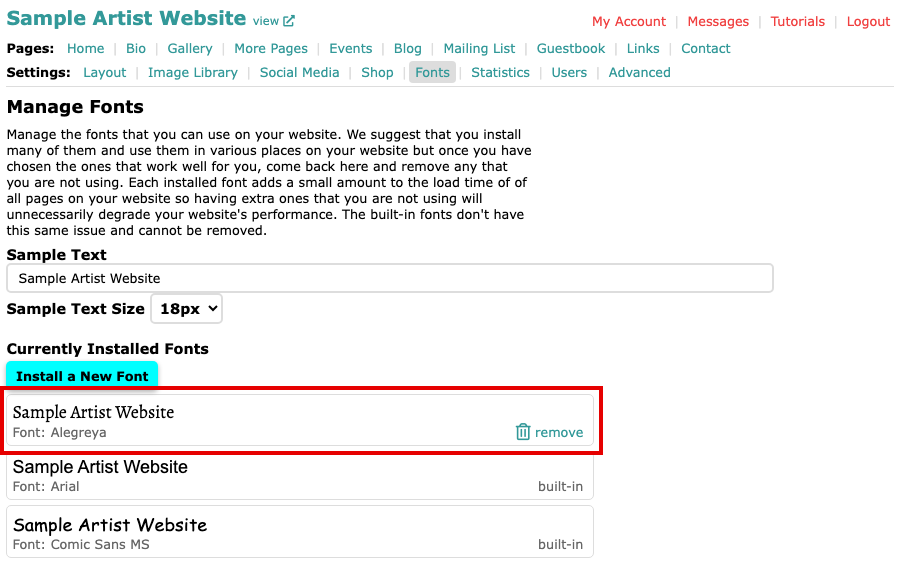
Manage Fonts with the newly installed font at the top of the list To stop using a font, select remove beside it. The built-in fonts cannot be removed.
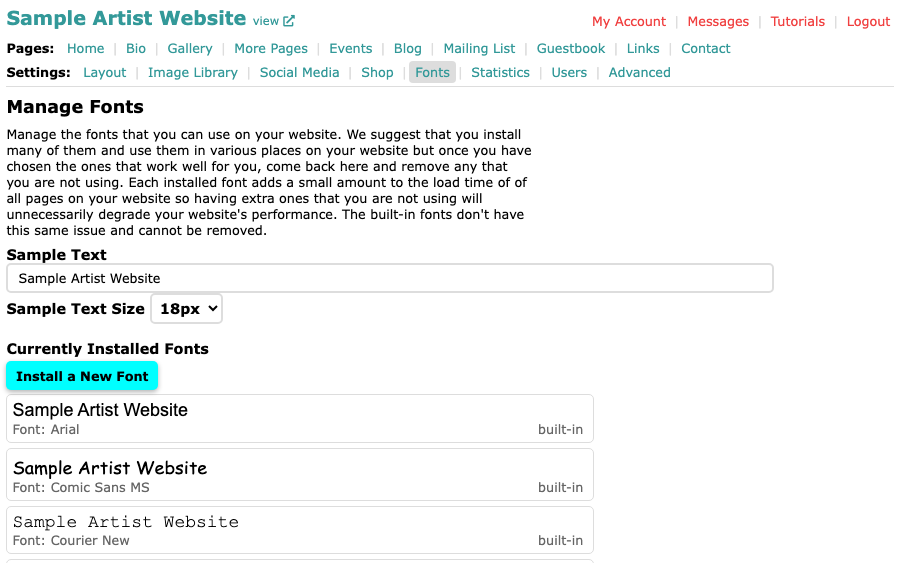
Manage Fonts after a font is removed, with the built-in fonts starting with Arial at the top of the list
An installed font appears in the font lists on Layout, in the Website Header box, and in Typeface on Advanced. Change the Font for Your Whole Website shows where to choose it. Each installed font makes every page of your website load a little slower, so remove the ones you are not using.