A typeface, which is also called a font, is the style of the letters. You can choose one for all of the text on your website, and set how big the text is.
Open Advanced in the Settings menu at the top of your admin.
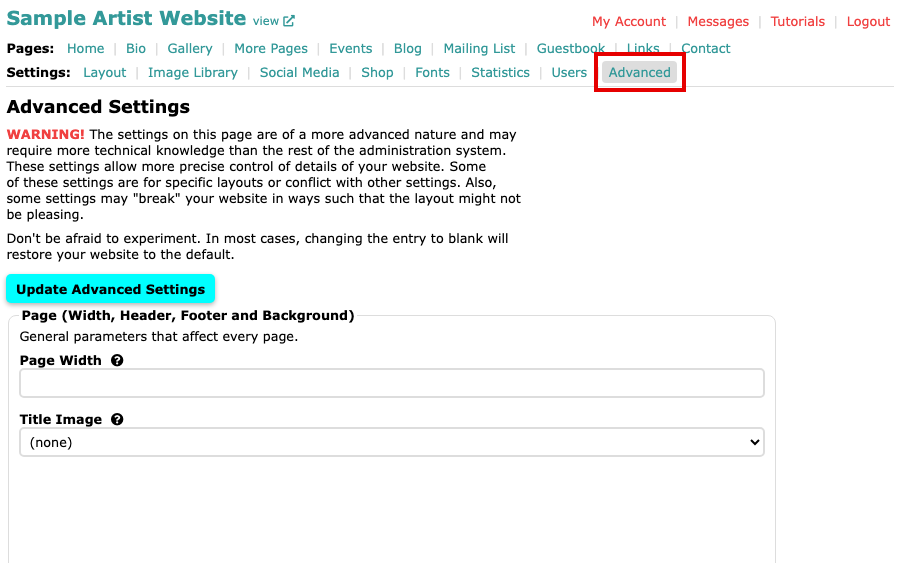
The Advanced Settings page with Advanced selected in the Settings menu Find Typeface. Open the list and choose a font. (default) uses the font that comes with your layout. The list holds nine built-in fonts and every font you have installed. To add more, see Install a New Font.
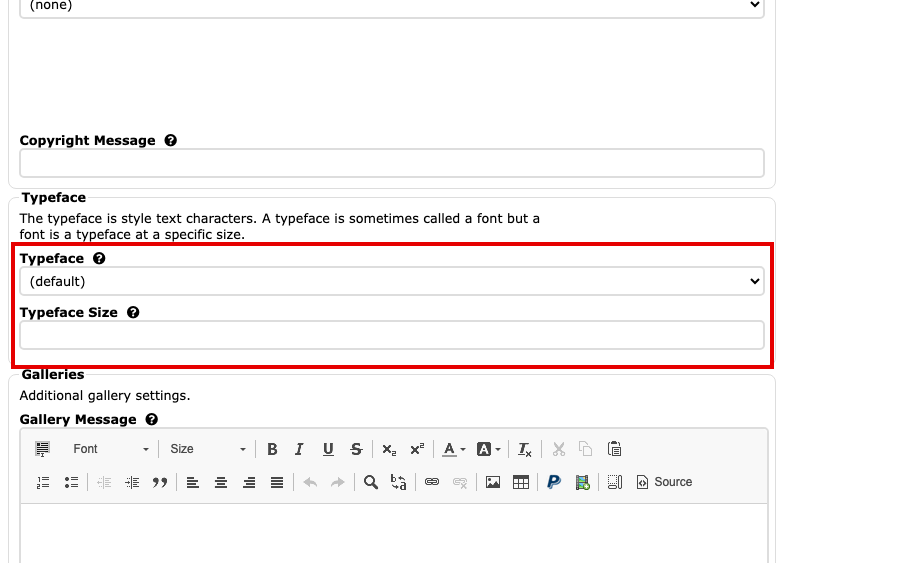
The Typeface box showing (default), above the Typeface Size box If you want a different size, type it in Typeface Size, for example
110%. Use units such as%,ptorem. Avoidpx, because it stops your visitors resizing the text. Leave the box empty to keep the size your layout uses.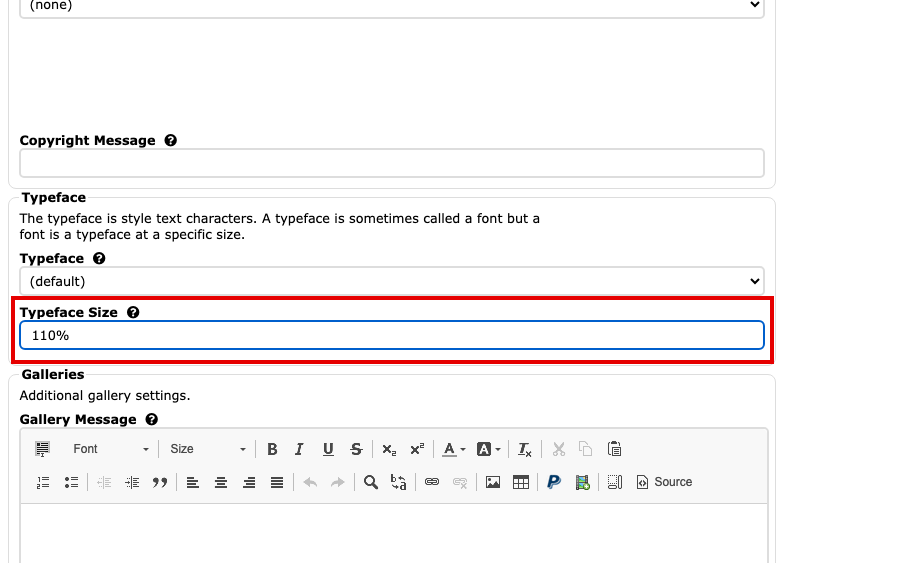
The Typeface Size box with 110% typed in Select Update Advanced Settings to save. The button is at the top and at the bottom of the page.
Your whole website now uses the typeface and size you chose. This one typeface applies to all of your text. To set the font of your website title and tag line, see Changes We Make for You, which also says what to ask us for.