A purchase button is not limited to the works in your galleries. You can put one in the text of a page, for a workshop place, a print or anything else you sell. Set up your Shop first: the button uses the PayPal address and button style you chose there, and without them it shows only the price. See Set Up Your Website for Shopping.
Open the page in the Pages menu, such as Bio, and click in the text where the button should go.
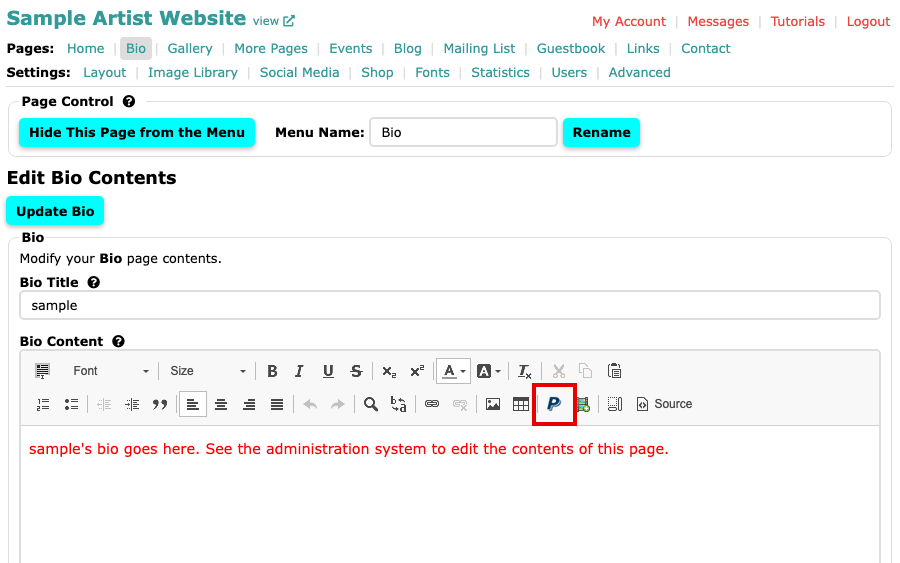
The Bio page's content editor, with the cursor in the text In the editor's toolbar, select Insert Purchase Button. Its icon is a blue letter P, near the right-hand end of the second row.
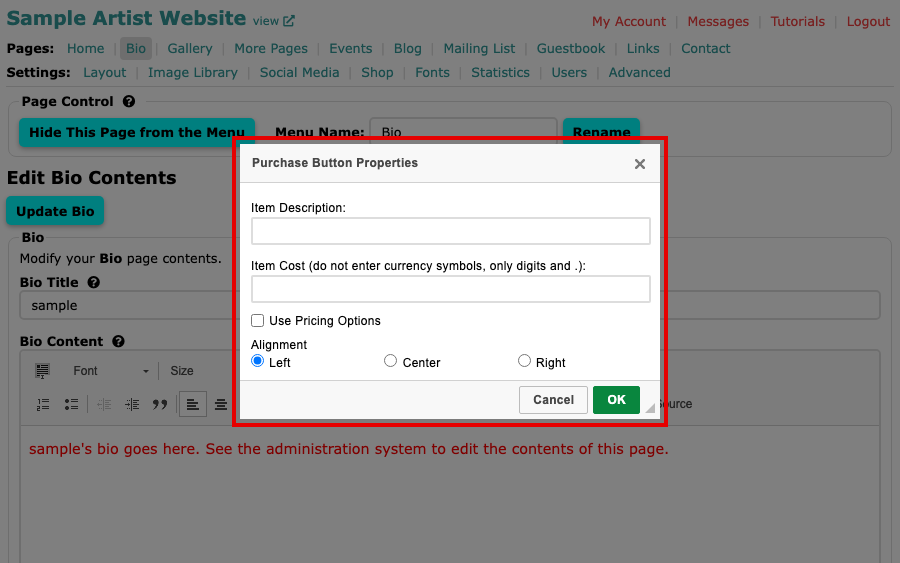
The Purchase Button Properties window, open over the page Type the Item Description, and the Item Cost as digits and a decimal point only, with no currency symbol. Both are required.
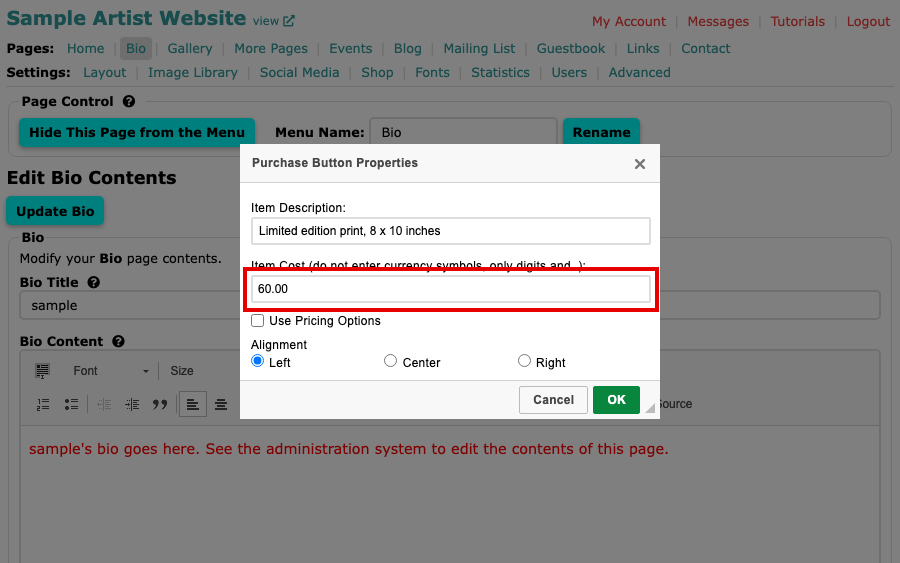
The Purchase Button Properties window with a description and a cost typed in Tick Use Pricing Options to add the standard variations from your Shop page, as you can for a work in a gallery. Under Alignment, choose Left, Center or Right to place the button in relation to the text around it.
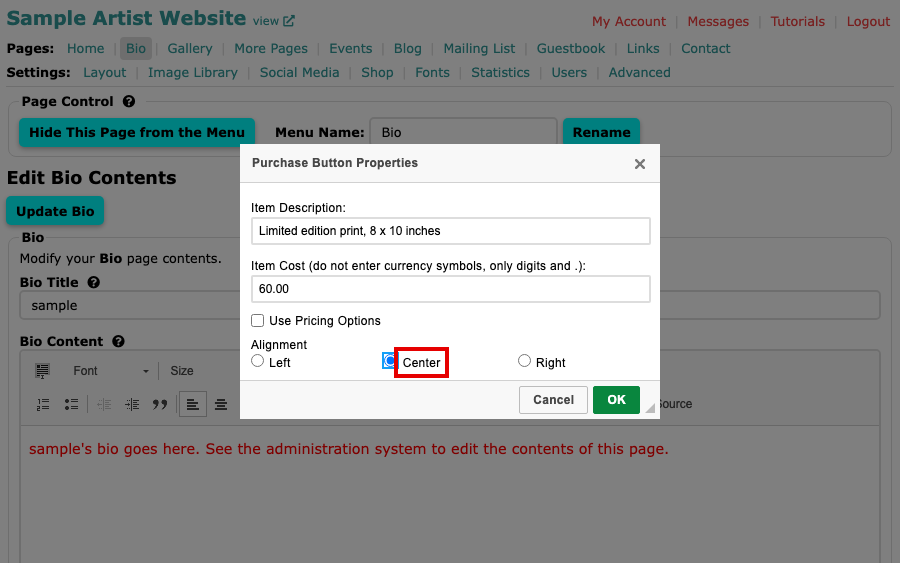
The Center alignment chosen Select OK. A Purchase button appears in the text. To change its details later, double-click it.
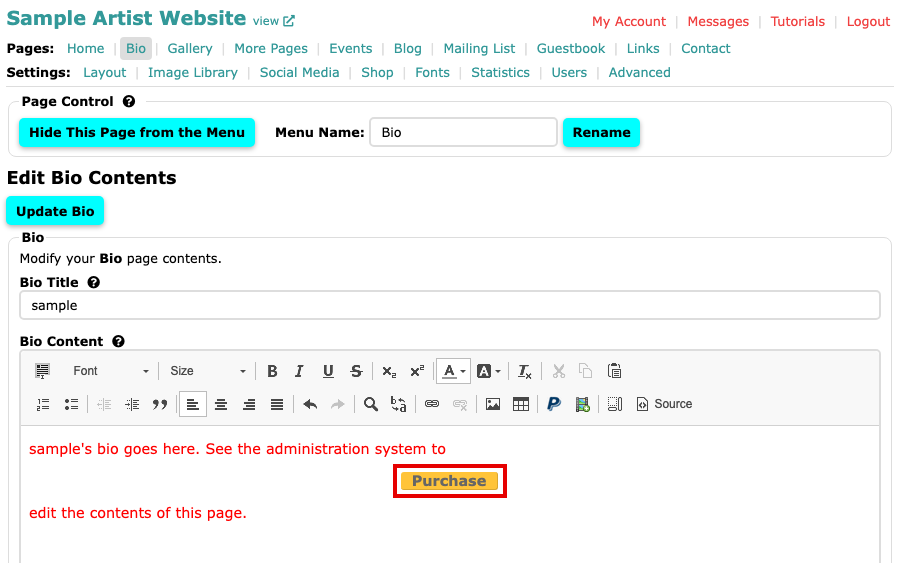
A Purchase button in the middle of the page's text Select the Update button for the page, at the top of the page (for example Update Bio), to save. Nothing is saved until you do.
On your website, visitors see the item's price and the purchase button you chose on the Shop page, such as Buy Now or Add to Cart, in place of the Purchase button you saw in the editor.