When a work has sold, you can tell visitors with a red dot and the word "Unavailable", which replace the work's price and purchase button. You do this with the Available box on the work's Edit Image page.
If you do not see an Availability box on the Edit Image page, your plan does not include it. Our pricing page lists what each plan includes.
Open Image Library in the Settings menu at the top of your admin, then select the edit icon under the work.
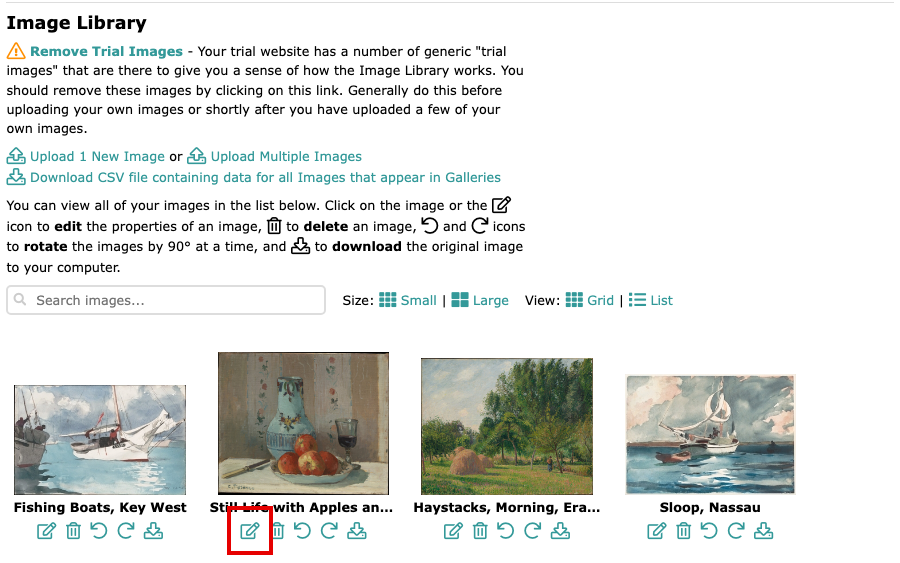
The Image Library, with an edit icon under each image On the Edit Image page, find the Availability box, beside the image. With Available ticked, the work is for sale.
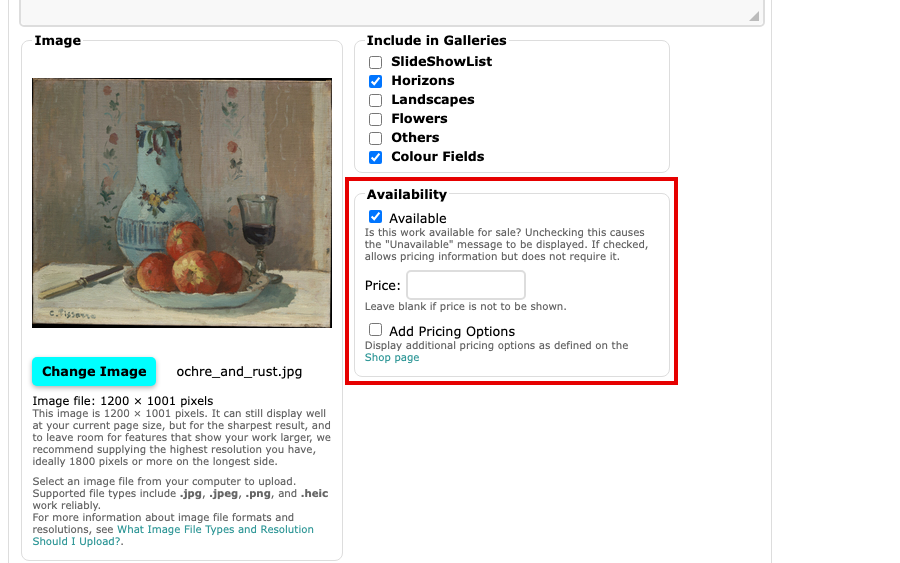
The Availability box with Available ticked Untick Available. The Price and Add Pricing Options boxes turn grey. They are cleared when you save, so if you may offer the work again, note its price first.
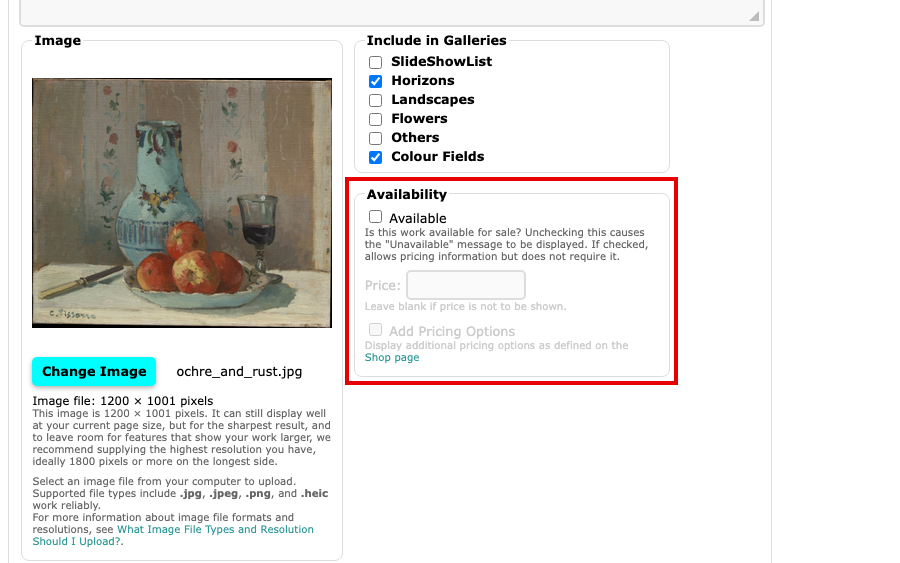
The Availability box with Available unticked and the Price box greyed out Select Update Image to save. The button is at the top and at the bottom of the page. You return to the Image Library, which says "Successfully updated image".
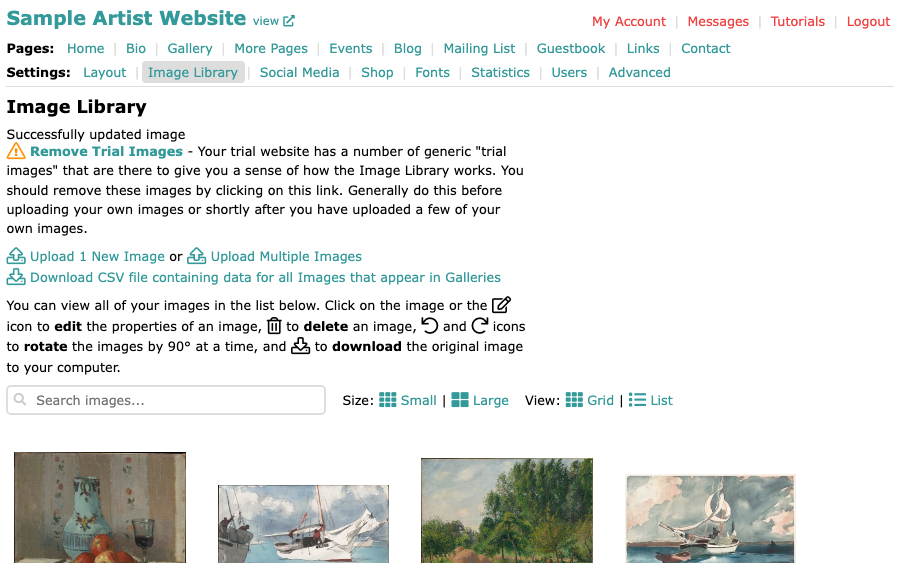
The Image Library, with the message Successfully updated image Open the work on your website. A red dot sits beside its title.
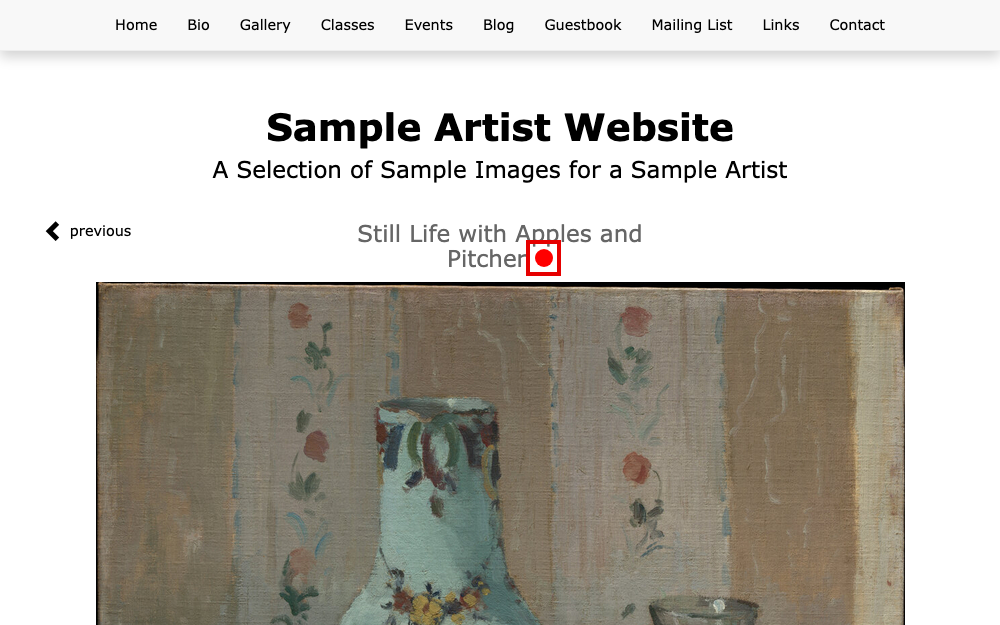
A work's page with a red dot beside the title Scroll down, below the image. The word Unavailable and the red dot take the place of the price and purchase button.
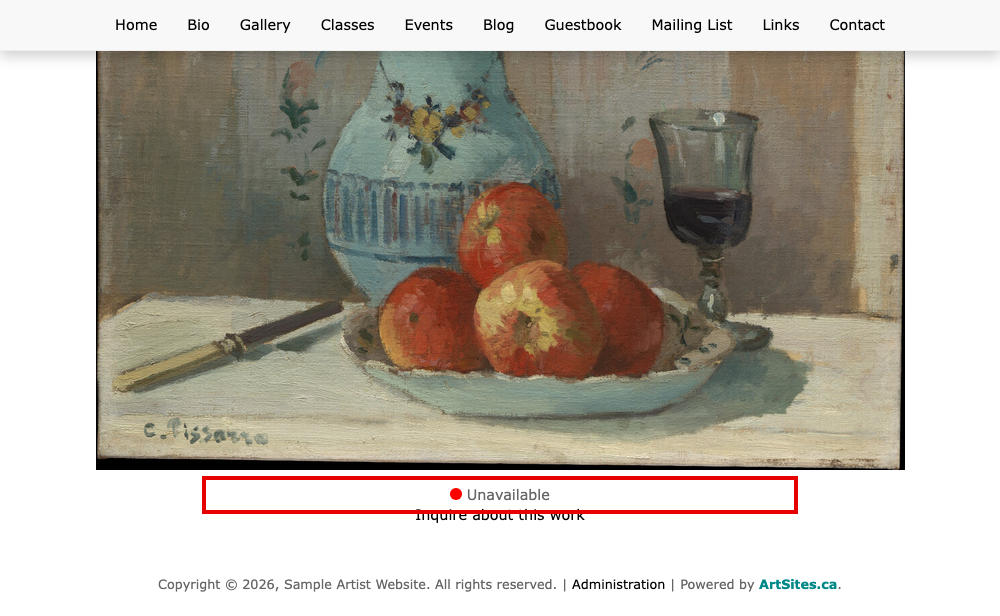
The word Unavailable with a red dot below the work
To offer the work again, tick Available, type the price, and save.
Change the word or turn off the dot
Two settings on the Advanced page, under the Images heading, change what visitors see for every work you have marked as unavailable. Select Update Advanced Settings to save a change.
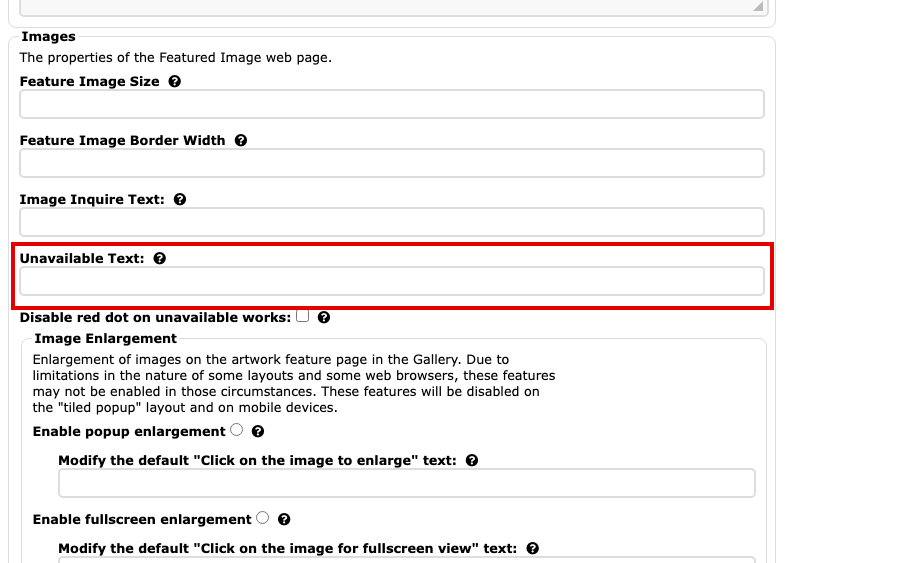
- Unavailable Text: replaces the word "Unavailable", for example with "Sold". Typing none shows no word. Leave it blank for the standard word.
- Disable red dot on unavailable works: tick it to hide the red dot and keep only the word.
To change other built-in words, see Change the Words Visitors See.