Hide a gallery from your website's visitors without deleting it, and show it again whenever you like. The images stay in the gallery while it is hidden.
Hiding a gallery asks first, and nothing changes until you answer OK. Showing it again works the moment you select its icon. If a gallery has vanished from your website, step 4 below puts it back.
Open Gallery in the Pages menu at the top of your admin. Each gallery in the Gallery List has an eye icon beside its name.
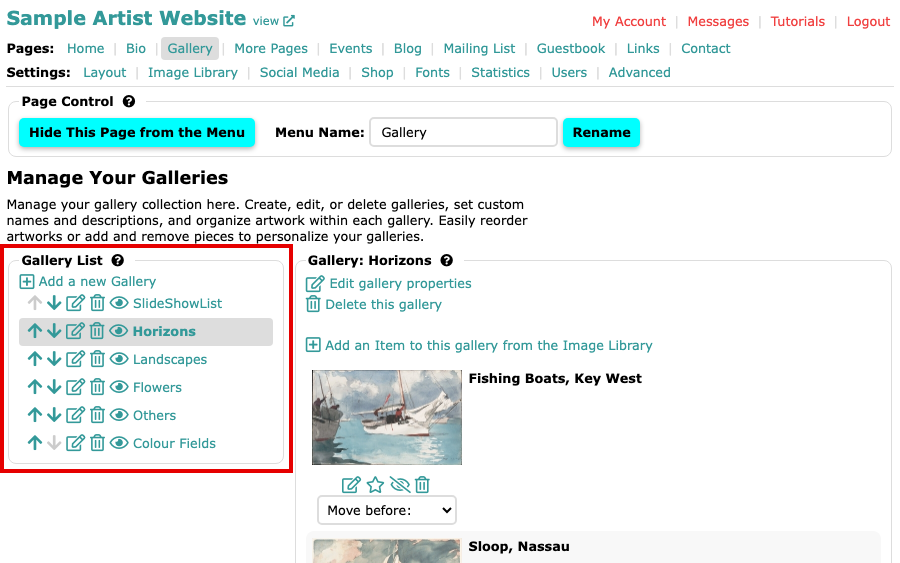
The Gallery List with an open eye icon beside each gallery Select the open eye icon beside the gallery you want to hide. Your browser asks Hide the Landscapes gallery from visitors?, with your gallery's name in it. Select OK, and the gallery is hidden. Its icon becomes a crossed-out eye, (hidden) appears beside Edit gallery properties, and the page says Gallery 'Landscapes' is now hidden.
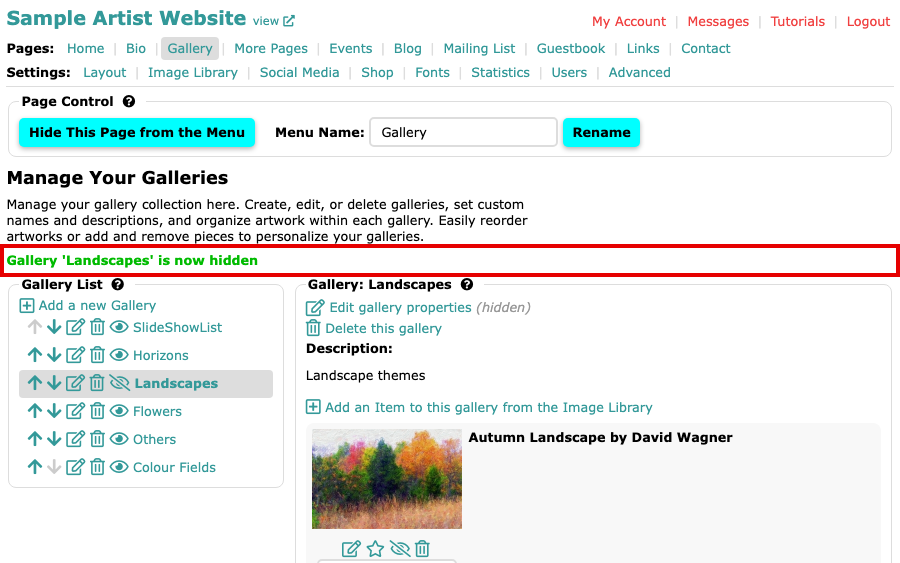
The Gallery page saying Gallery 'Landscapes' is now hidden, with a crossed-out eye beside Landscapes Look at your website's gallery list. A hidden gallery is left out of it, and out of your slideshow. Your other galleries stay.
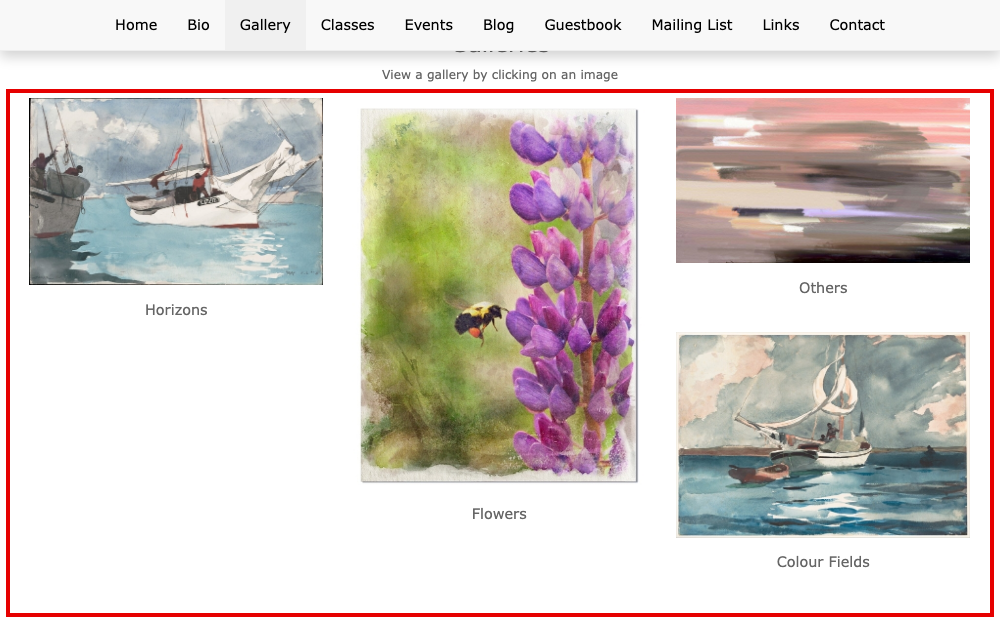
The website's gallery list showing four galleries, without Landscapes To show the gallery again, return to Gallery in your admin and select the crossed-out eye icon beside it. The gallery is visible at once, and the page says Gallery 'Landscapes' is now visible.
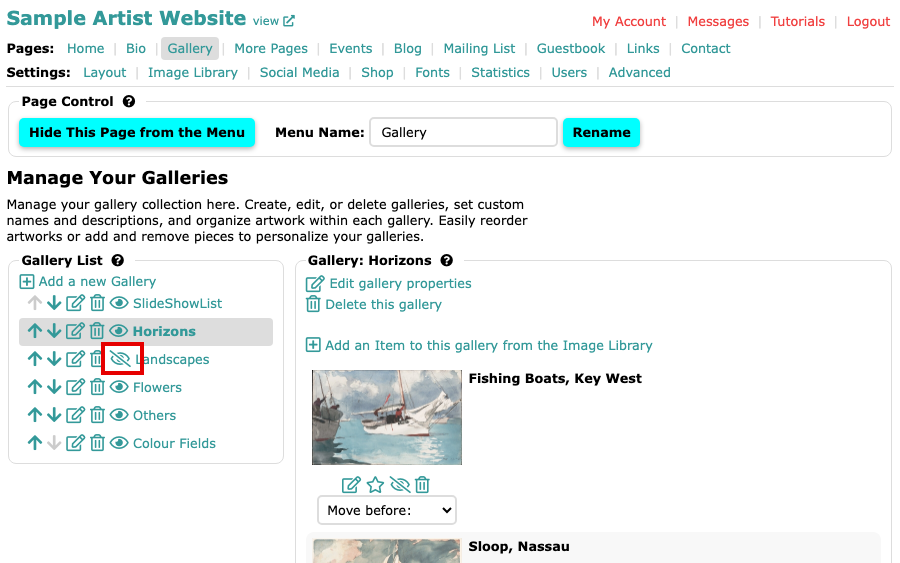
The Gallery List with Landscapes shown as a crossed-out eye 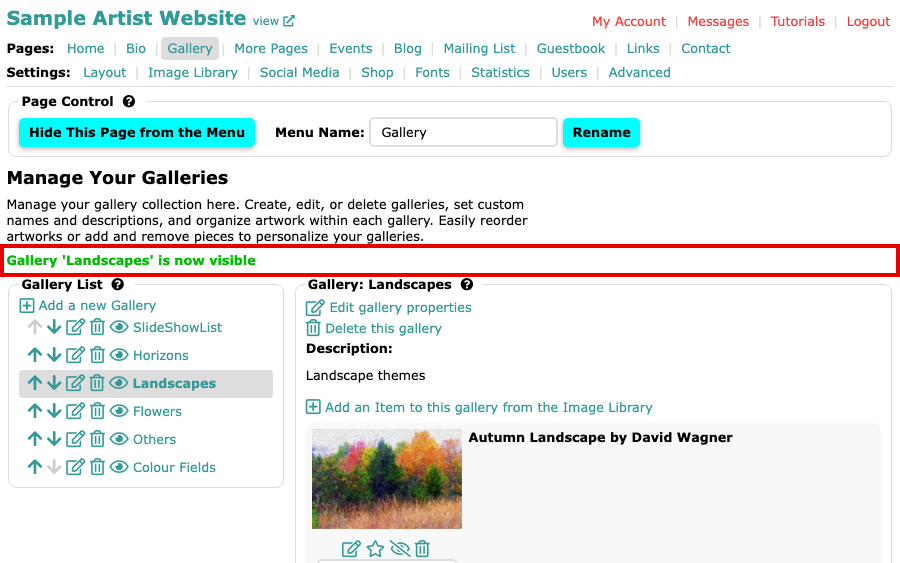
The Gallery page saying Gallery 'Landscapes' is now visible, with an open eye beside Landscapes
The gallery is back on your website, as it was before. You can also hide a gallery with the Hidden box when you edit it: see Edit a Gallery's Title and Description.