Rename a gallery or change the words that describe it. The title is the gallery's name in your website's menu.
Open Gallery in the Pages menu at the top of your admin, then select the gallery in the Gallery List.
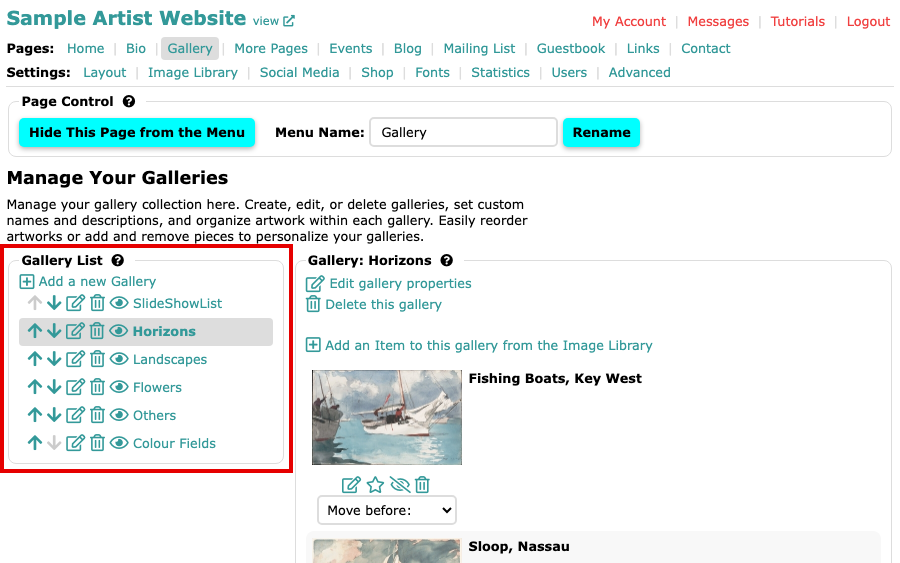
The Manage Your Galleries page, with the Gallery List on the left 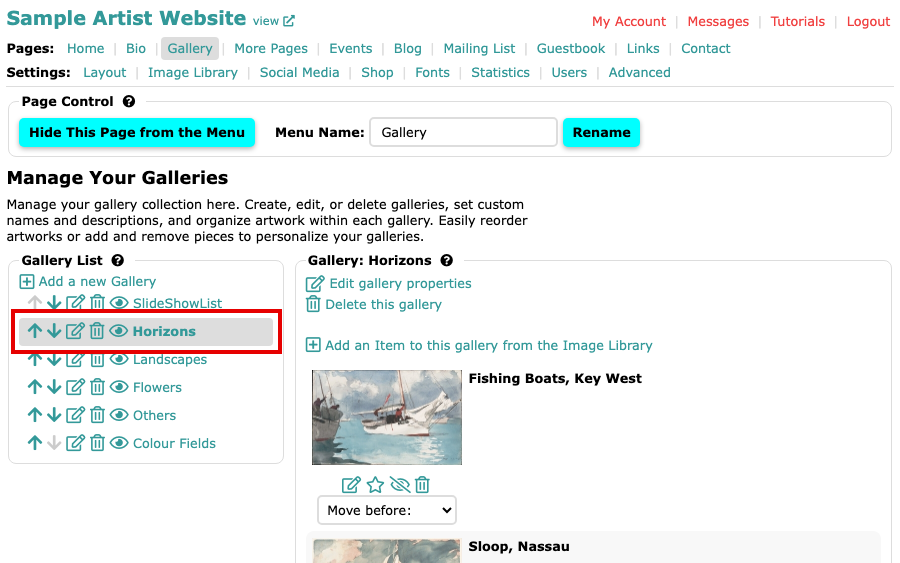
The Horizons gallery shown on the Gallery page Select the edit icon beside the gallery's name in the Gallery List. You can also select Edit gallery properties, above the gallery's images.
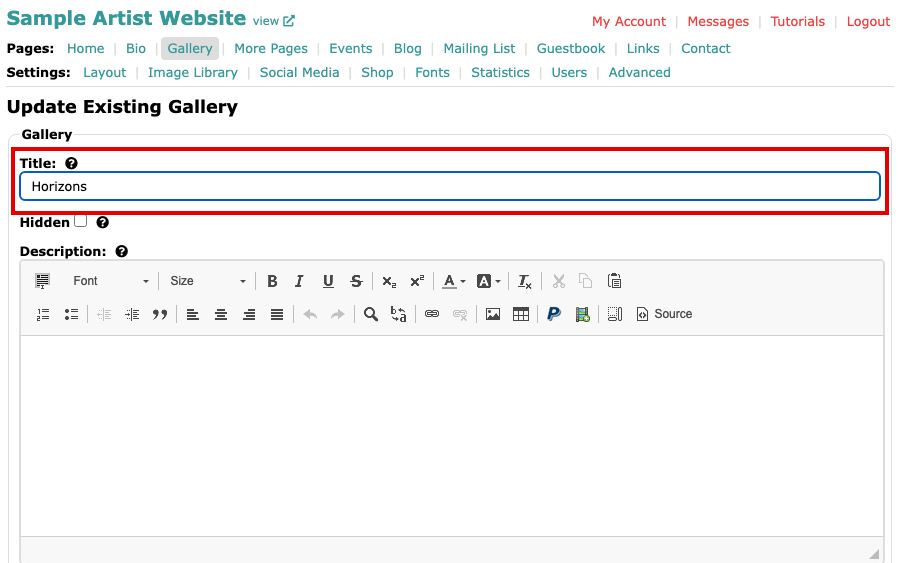
The Update Existing Gallery form with the Title field showing Horizons Change the Title, Description or Extra Text. Some layouts do not show the description or the extra text, so you may not see them on your website. Tick Hidden to keep the gallery out of your website's gallery list.
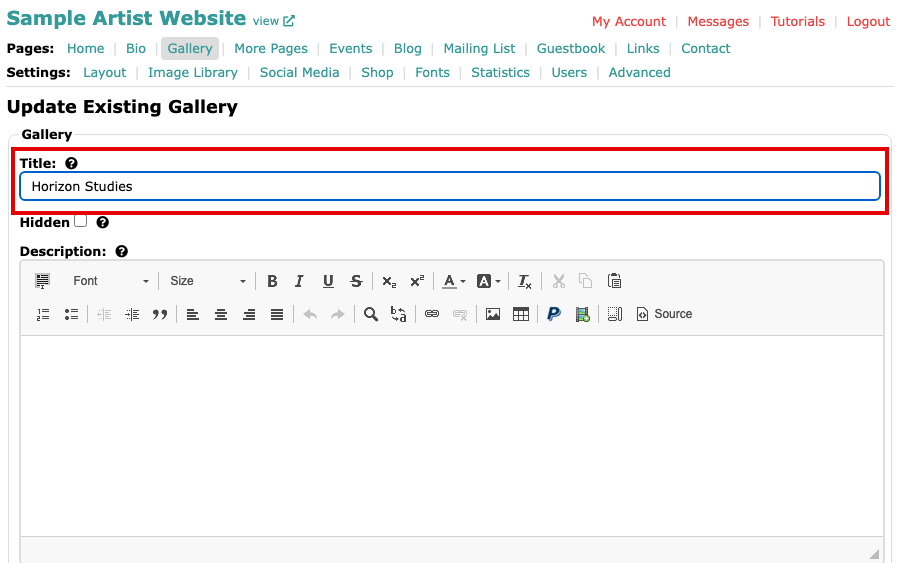
The Title field with a new title typed in Scroll down and select Update Existing Gallery. Your changes are not kept until you do.
The Update Existing Gallery button below the Description box
The Gallery page returns with your changes, and Gallery updated at the top of it.