On a work's page, a visitor can click the image to see it larger. You choose what that click does, and the words shown under the image, from Image Enlargement on the Advanced page. This example chooses the popup, looks at a work, and then turns enlargement off again.
Open Advanced in the Settings menu at the top of your admin, and scroll down to the Images section. Image Enlargement is the box below Disable red dot on unavailable works.
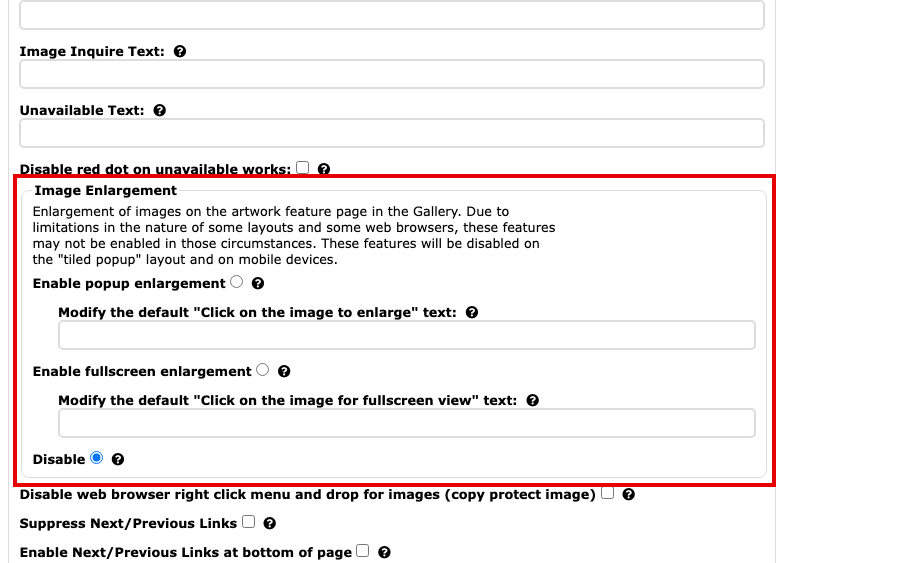
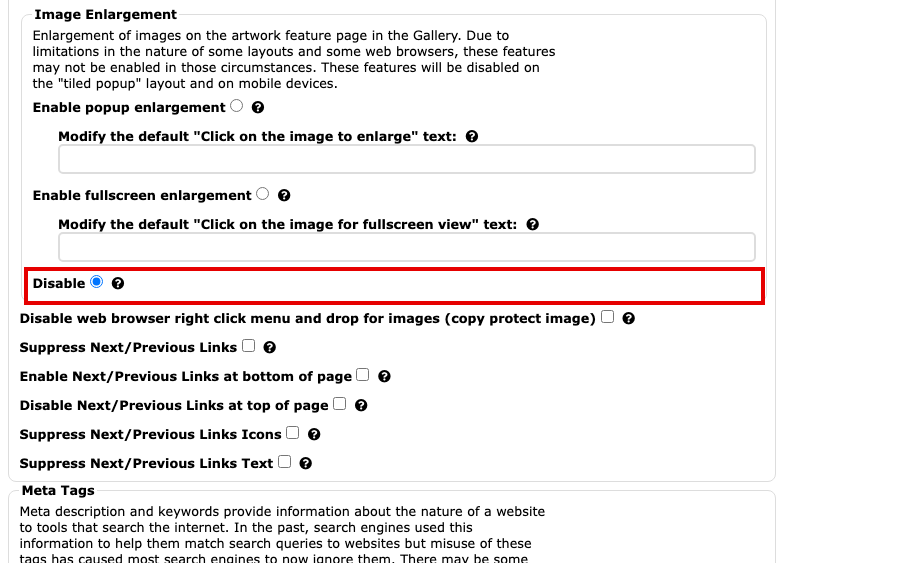
The Image Enlargement box, with Enable popup enlargement, Enable fullscreen enlargement and Disable, with Disable chosen Choose one of the three:
- Enable popup enlargement opens the image in a popup over your page. The popup uses at most 80% of the visitor's browser window, so on a small screen the popup image can be smaller than the one on the page.
- Enable fullscreen enlargement fills the visitor's whole screen with the image, on your website's background colour. A browser that cannot do full screen shows the popup instead.
- Disable turns enlargement off.
Under each of the first two is a field for the words shown beneath the image. Leave it blank to use the standard words, "Click on the image to enlarge" or "Click on the image for fullscreen view", or type your own.
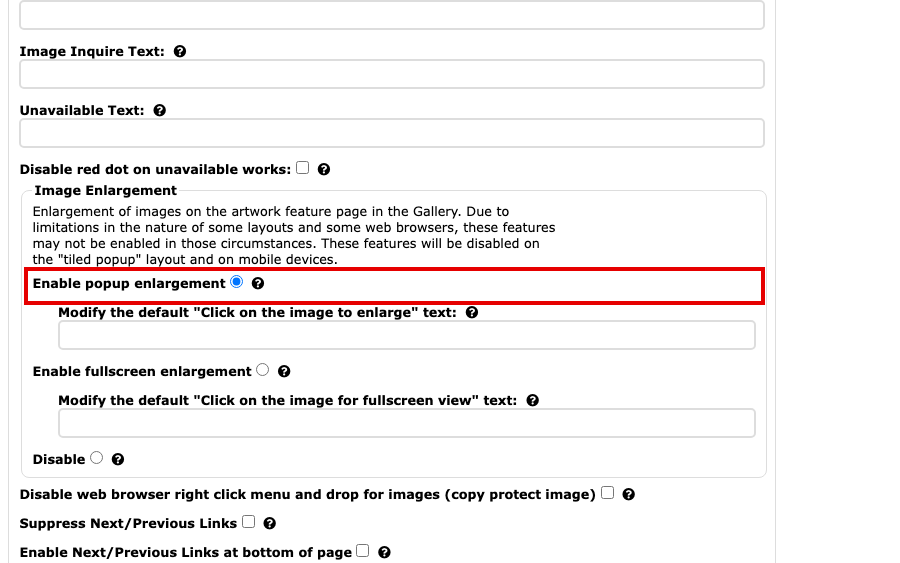
Enable popup enlargement chosen Select Update Advanced Settings to save. The button is at the top and at the bottom of the page.
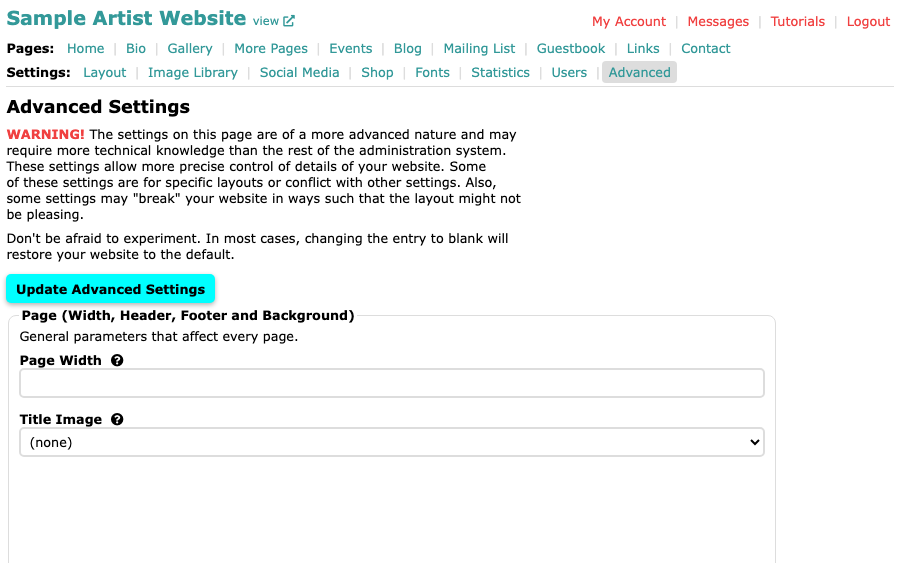
The Advanced Settings page after saving Open any work in a gallery on your website. The words appear under the image, and a click opens it.
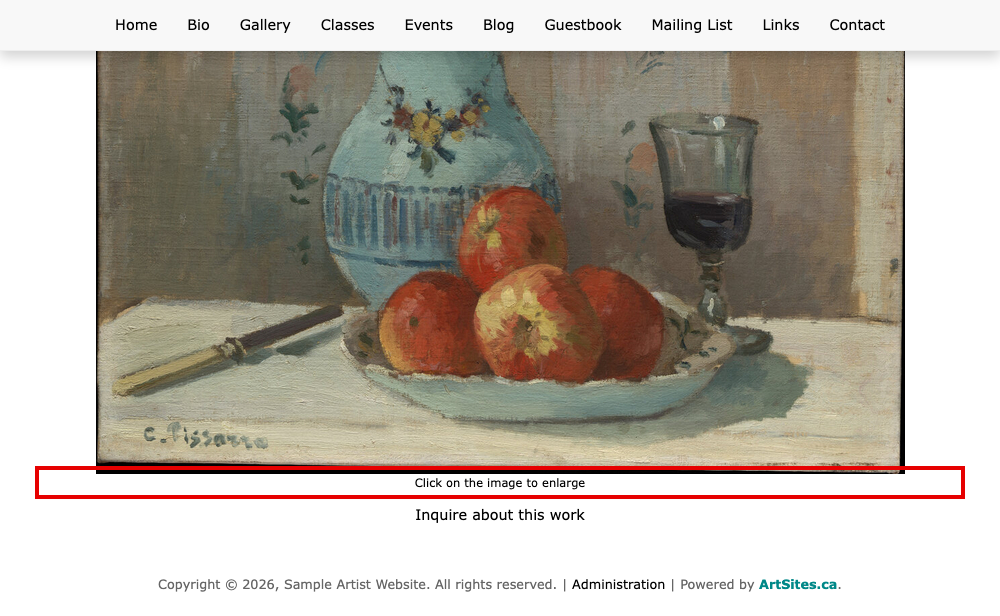
A work's page with the words Click on the image to enlarge under the image
To turn enlargement off, return to Advanced Settings, choose Disable and save again.
Enlargement is switched off on mobile devices, and the Advanced page notes that some layouts and browsers cannot offer it. The Next and Previous links on a work's page are set on the same page: see Change the Gallery Navigation.