When a visitor opens one image in a gallery, the page has Previous and Next links to the images either side. Under each link a layout may also show a small picture of that image. You can move these links, or take parts of them away.
Open Advanced in the Settings menu at the top of your admin.
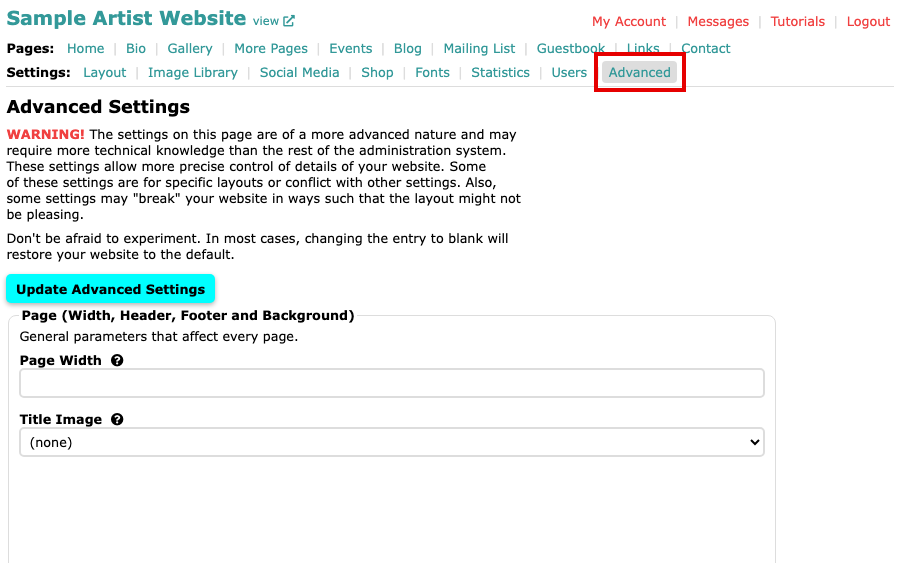
The Advanced Settings page, with Advanced selected in the Settings menu Scroll down to the Images section. The options sit below the enlargement choices.
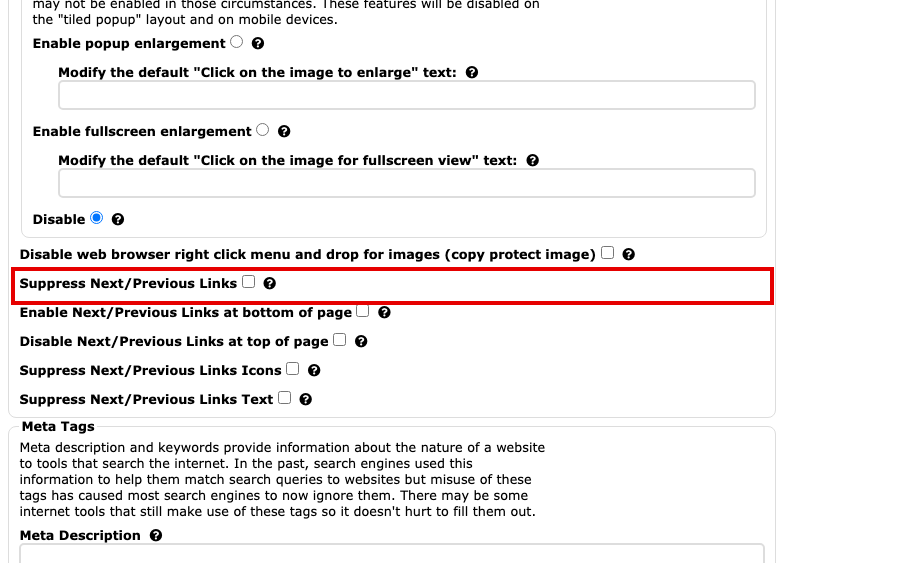
The Next/Previous options in the Images section, all unticked Tick the options you want:
- Suppress Next/Previous Links removes the links altogether.
- Enable Next/Previous Links at bottom of page adds a second set of links at the bottom of the image's page.
- Disable Next/Previous Links at top of page removes the set at the top.
- Suppress Next/Previous Links Icons removes the small pictures of the neighbouring images, the thumbnails.
- Suppress Next/Previous Links Text removes the words and leaves arrows.
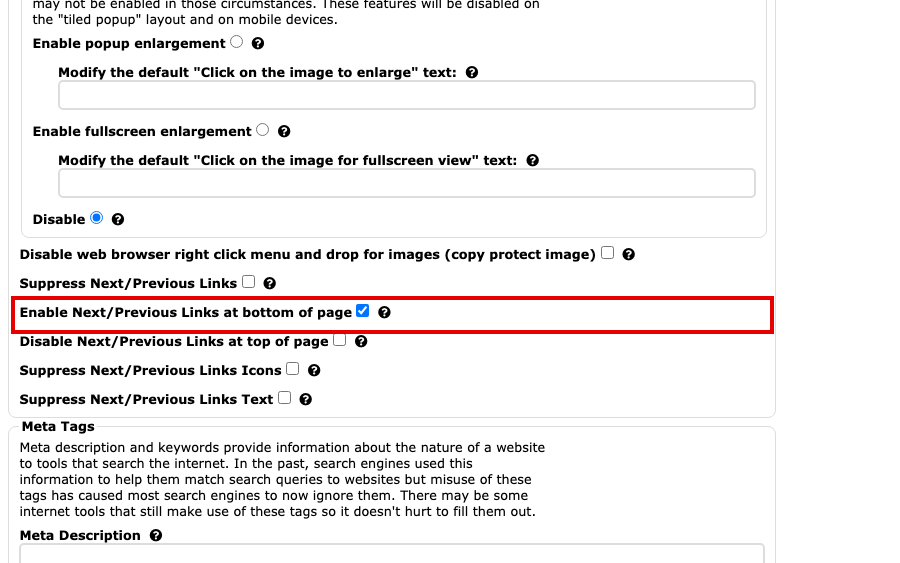
Enable Next/Previous Links at bottom of page ticked Select Update Advanced Settings to save. The button is at the top and at the bottom of the page.
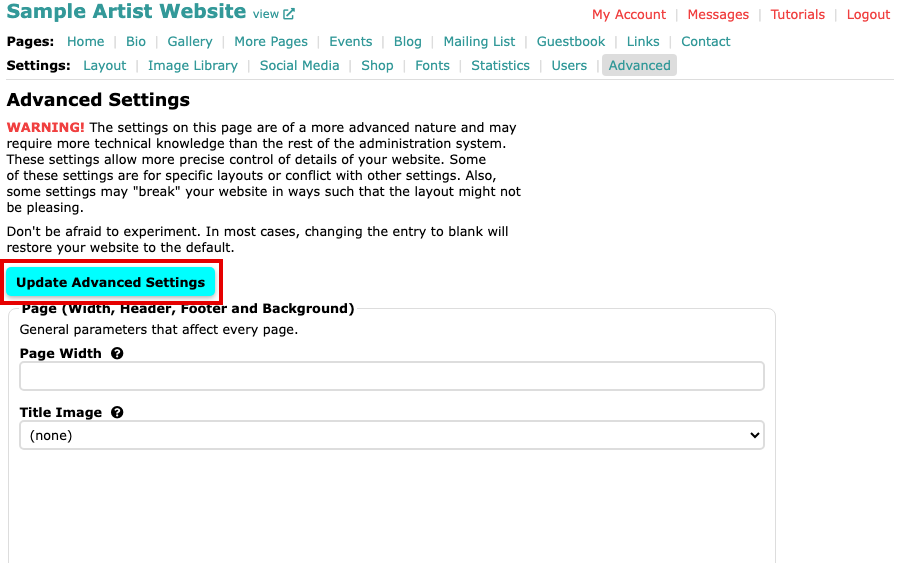
The Update Advanced Settings button at the top of the page
Open an image on your website to see the new navigation. Some layouts never show the small pictures, and on those the Suppress Next/Previous Links Icons option is unavailable.