The Links page lists websites you want to share, such as a gallery that shows your work, a group you belong to or an artist you admire. Each link has a title, an address and a description.
Open Links in the Pages menu. The Website Links screen opens with the Add a Link box.
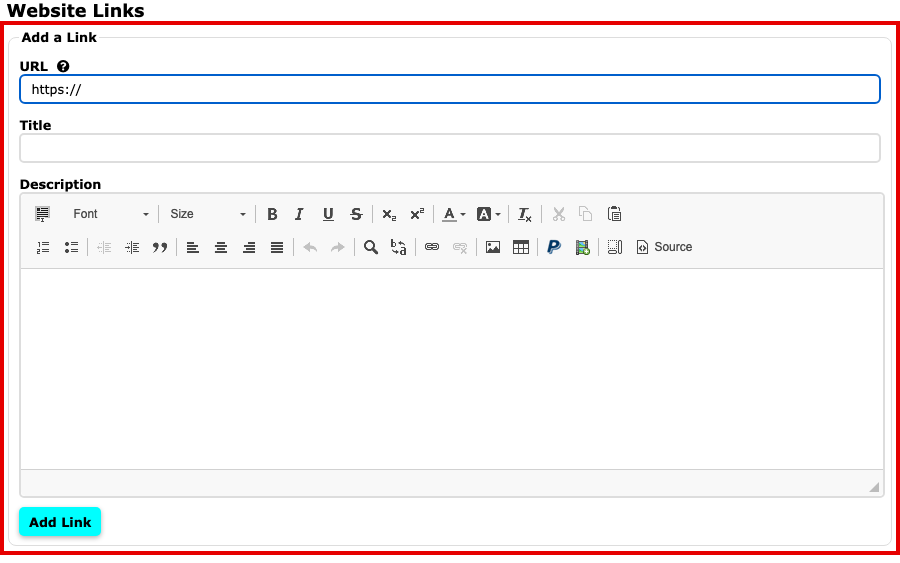
The Website Links screen with the Add a Link box, which has URL, Title and Description Type the page's address in URL. Start it with https://.
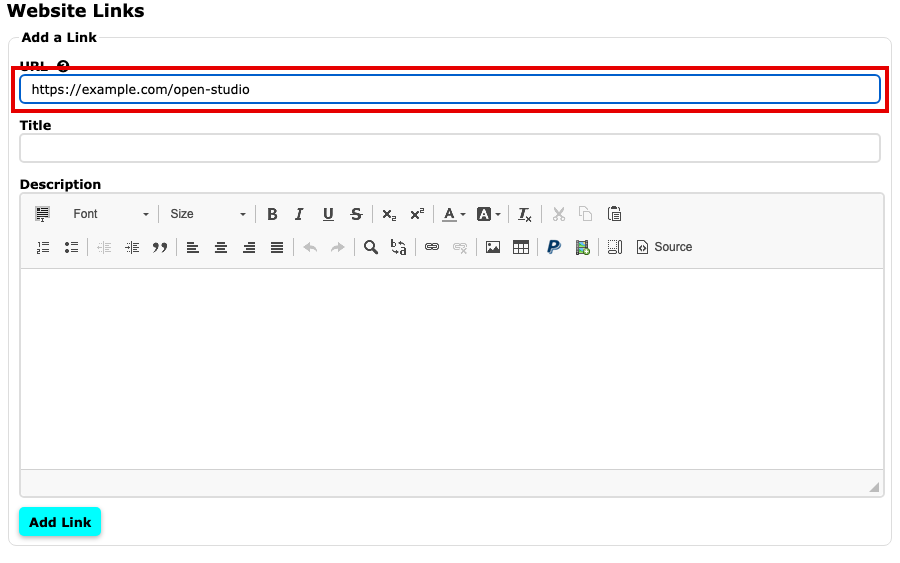
The URL box with a web address typed in Type the name visitors will see in Title.
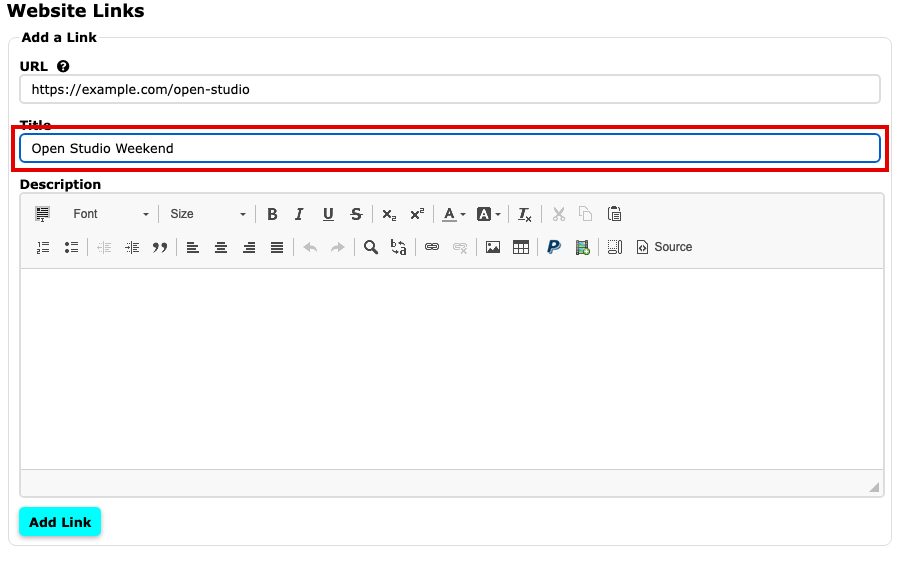
The Title box with a title typed in Write a sentence or two in Description about what visitors will find there. It is the content editor, so you can style words and add links.
Select Add Link. Your link appears below the box.
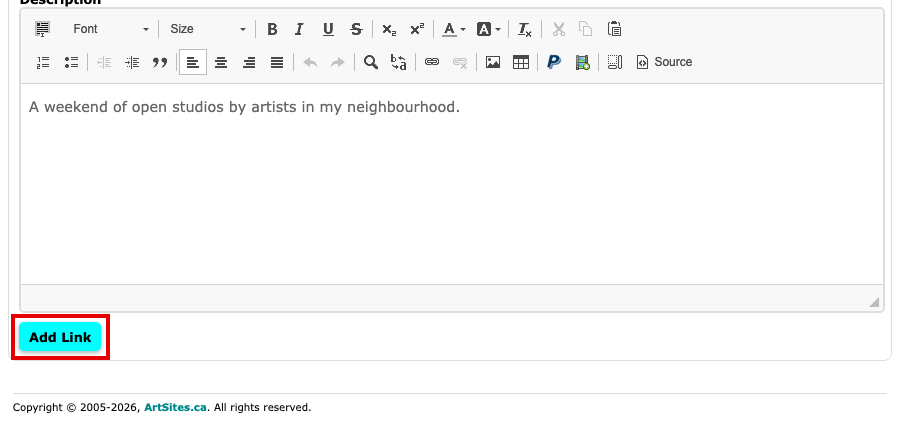
The finished form, with the Add Link button under the Description box
Under each link on this screen, the edit icon opens it for changes (the box then reads Update a Link), and the trash can icon deletes it after asking you to confirm. To rename the page in your menu or hide it, use Page Control at the top of the screen.