Your website's admin is where you change everything visitors see. Every admin screen has the same menus across the top, so you can reach anything from wherever you are. Sign in and the Layout screen opens first.
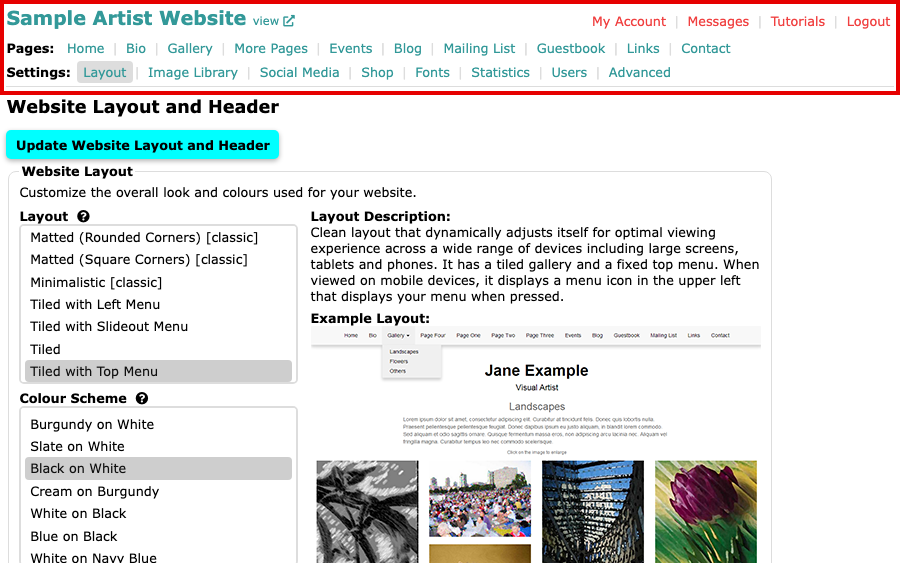
Your website's name and the view link
Your website's title is at the top left. Select view beside it to see your website as visitors see it, in a new tab. Select it after each change to check how it looks.
The Pages menu
The Pages menu lists the pages of your website. Select one to change what is on it.
- Home, Bio, Contact and Links are the pages of text, contact details and links on most websites.
- Gallery is where you make your galleries and put images in them.
- More Pages, Events, Blog, Mailing List and Guestbook add more to your website.
A page's name here is the name you gave it, so your menu may read a little differently.
The Settings menu
The Settings menu holds the choices that apply to the whole website.
- Layout sets the layout and colour scheme, and your website's title and tag line.
- Image Library holds every image you have uploaded.
- Social Media holds your social media links, Shop lets visitors buy items on your website, and Statistics shows how many people view your pages.
- Fonts opens Manage Fonts, where you choose the fonts you can use.
- Users lists the people who can sign in to your admin.
- Advanced holds finer controls, such as the copyright line at the bottom of your pages.
If your website has file uploads switched on, a Files item appears here too. Some plans show a shorter list of menu items; our pricing page has the plans.
My Account, Messages, Tutorials and Logout
The links at the top right are about you and your account, not your website's pages.
- My Account opens your account's status and renewal details, your Transactions and Change Password.
- Messages shows what visitors send you from your Contact or Inquiry pages.
- Tutorials opens our help in a new tab.
- Logout signs you out.
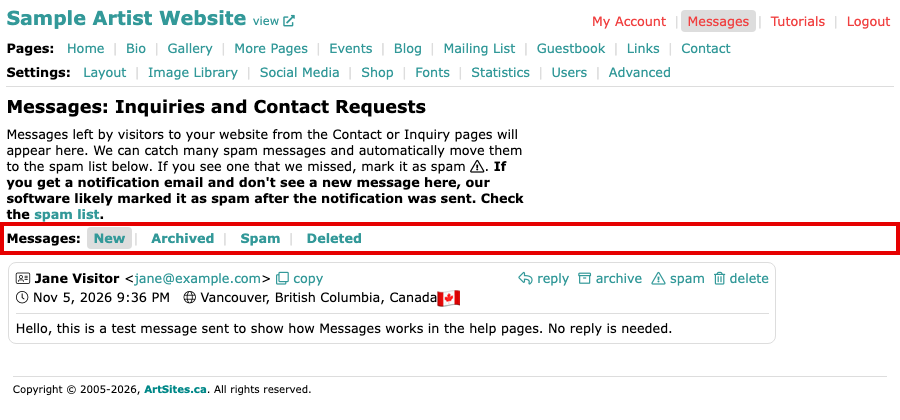
On Messages, new messages are under New. Our software moves messages it thinks are junk to Spam. Check there if a notification email arrives and the message is not under New.
Asking us a question
The Contact Us button at the bottom right of an admin screen opens the ArtSites Support chat, where you can ask us a question.