Sign in to your website's admin to change your pages and images, or ask for an email that lets you choose a new password.
Before you start: have the email address you use as your website's administrator ready. Each person with Admin on your account signs in with their own email address and password; The People on Your Account explains who they are.
Go to your website.
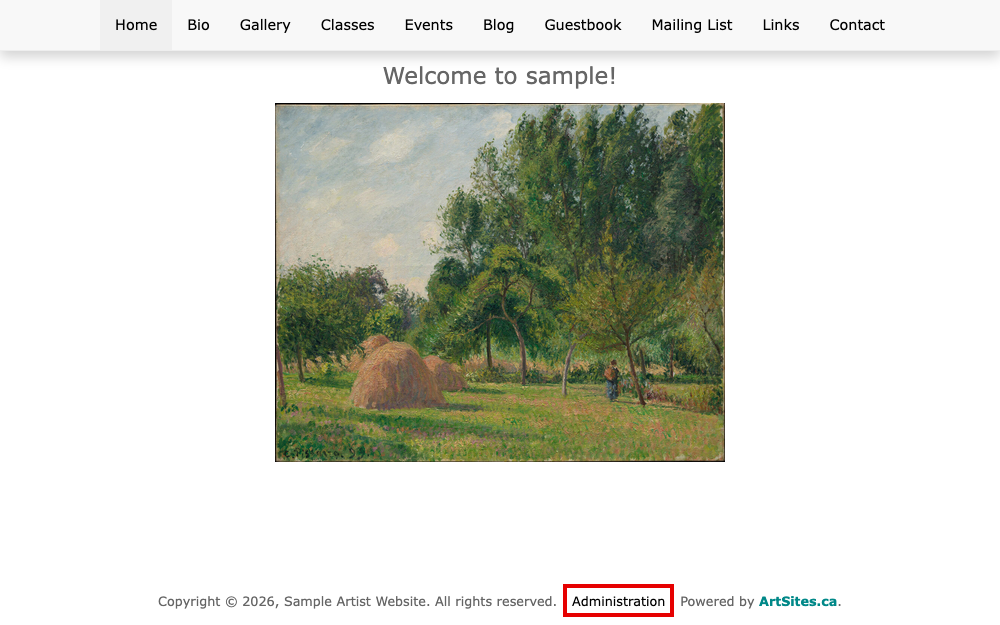
A website's home page, with the Administration link in the line at the bottom Select Administration in the line at the bottom of a page, or type
/adminon the end of your website's address. Most layouts have the Administration link. The Sign into the Administration System screen opens.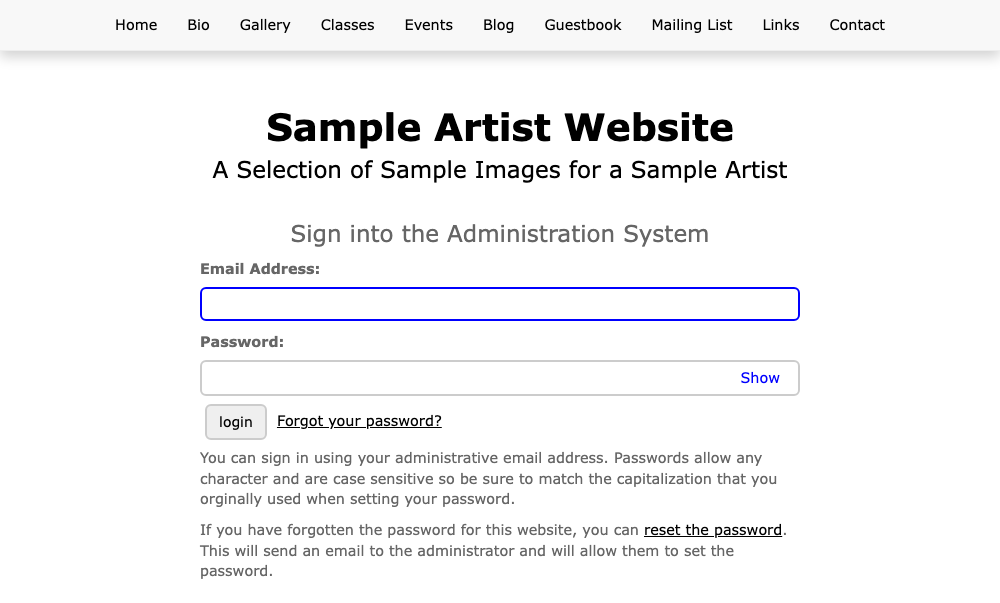
The Sign into the Administration System screen, with empty Email Address and Password fields Type your email address in Email Address.
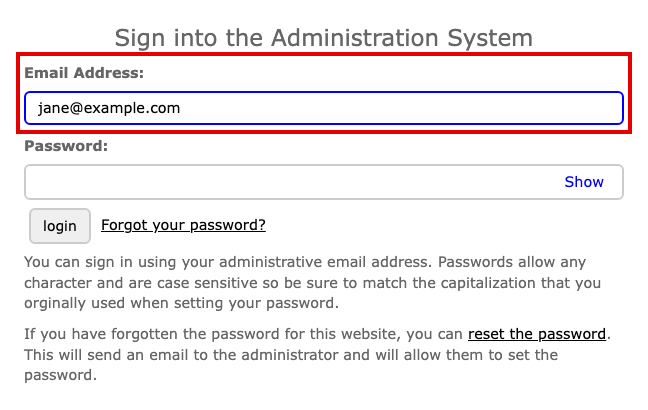
The Email Address field with an email address typed in Type your password in Password. Passwords are case sensitive, so match the capital letters you chose.
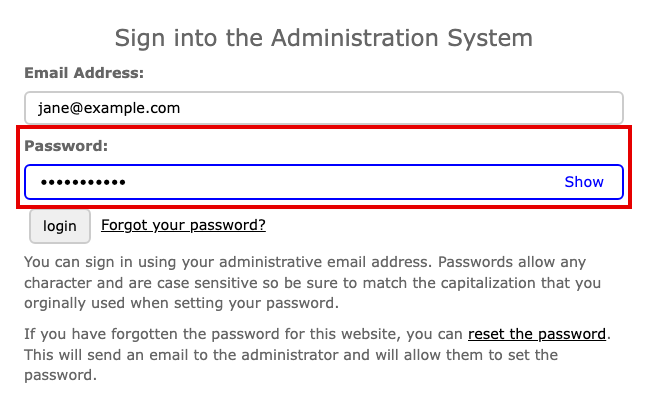
The Password field with the password hidden as dots Select Show at the right of the field to see what you typed, then select login.
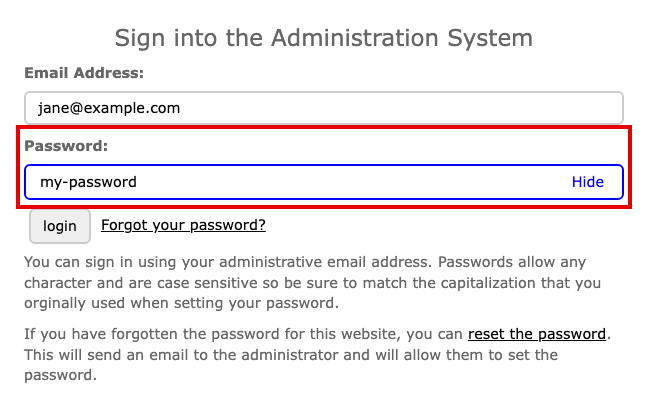
The Password field showing the typed password, with the login button below it
You are in when the admin opens, with its Pages and Settings menus at the top.
If you have forgotten your password
Select Forgot your password? next to the login button. The Password Reset screen opens.
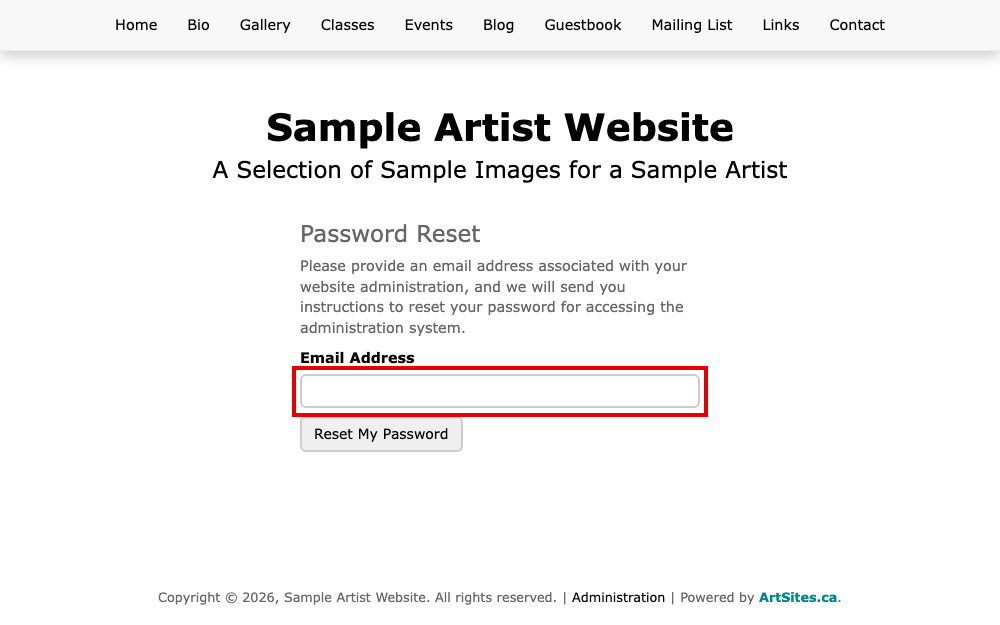
The Password Reset screen with an empty Email Address field and the Reset My Password button Type your email address in Email Address, then select Reset My Password.
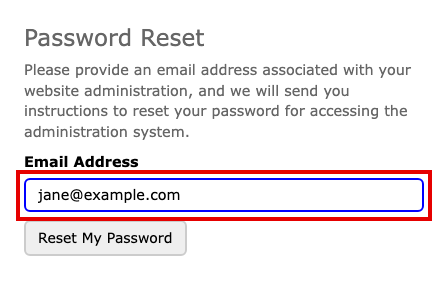
The Email Address field filled in, above the Reset My Password button
A reset works only for a person with Admin: any other address on your account is told it does not have permission to sign in. If that email address belongs to an administrator of your website, an email arrives within a few minutes with a link for choosing a new password. The link works for 24 hours. If the email does not arrive, check your spam folder. Select the link, type the new password in New Password and Repeat Password, then select Set Password. Then sign in as above.
If the screen says the email address is not valid for your website, use the address you were given as the website's administrator. If the screen asks you to contact us instead of showing the form, contact us and we will help.
If a message on either screen is not clear, If You Can't Sign In explains each one.