Choose the image that represents a gallery on your website's gallery list page, in the layouts that have one. If you choose none, the first image in the gallery is used.
Open Gallery in the Pages menu at the top of your admin, then select the gallery in the Gallery List.
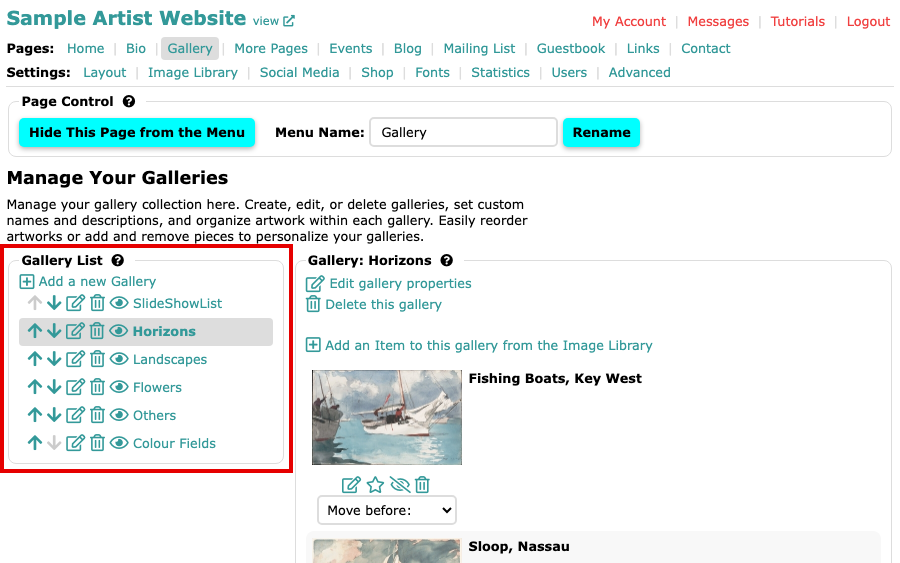
The Manage Your Galleries page, with the Gallery List on the left 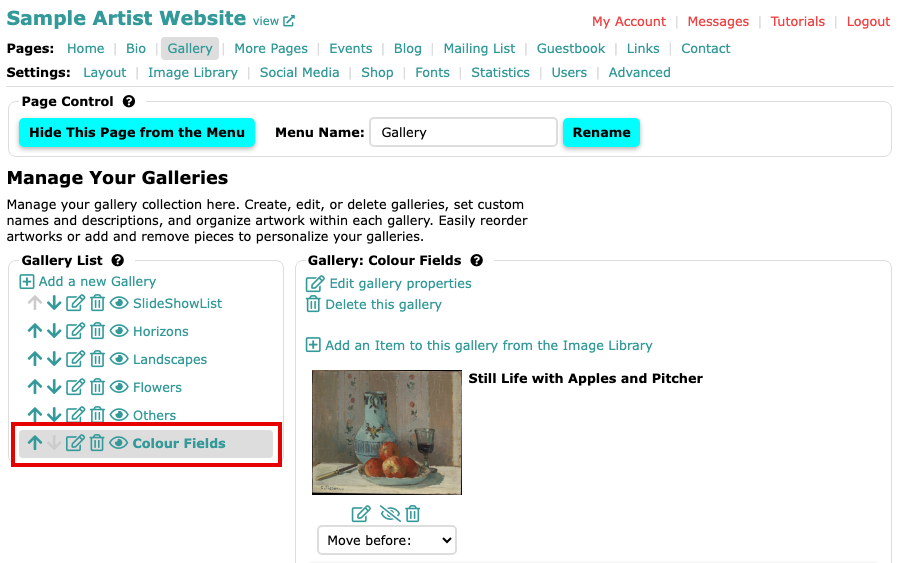
The Colour Fields gallery with its images listed Find the image you want, and select the star icon under its picture. Hover over it and its tooltip reads make feature. On a screen at least 1024 pixels wide, those words show beside the star.
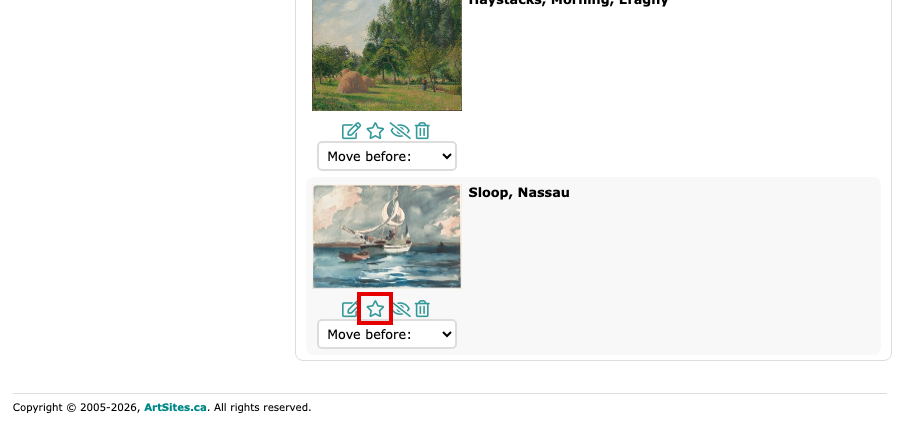
The star icon under the Sloop, Nassau image The page reloads and that image is now the gallery's feature image. On a wide screen the star becomes a solid star labelled featured. On a narrower screen, such as a phone, nothing marks the featured image, and the star is no longer offered beside it.
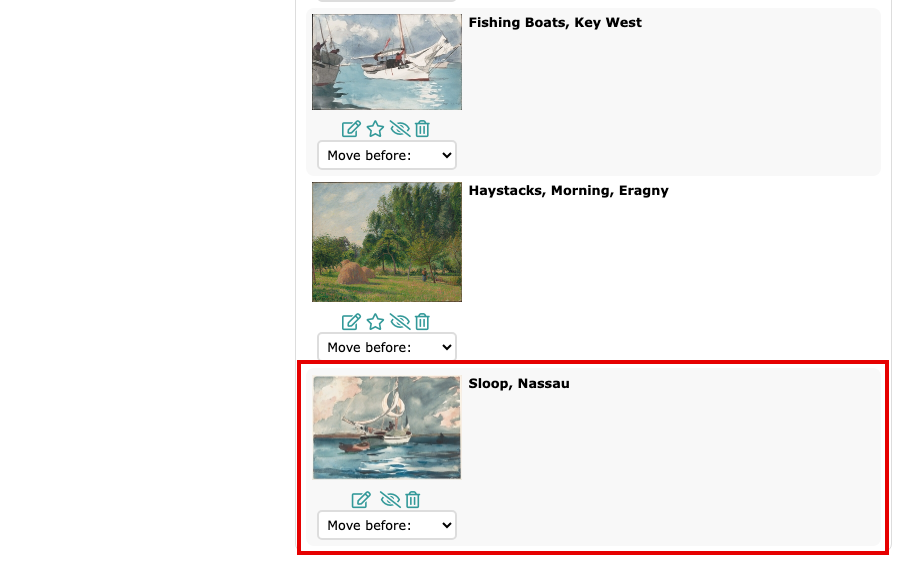
The Colour Fields gallery after the star was selected: Sloop, Nassau has no star under it, while the images above it still do
To change the feature image later, select the star beside a different image. The star is not offered on the Basic plan; see pricing for what each plan includes.