Change the picture in the text of a page, such as Bio or a More Page, without losing the words around it.
Before you start: the new image must be in your Image Library. Upload One Image and Put It in Galleries shows how. The steps are the same in any content editor.
Open the page, such as a page in More Pages, and select the image in the text. It shows a coloured overlay when it is selected.
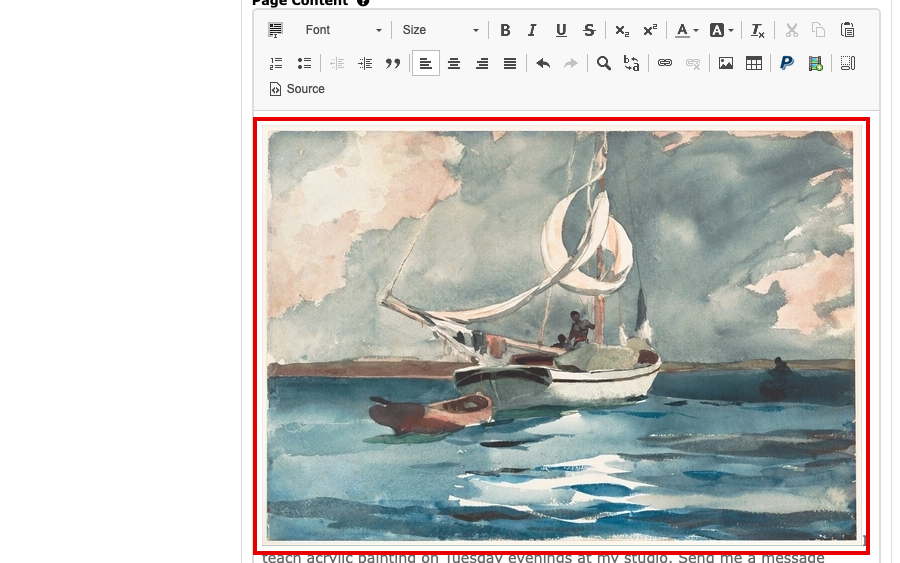
The page's text with an image in it 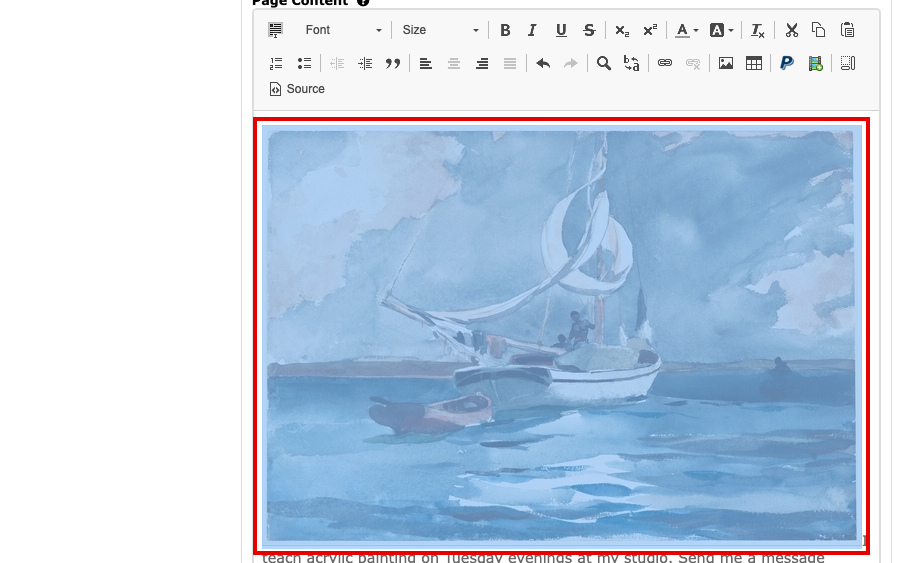
The image selected in the editor Select the Image button in the editor's second row. Image Properties opens with the current image's address in URL.
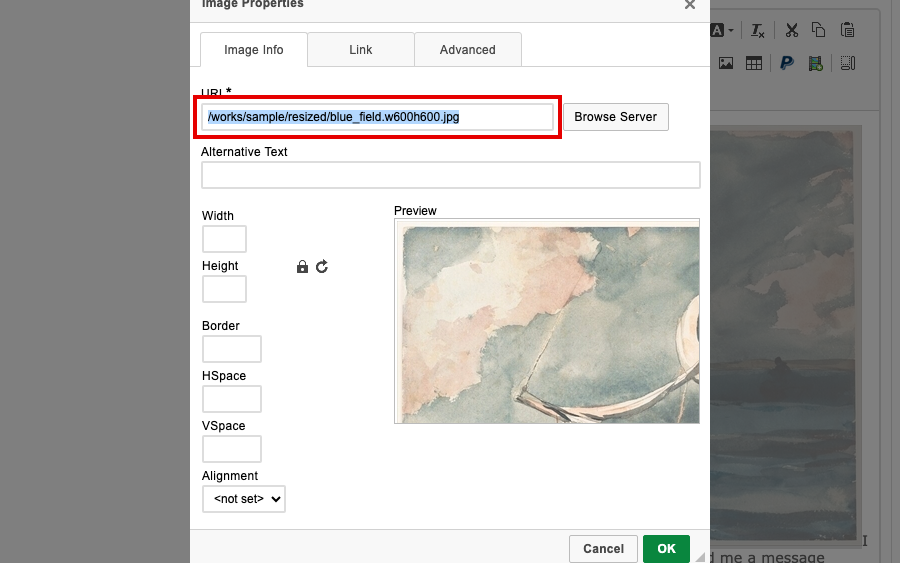
Image Properties with the current image's address in URL Select Browse Server, then select Normal under the new image in the Image Browser. Its address replaces the old one in URL.
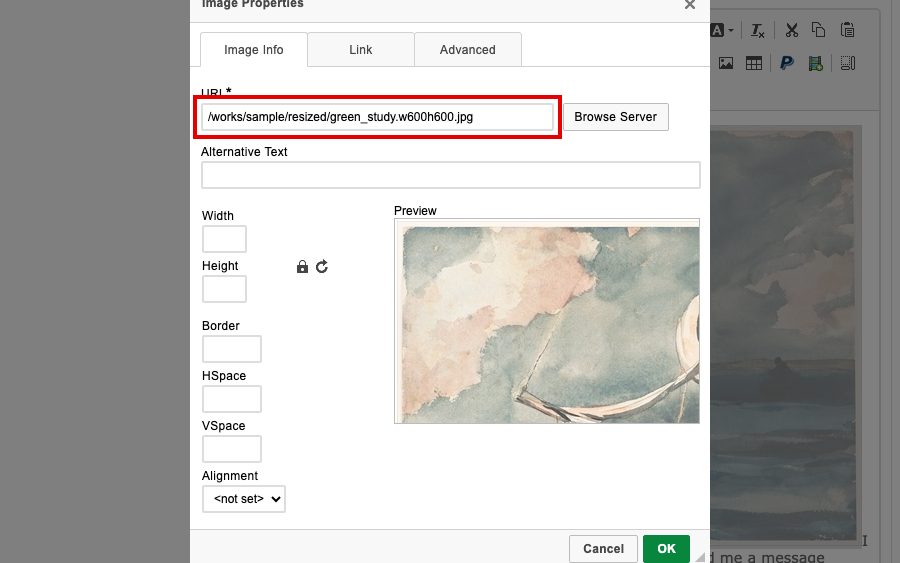
Image Properties with the new image's address in URL Select OK. The new image takes the old one's place in the text.
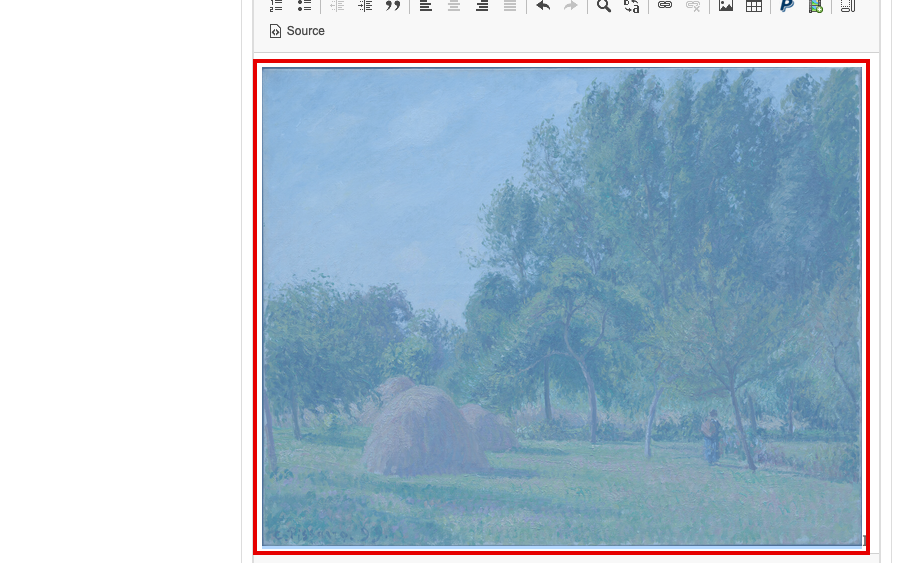
The new image in the editor Select the page's own button, such as Update Page, to save.
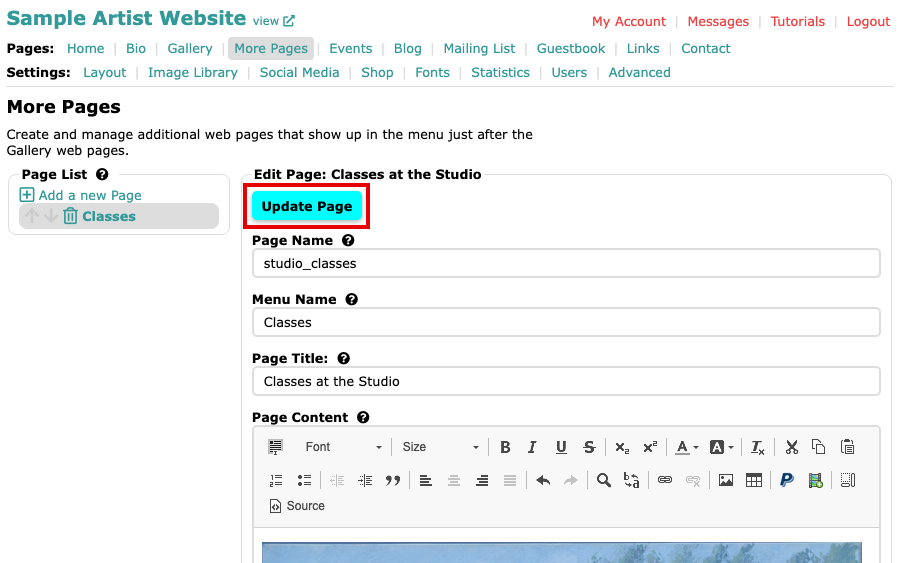
The Update Page button above the page's fields
The new image is on your page. If you would rather start again, select the image, press Delete on your keyboard and insert the new image where it was.