The Page List on the More Pages screen shows every extra page you have added. Use it to change a page, put the pages in a new order or delete one.
Before you start: have at least one extra page. Add a Page to Your Website shows how to make one.
Open More Pages in the Pages menu. The Page List is on the left, with one row for each page. The page you opened is highlighted, with its details on the right.
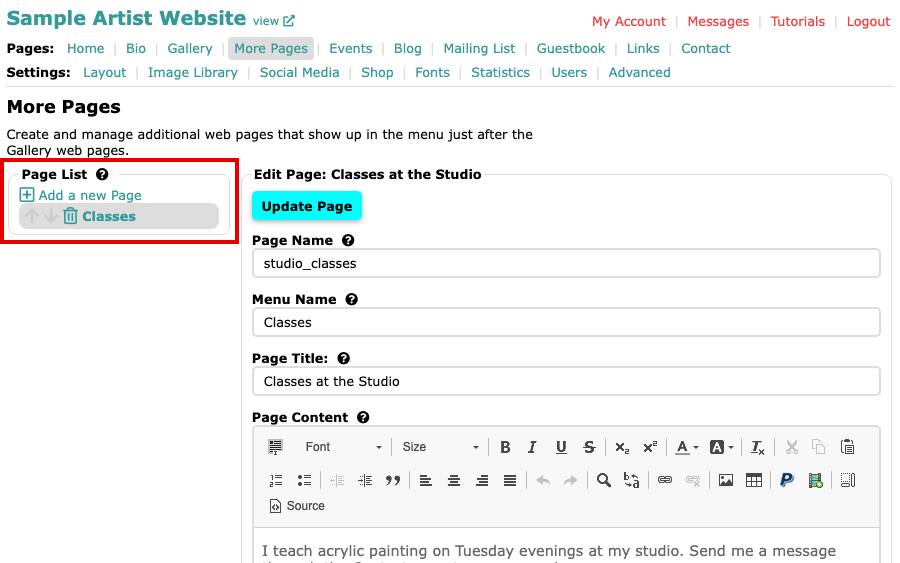
The More Pages screen with the Classes page in the Page List and its details on the right To change a page, select its name in the Page List.
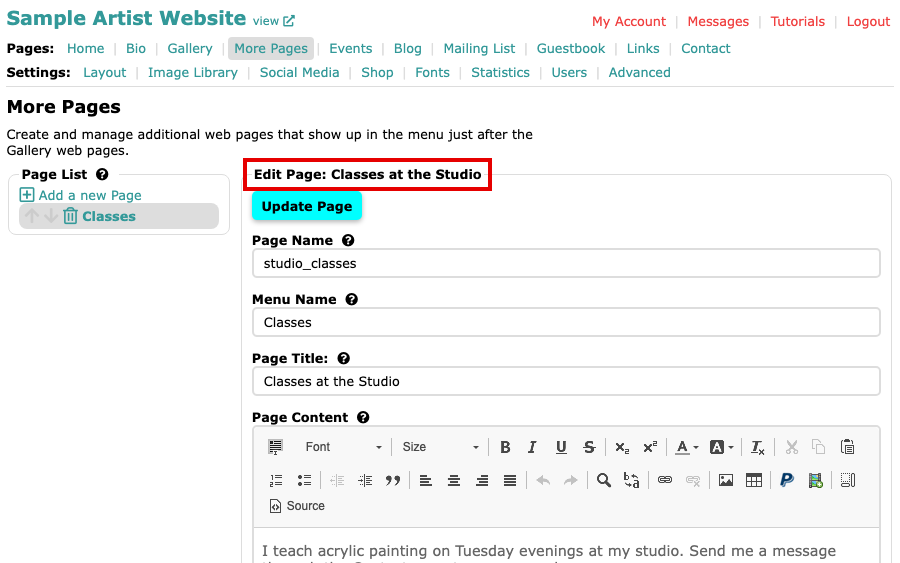
The Edit Page screen for the Classes page, with its Page Name, Menu Name, Page Title and Page Content Change the Menu Name, Page Title or Page Content, then select Update Page. The screen says Page updated.
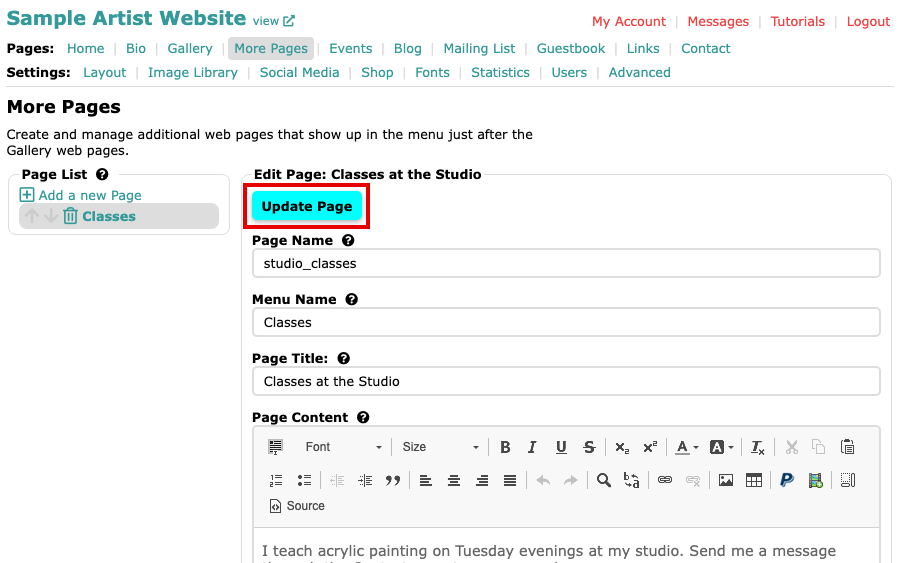
The Update Page button at the top of the page's details Change Page Name with care. It is the page's web address, so every bookmark and link to the old address stops working, and search engines start again with the new one.
To change the order, select the up or down arrow at the left of a page's name. The menu on your website follows the Page List, from the top, after your galleries. An arrow is grey when the page cannot move that way.
To delete a page, select the trash can at the left of its name and confirm. Deleting a page removes it from your menu and from your website.
The Menu Name decides whether a page appears in the menu at all, so emptying it hides the page without deleting it. Your other pages have a Page Control box instead; Hide a Page or Change Its Menu Name explains it.
After you rename, add or delete a page, your menu can sometimes show an extra item such as "0", or list the pages in the wrong order. Only we can put the menu right, so contact us and we will fix it for you.