Visitors can leave you a comment in your website's guestbook. Nothing they write appears on your website until you approve it, and Manage Guestbook Entries is where you do that.
How an entry arrives
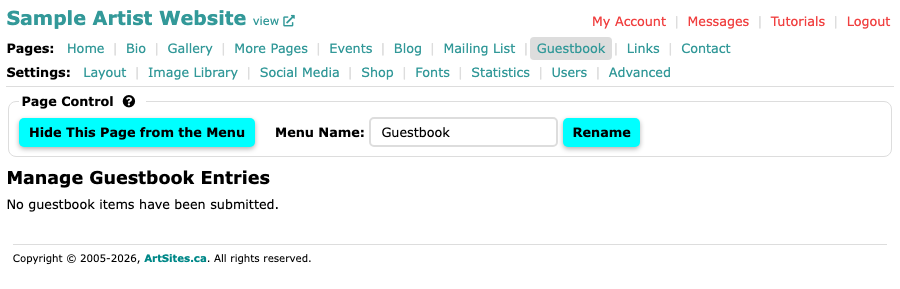
A visitor fills in a name, an optional email address and a comment on your website's Guestbook page, then selects Submit for Approval. We email a notice to your website's contact addresses, and the entry waits on Manage Guestbook Entries.
What you see for each entry
Each entry shows the date it came in, the visitor's name and, if they gave a valid one, their email address, which you can select to write back. Their comment is below.
What you can do
Open the Pages menu and select Guestbook. Under each entry:
- Approve: shows the comment on your website's Guestbook page. Every new entry starts unapproved.
- Disapprove: appears instead of Approve once an entry is showing. It takes the comment off your website and keeps it here, so you can approve it again later.
- Delete: removes the entry for good. Select it, then confirm in the box that asks "Delete entry ...?".
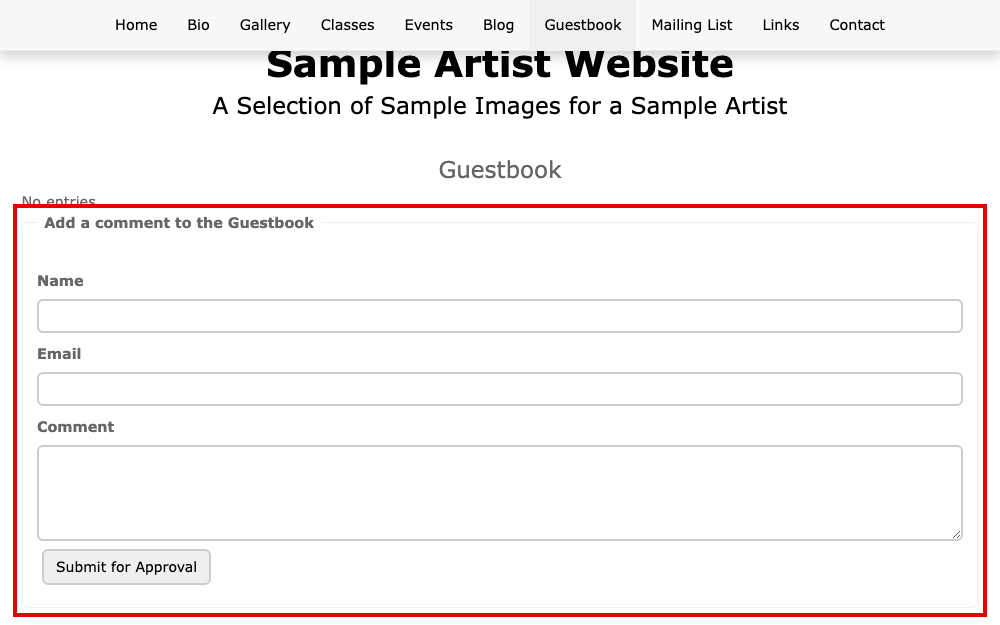
If no one has left a comment, the screen says so.
Your website shows approved comments only, newest first. To rename the page or hide it from your menu, use the Page Control box at the top of the screen.