If you would rather not publish your email address, hide it on your Contact page. Visitors can still write to you through the contact form, and what they send goes to your email address without them seeing it.
Open Contact in the Pages menu at the top of your admin.
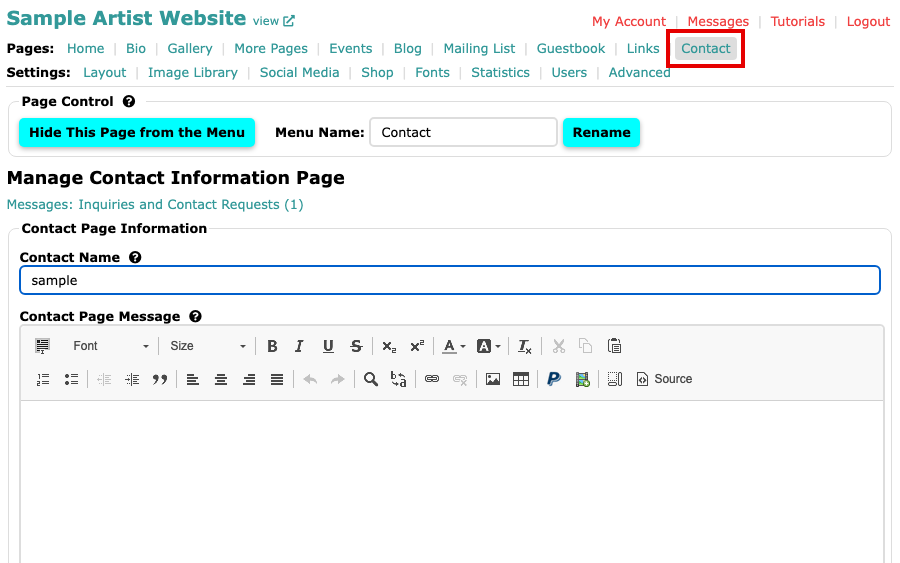
The Manage Contact Information Page screen with Contact selected in the Pages menu Find Display Email Address. Open the list and choose DO NOT display an email address. The list also holds each email address on your website, so choosing one shows that address instead.
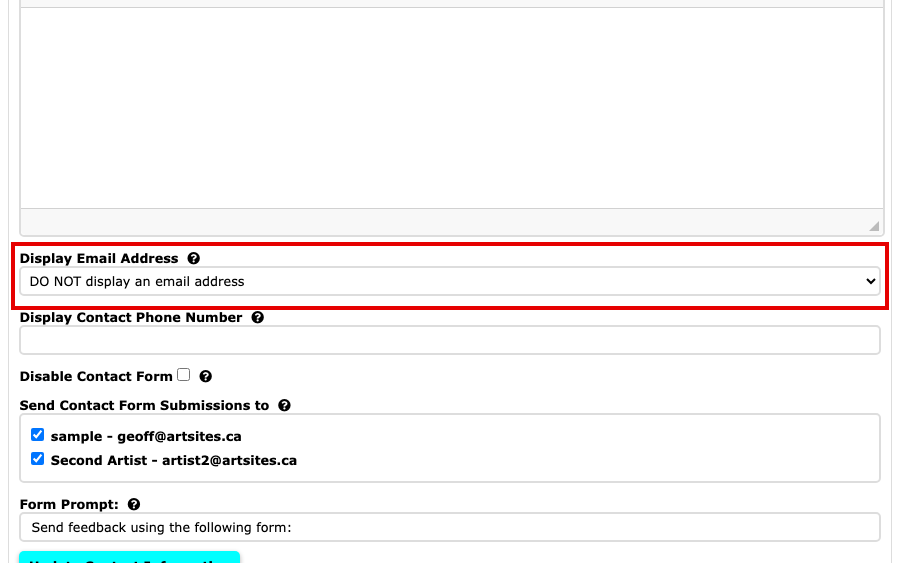
The Display Email Address list showing DO NOT display an email address Leave Disable Contact Form unticked, so visitors have the form to write to you with. Under Send Contact Form Submissions to is the address their messages go to. If your website has more than one user, each address has a tick box, and messages go to every one ticked.
Select Update Contact Information to save. Nothing is saved until you do.
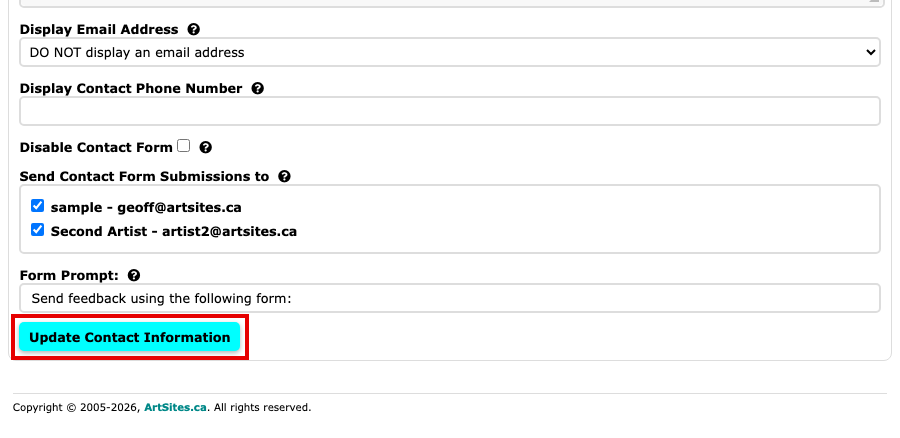
The Update Contact Information button under the Form Prompt box
Your Contact page no longer shows your email address. To change the rest of the page, see Edit Your Contact Page, and to read what visitors send, see Read and Answer Messages.