Download a spreadsheet file with one line for every image that is in a gallery. A CSV file is a plain text file that spreadsheet programs open. It is handy for printing labels for your artwork, or for seeing all your image details in one table.
Open Image Library in the Settings menu at the top of your admin.
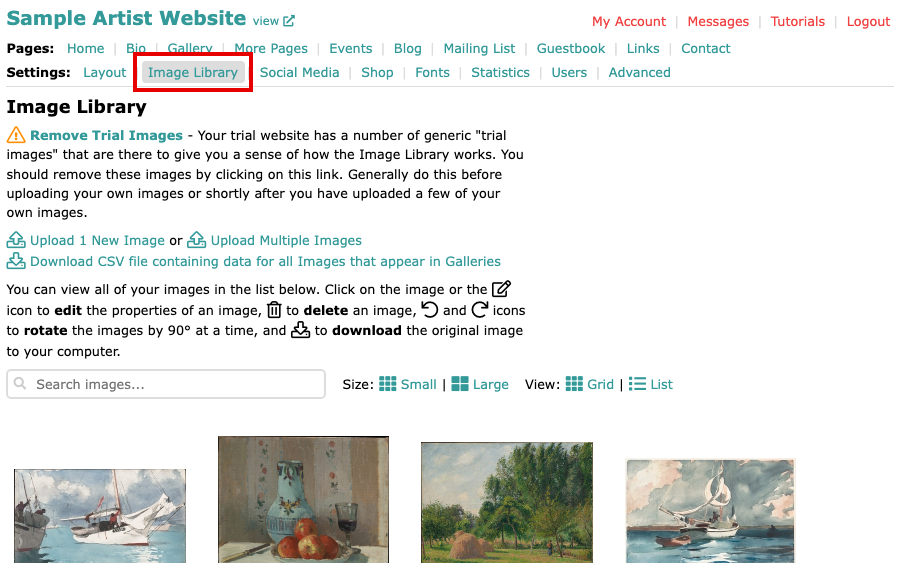
The Image Library page with Image Library selected in the Settings menu Select Download CSV file containing data for all Images that appear in Galleries, near the top of the page.
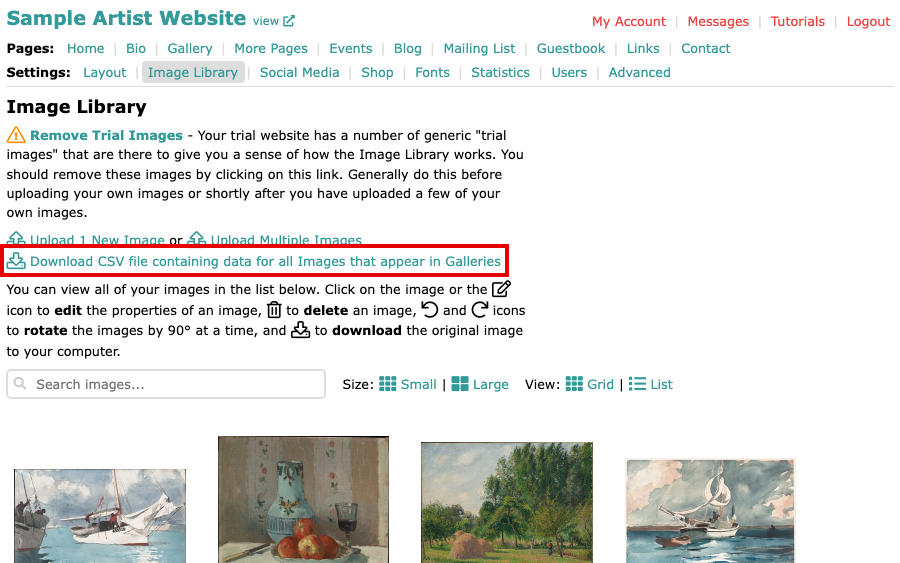
The Download CSV file link below the Upload 1 New Image and Upload Multiple Images links Your browser downloads a file named
artwork.csv, or a name close to it if you have downloaded it before. Open it in a spreadsheet program.
What is in the file
The first line names the columns. Each line after it is one image, and only images in at least one gallery are included, so a headshot for your Bio is left out.
| Column | What it holds |
|---|---|
work_id |
ArtSites' own number for the image |
title |
The image's title |
work_url |
The address of the image's page on your website |
image_url |
The address of the original image you uploaded |
description |
The description, as plain text |
footer |
The Additional Text, as plain text |
created |
The date the image was uploaded to ArtSites, not the date you made the work |
updated |
The date the image was last changed in ArtSites |
available |
The word available or unavailable |
price |
The price, if you gave one |
private_note |
Your private note for the image |