Choose exactly which images your slide show shows, and in which order. Without this, a slide show uses every image in every gallery that is not hidden, in a random order.
You do it with a gallery named SlideShowList. When you have one, every slide show on your website shows only its images, in its order. It does not appear on your website as a gallery.
Before you start, have a slide show on a page (Add a Slide Show) and your images in the Image Library.
Open Gallery in the Pages menu and select Add a new Gallery. In the Title box, type SlideShowList, as one word with no spaces. Capital letters do not matter.
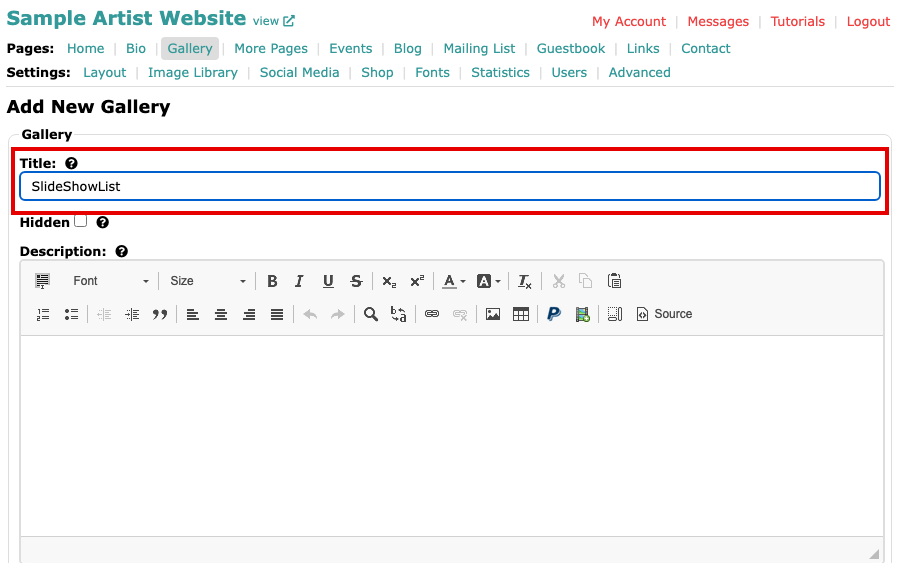
The Add New Gallery page with SlideShowList typed in the Title box Select Add New Gallery. SlideShowList joins your Gallery List and is selected, with no images yet.
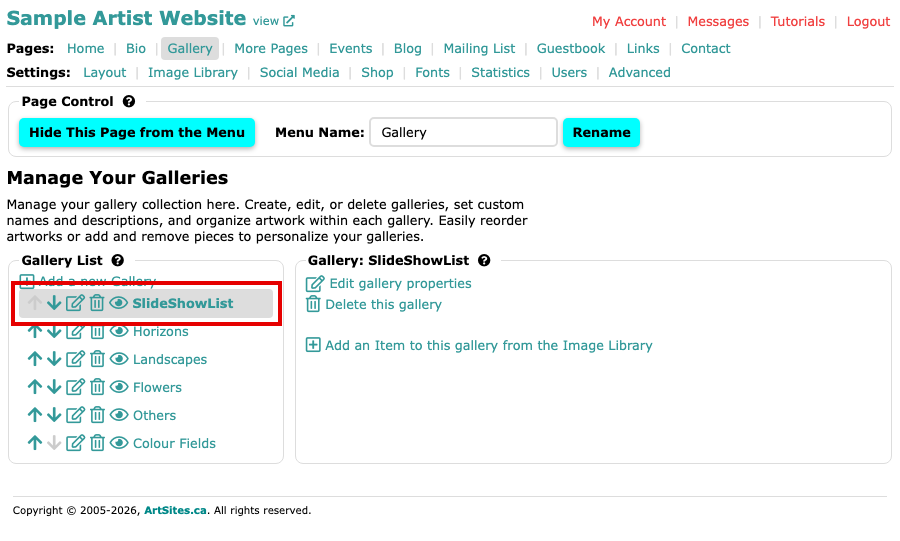
The Gallery page with SlideShowList at the top of the Gallery List and no images in it Select Add an Item to this gallery from the Image Library, then select an image. The page says Image added to gallery.
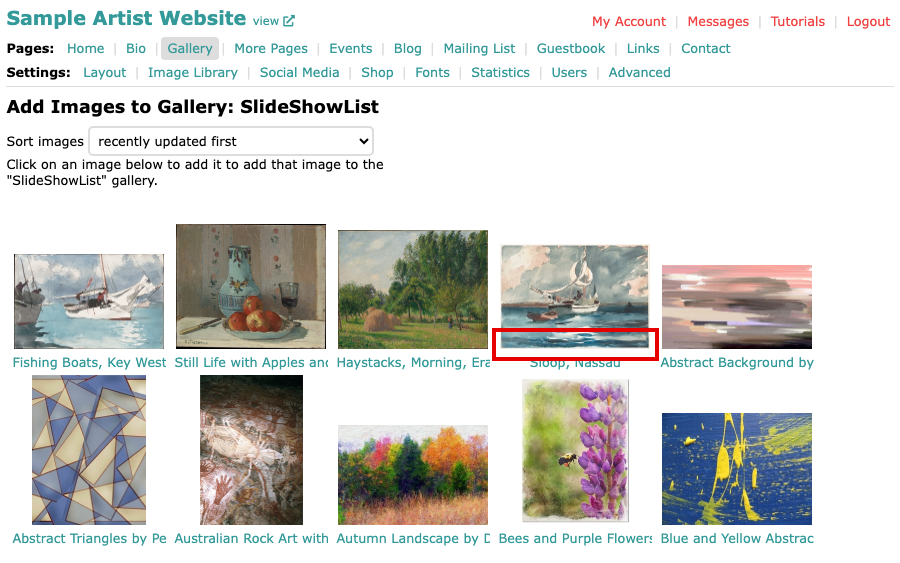
The Add Images to Gallery page listing your images, each to select 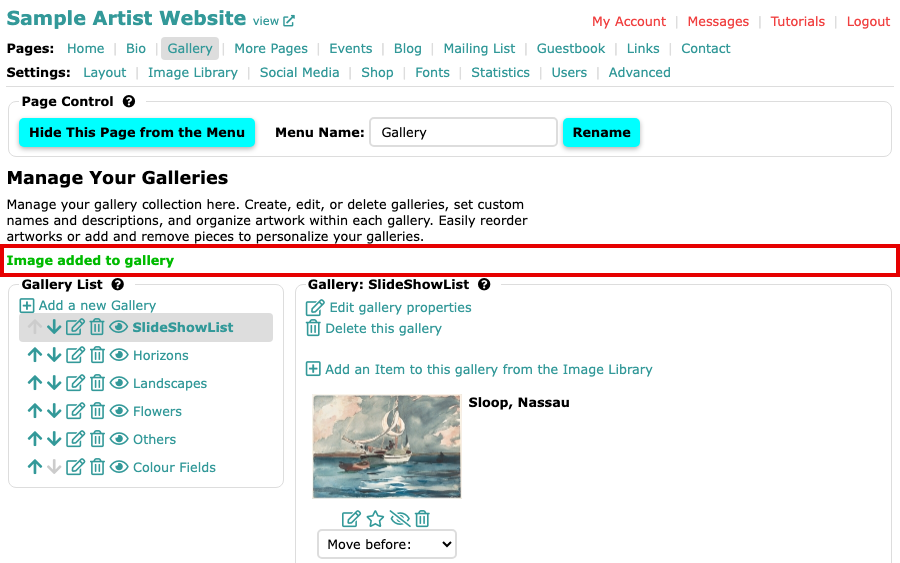
SlideShowList with Sloop, Nassau in it and Image added to gallery above Do the same for each image you want in the slide show. The most recent one you add goes to the top of the list.
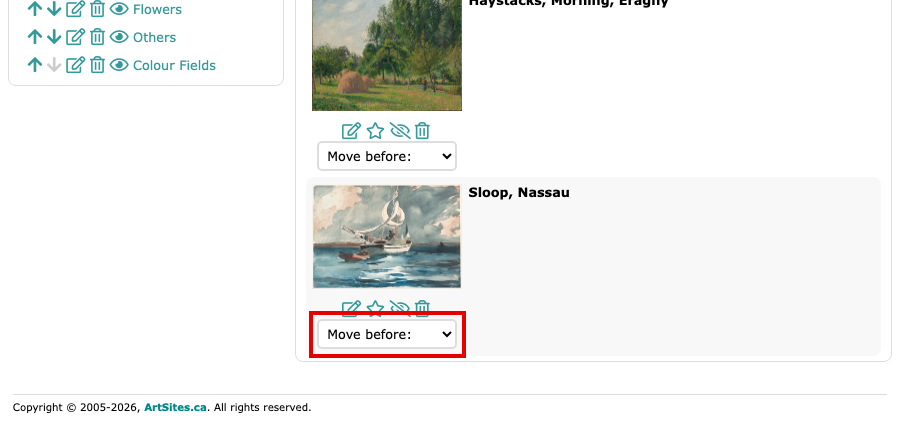
SlideShowList with Haystacks, Morning, Eragny above Sloop, Nassau To change the order, use the Move before: menu under an image. Change the Order of Images in a Gallery shows how.
Open your website. The slide show now shows only the images in SlideShowList, in that order.
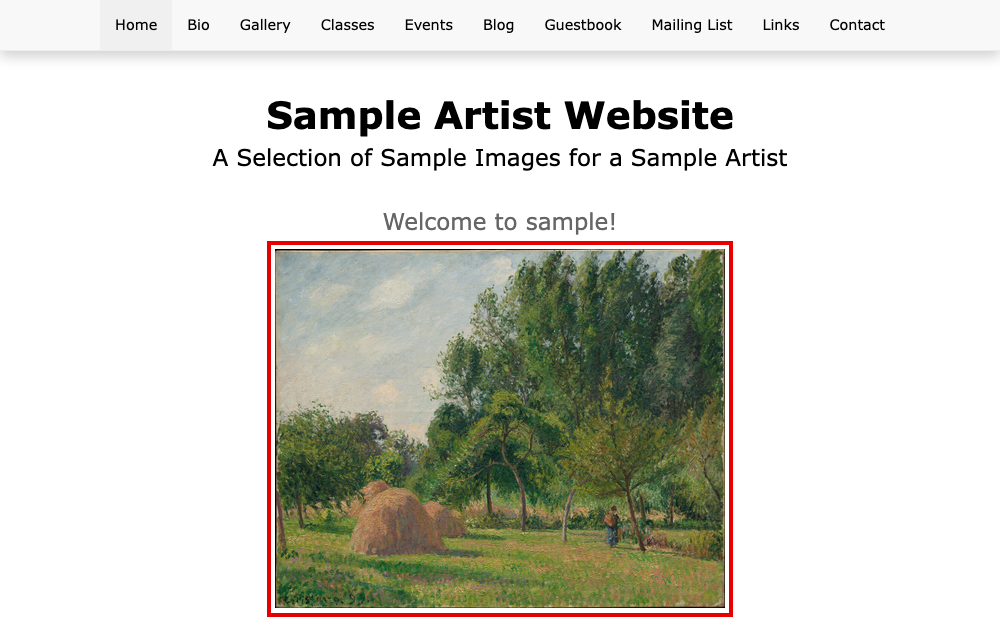
The home page of the website, with the slide show showing an image from SlideShowList
To go back to showing everything, delete the SlideShowList gallery. Deleting a gallery removes only the gallery; the images stay in your Image Library. To add a gallery of your own for the website, see Add a New Gallery.