Turn any words on your pages into a link that takes visitors to another web page, a file or an email.
Before you start: have the full web address you want to link to, such as one copied from your browser's address bar.
Open the page, such as Bio in the Pages menu. Type the words you want to link in the text box, then select them with your mouse. The words do not need to match the address.
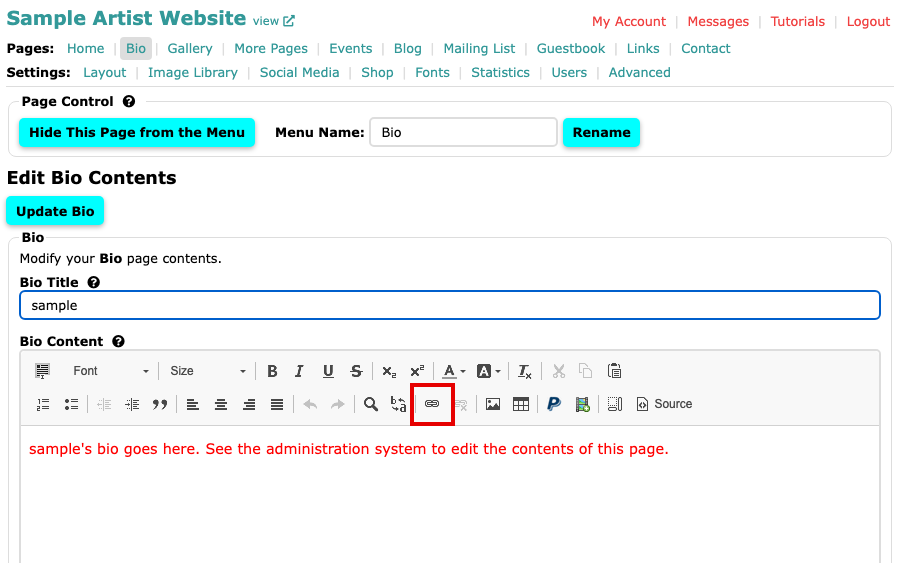
The Bio page with the content editor open Select the Link button, the chain icon in the editor's second row. The Link box opens. If you select no words first, type them in Display Text.
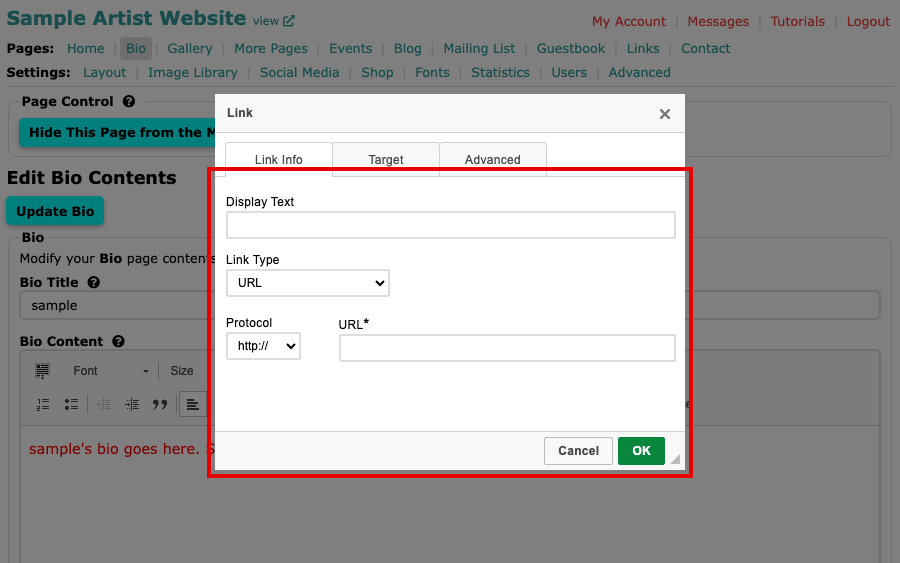
The Link box with an empty Display Text field, Link Type set to URL and a URL field 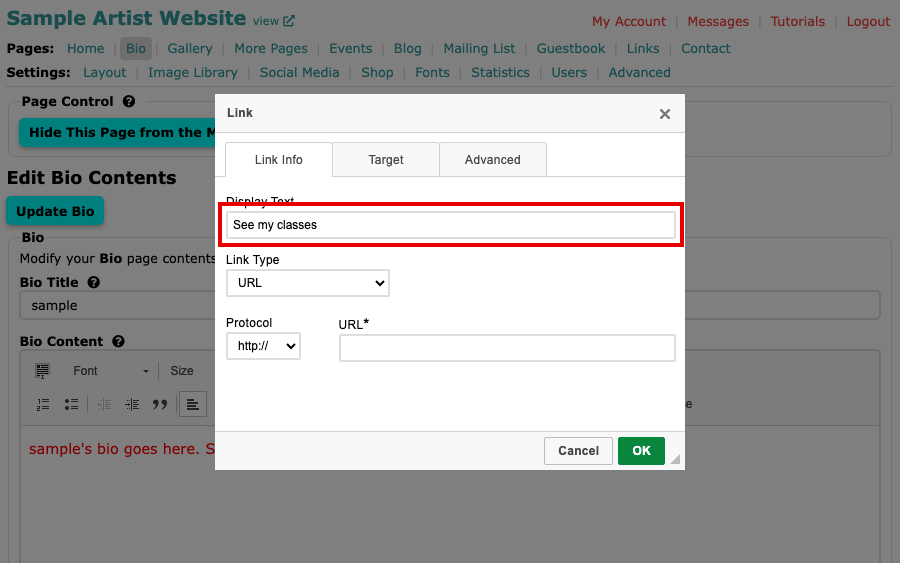
The Display Text field with See my classes typed in Type or paste the full address in URL. If the address starts with https://, the Protocol menu changes to match as you type it.
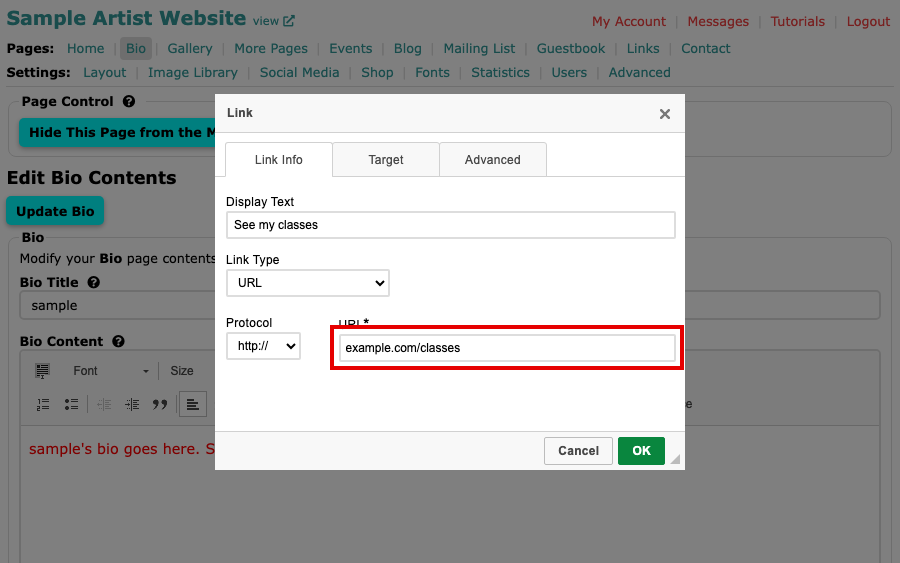
The URL field with an address typed in, beside the Protocol menu To make a link that starts an email instead, open the Link Type menu and choose E-mail. Type the address in E-Mail Address. You can also fill in Message Subject and Message Body to start the visitor's email with words already in it.
Select OK. The words turn into a link in the editor.
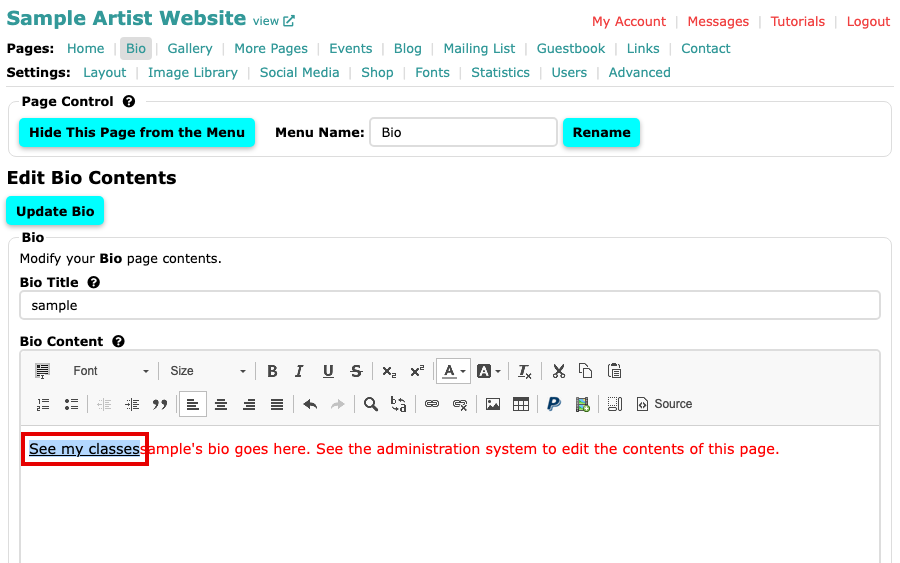
The words See my classes underlined as a link in the Bio editor Select the page's own button, such as Update Bio, to save. Use view at the top left to try the link.
To remove a link later, click in the linked words and select Unlink, the broken chain next to Link.
You can link to a PDF you have uploaded too: Manage Files gives each file an address to use.