Each work in your Image Library has an Availability box where you say whether it is for sale and what it costs. Once you have set up your website for shopping, a work that is for sale shows its price and a purchase button.
Open Image Library in the Settings menu, then select the edit icon under the work.
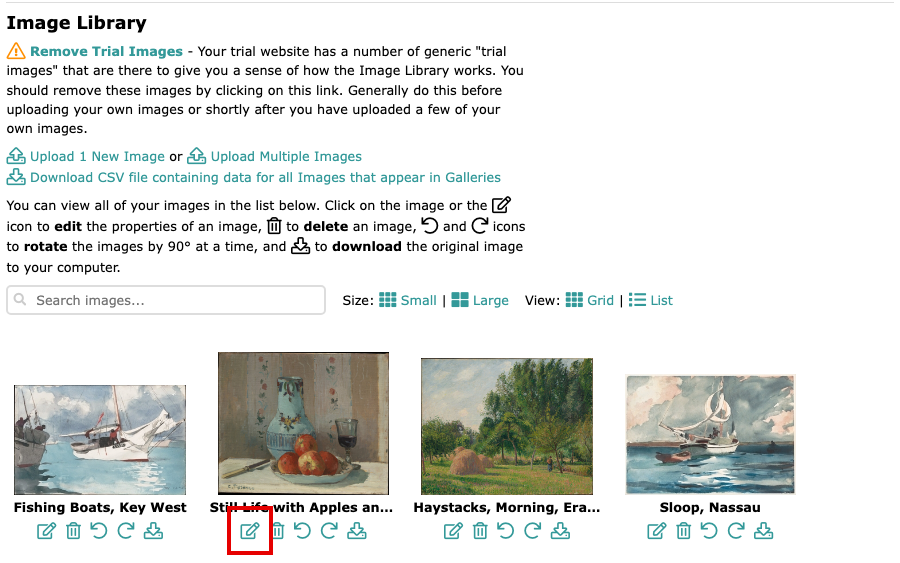
The Image Library, with an edit icon under each image On the Edit Image page, find the Availability box, beside the image.
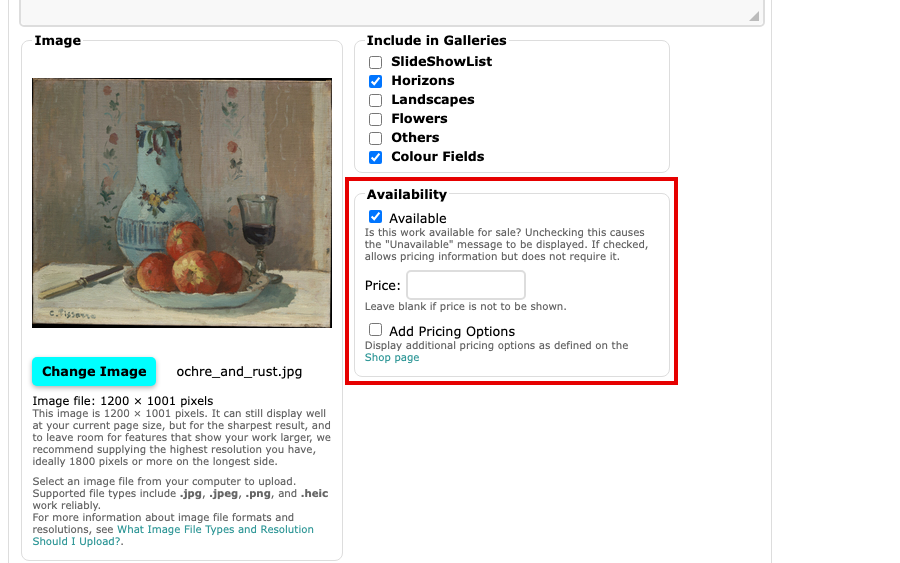
The Availability box on the Edit Image page, with Available ticked Decide whether the work is for sale. With Available ticked, the work can show a price. Untick it and the work shows "Unavailable" in place of a price and button, and the Price box is greyed out.
Type the work's price in Price. If you leave it blank, the work shows no price, and no purchase button unless you also use pricing options.
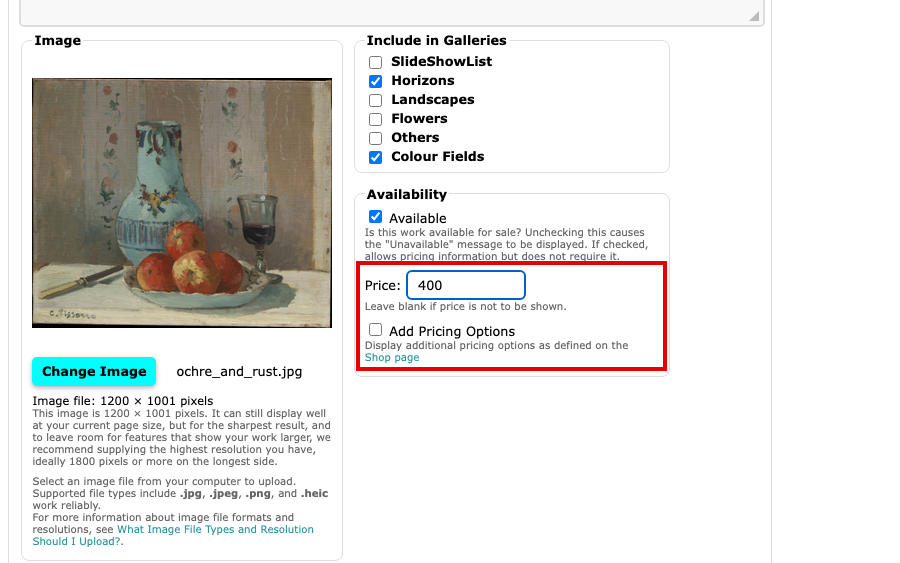
The Price box with a price typed in Tick Add Pricing Options to add the standard variations from your Shop page, such as prints in several sizes. They appear as a drop-down list beside the purchase button, with your price as the first choice. To list only the variations, such as when the original has sold or you sell photographs, leave Price blank and tick Add Pricing Options.
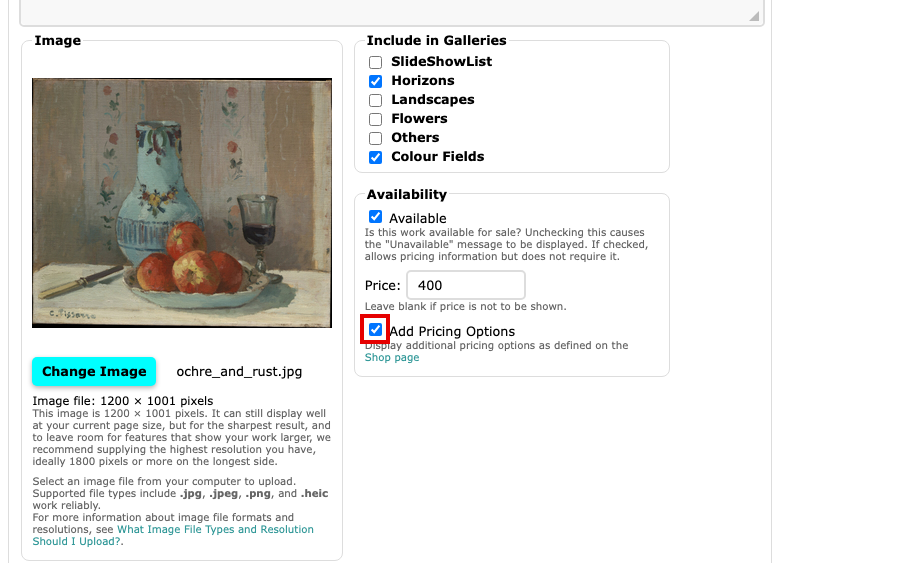
Add Pricing Options ticked under the Price box Select Update Image to save. The button is at the top and at the bottom of the page.
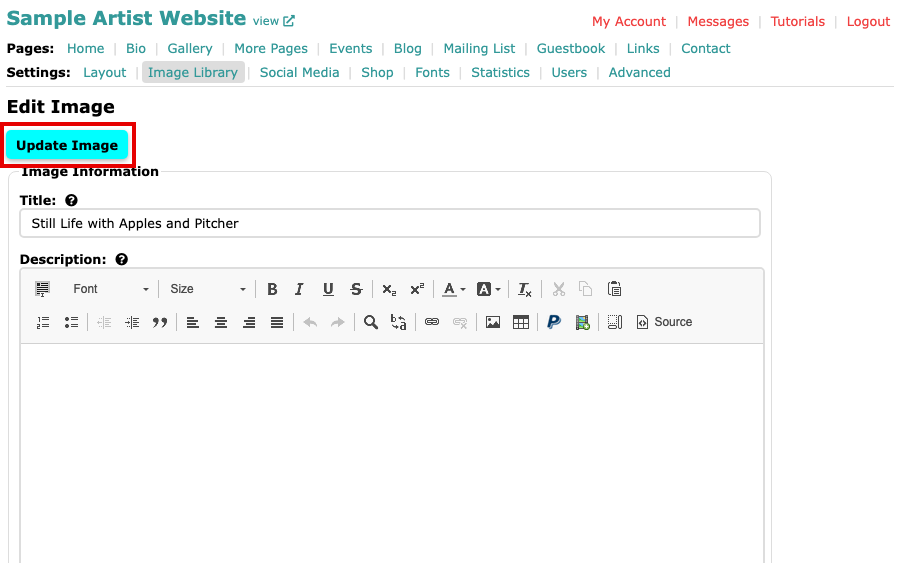
The Update Image button at the top of the Edit Image page
When a work has sold
Untick Available and save to mark a work as sold. Mark a Work as Sold shows how, and how to change the word "Unavailable" with Unavailable Text or turn off the red dot with Disable red dot on unavailable works, both on the Advanced page. Saving with Available unticked clears the work's price and pricing options, so note them first if you may offer the work again.
Your gallery now shows the price, and the purchase button, with the work. The button appears once Enable PayPal is ticked on the Shop page.