You sell through your website with a PayPal account. You enter its email address on the Shop page, and your website then puts a purchase button beside each work you offer for sale. You need a PayPal account first. Setting one up on PayPal's own website is free, and the address you used to open it may differ from the one you use for your website.
If you do not see Shop in the Settings menu, your plan does not include it. Our pricing page lists what each plan includes.
Open Shop in the Settings menu at the top of your admin. Set the Currency if it is not the one you sell in.
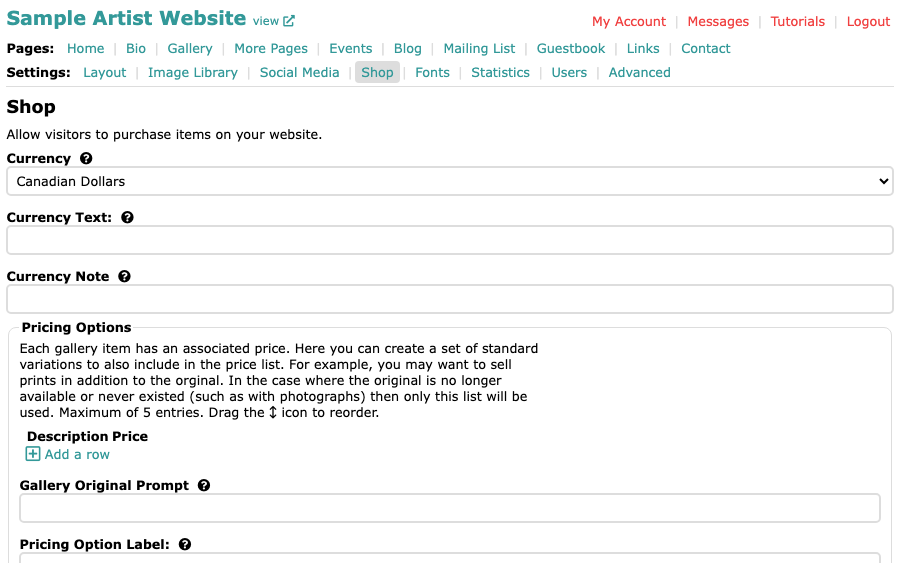
The Shop page, with Shop selected in the Settings menu Under Pricing Options, select Add a row if you sell the same work in standard variations, such as prints in several sizes. Each row has a Description and a Price. You can add up to five rows, drag a row's arrow icon to reorder them, and select its bin icon to remove it.
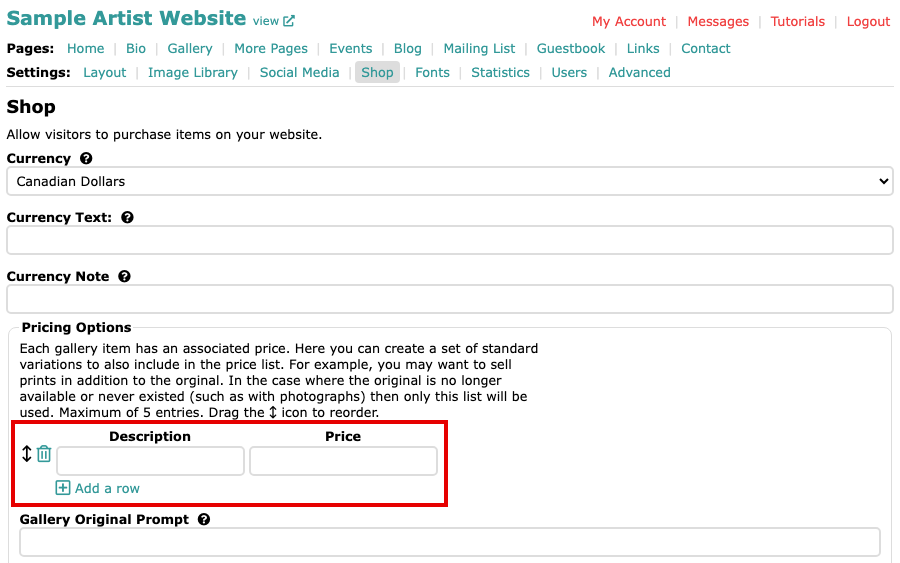
A new pricing row under Pricing Options, with Description and Price boxes Type the description of the variation, and then its price.
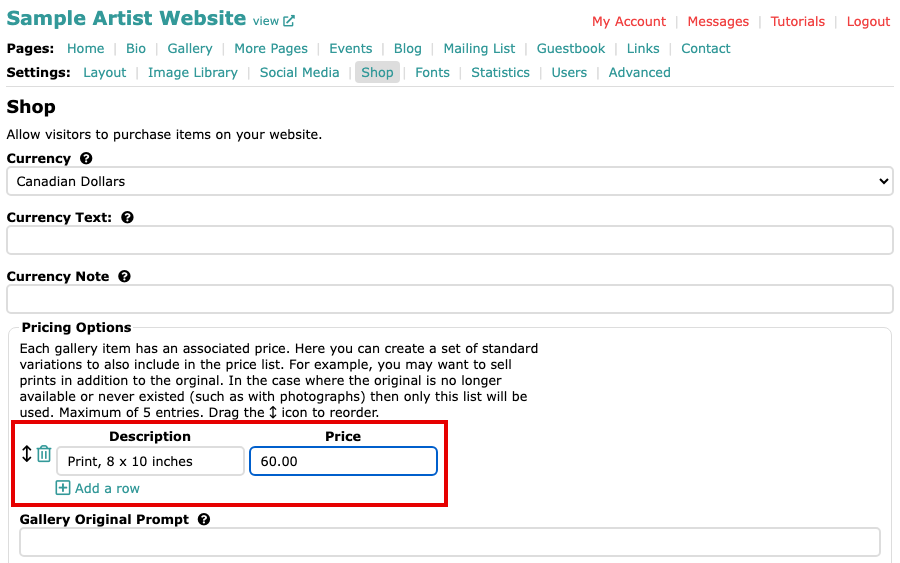
A pricing row filled in with a print description and a price The prices are your own, entered as numbers. A work can show its own price and these options together, or only these options, which suits photographs and works whose original has sold. Configure a Work for Sale shows how a work uses them.
In the PayPal section, tick Enable PayPal. Until you do, works show their prices but no purchase button.
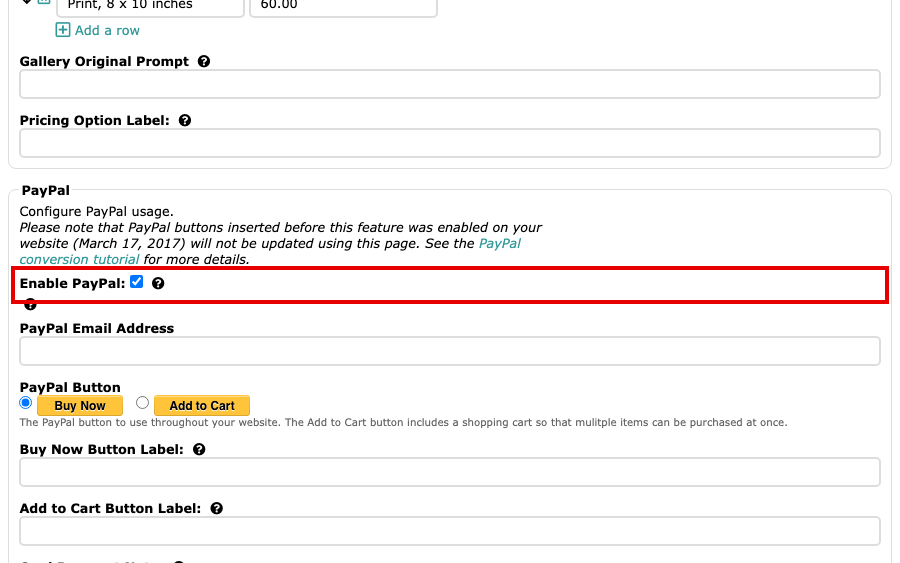
Enable PayPal ticked in the PayPal section Type your PayPal account's email address in PayPal Email Address.
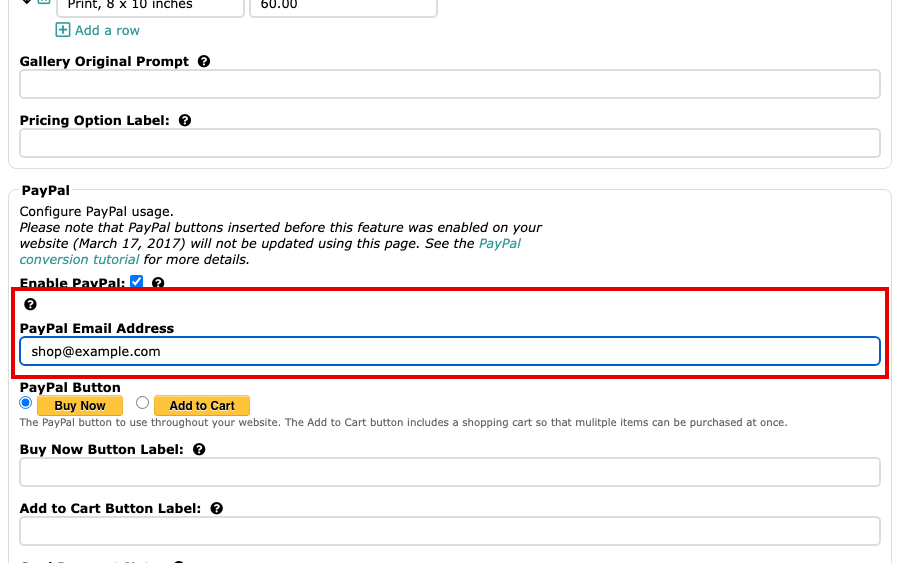
The PayPal Email Address box with an address typed in Scroll down for the other choices. Choose Buy Now to sell one work at a time, or Add to Cart to let a visitor buy several works at once. You can change the words on either button with Buy Now Button Label and Add to Cart Button Label, and tick Ask for shipping address if you need one. Then select Update Shop to save.
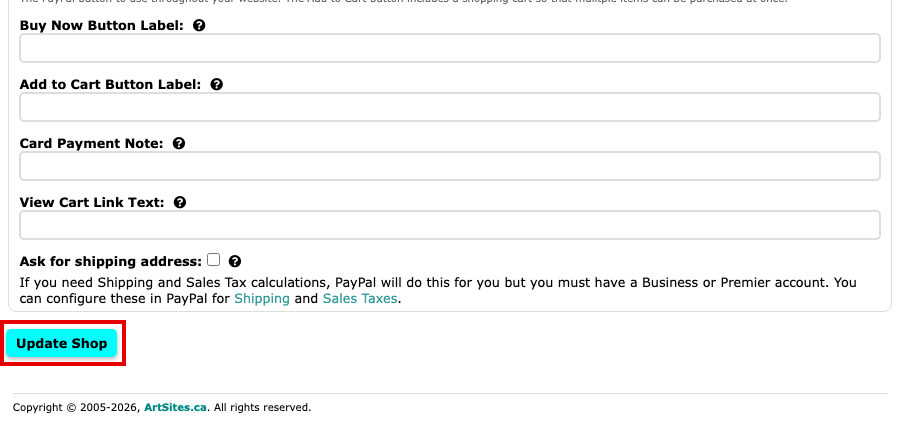
The rest of the PayPal section and the Update Shop button at the bottom of the page
PayPal works out shipping and sales tax for you, but only on a Business or Premier account, and you set them up in PayPal itself. The Card Payment Note box adds a line under the button. Use it to say that visitors can pay by card only if your own PayPal account allows card payments without a PayPal account: that needs a Business account with PayPal Account Optional turned on in PayPal's settings.
Change the Shop's wording
Five boxes on the Shop page change the words visitors see. Each has a question mark beside it that explains where the words appear. Leave a box blank to keep the standard wording.
- Currency Text: replaces the line that names the currency under the purchase button, such as "Canadian Dollars". Type none to hide the line.
- Currency Note: adds a note under the currency, such as "+Shipping".
- Gallery Original Prompt: the word for the work's own price when it appears beside your pricing options. The standard word is "Original".
- Pricing Option Label: the heading for the drop-down list of pricing options, such as "Size". PayPal receives this word with the buyer's choice, so it appears on the receipt and in your PayPal records. Changing it affects new sales only. The standard word is "Option".
- View Cart Link Text: the words on the View Cart link, which appears only when you choose Add to Cart. Type none to hide the link.
To change other words on your website, see Change the Words Visitors See.
Your website now has a Shop connected to your PayPal account, and you can offer works for sale.