Change the password you use to sign in to your website's admin.
Before you start: be signed in, and have your current password ready. If you have forgotten it, reset it instead.
Select My Account at the top right of any admin screen.
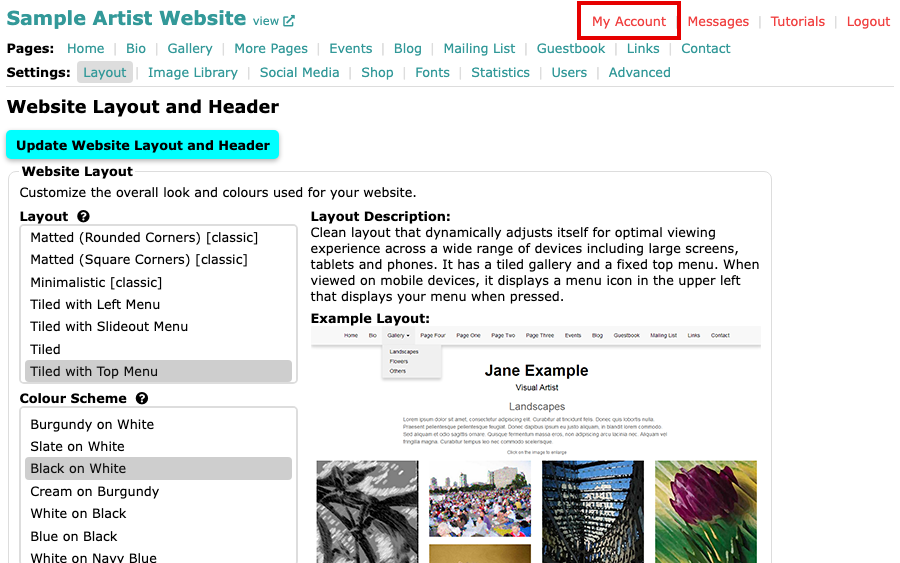
The admin's menus, with My Account at the top right Select Change Password in the Account line under the menus. My Account opens on Status & Renewal, the first item in that line.
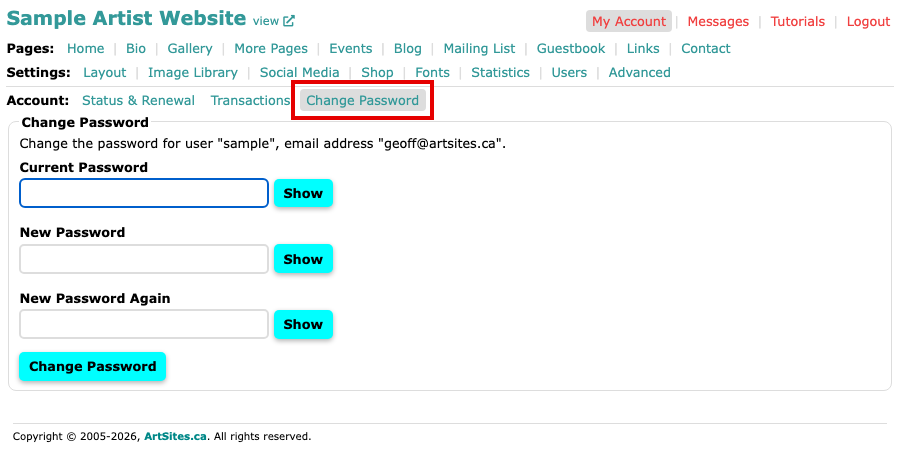
The Change Password screen, with Current Password, New Password and New Password Again fields Type your current password in Current Password.
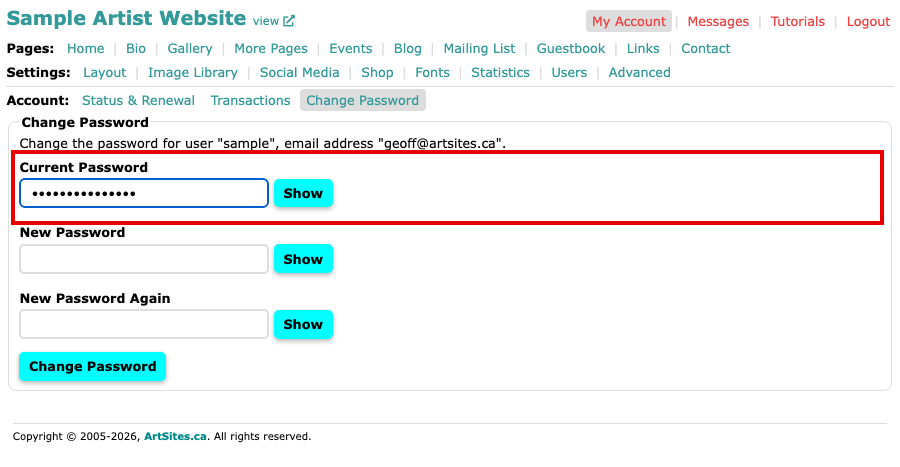
The Current Password field filled in Type your new password in New Password.
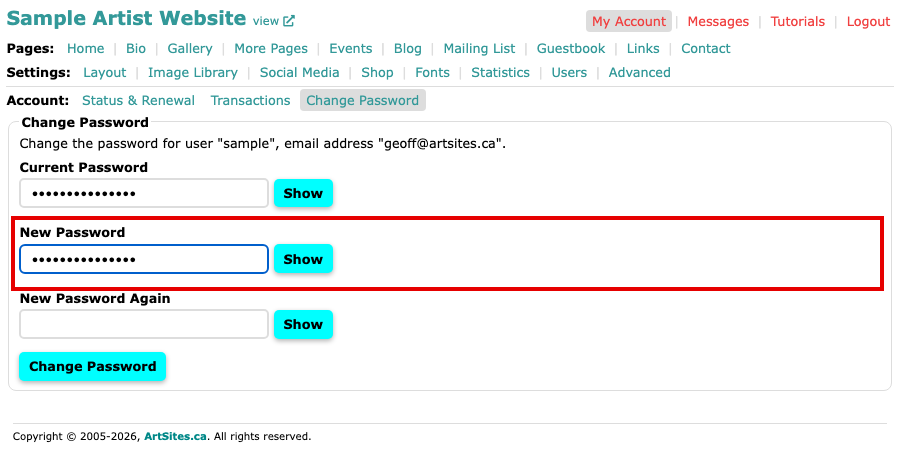
The New Password field filled in Type the same new password in New Password Again, then select Change Password. Select Show beside a field first if you want to see what you typed.
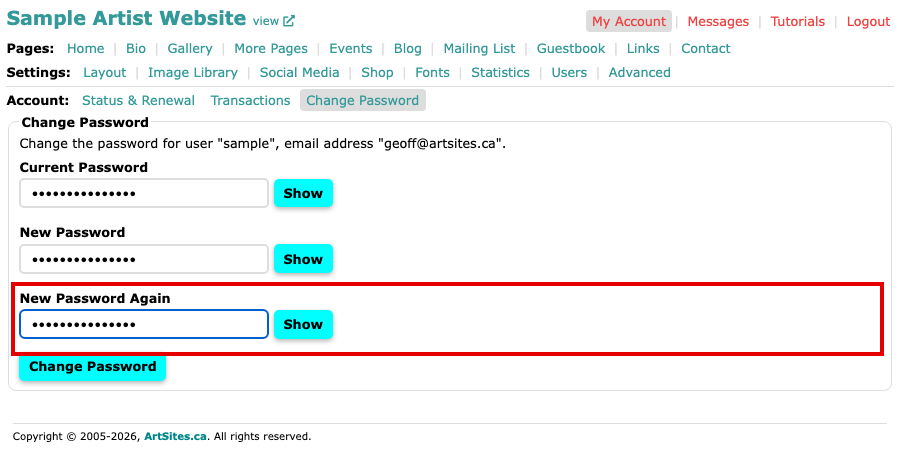
All three fields filled in, with the Change Password button below them
The screen says Your password has been updated, and you stay signed in. Use the new password the next time you sign in. Passwords are case sensitive.
The new password must be different from your current one, must match what you typed the second time, and must be at least four characters long. A longer password that is not used anywhere else is safer. The screen tells you which of these needs fixing if a change does not go through.