Some of the words on your website are built in, such as the labels on the Contact page. You can change any of them, or translate them into another language, from the Prompts on the Advanced page. This example changes the word on the Contact page's button.
Open Advanced in the Settings menu at the top of your admin, and scroll down to the Prompts section.
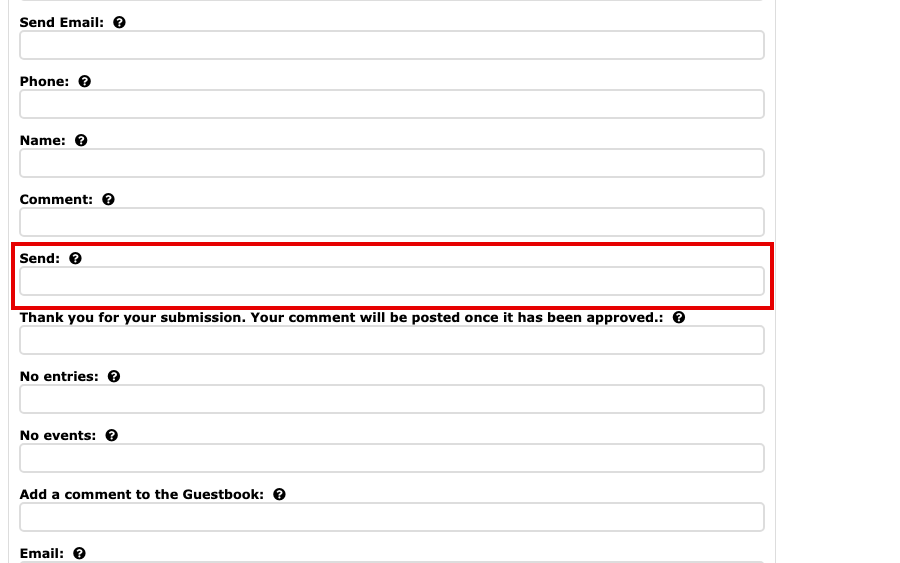
A list of prompt fields on Advanced Settings, including Send Find the prompt you want to change, here Send:. Select the question mark beside any prompt to read where visitors see it, which helps you work down the list when you translate the whole website.
Type your own word or phrase in the field.
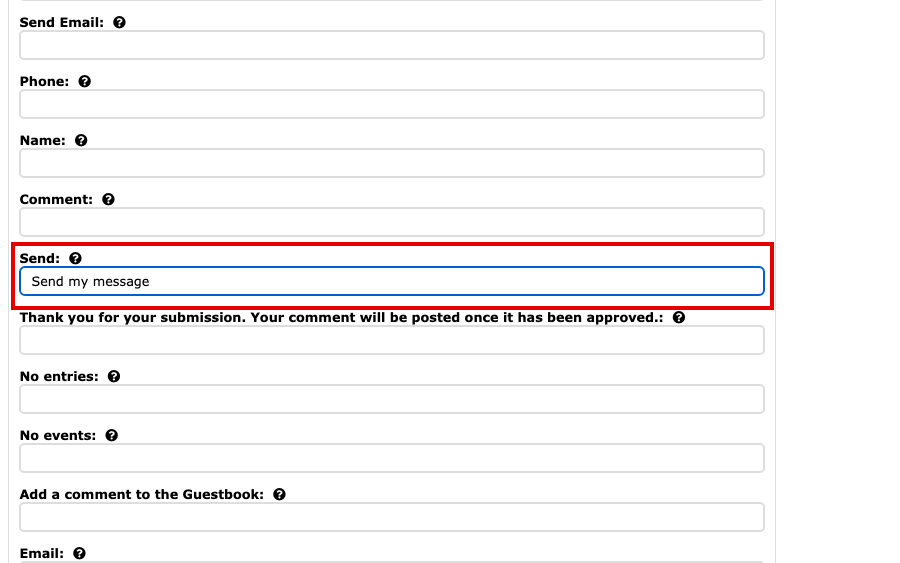
The Send field with Send my message typed in Select Update Advanced Settings to save. The button is at the top and at the bottom of the page.
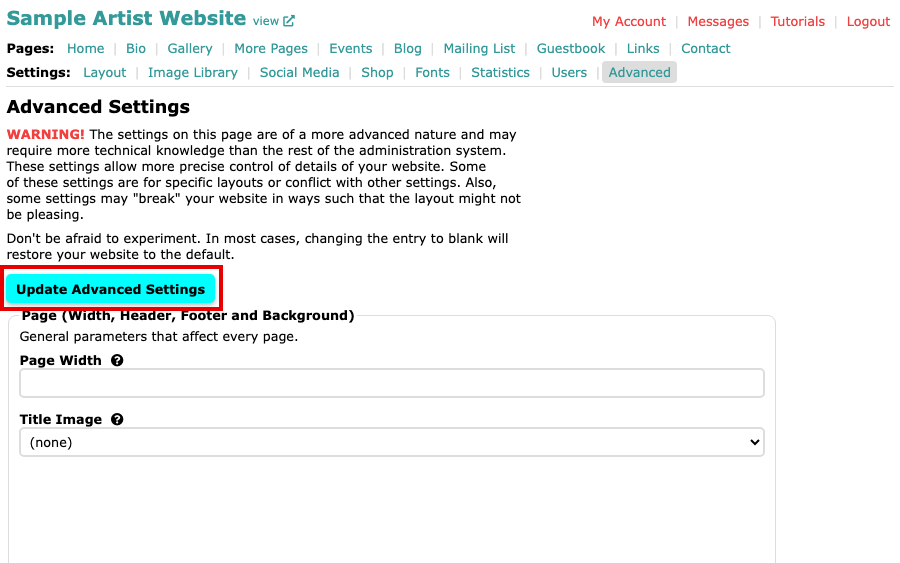
The Update Advanced Settings button at the top of the page Open your website's Contact page. The button now shows your wording.
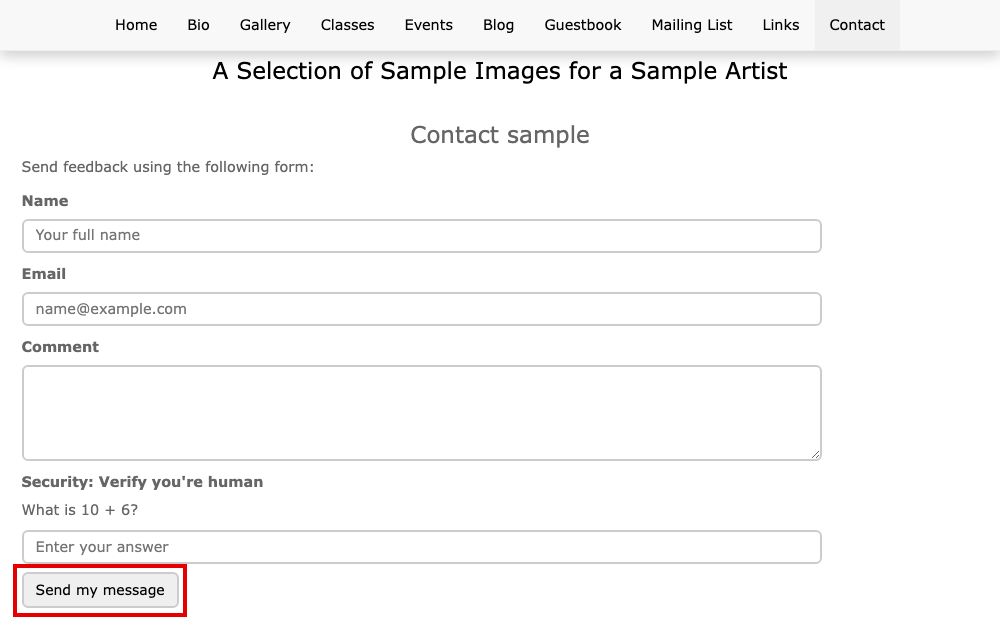
The Contact page, with the button reading Send my message
To go back to the standard word, clear the field and save again. Leaving a prompt blank always uses the standard word, and typing none shows nothing at all.
Other words you can change
- Image Inquire Text: and Unavailable Text: are on the same page, under the Images heading.
- Currency Text: and View Cart Link Text: are on Shop.
- A page's name in the menu is set in Page Control; Hide a Page or Change Its Menu Name shows how.