Your Contact page can link to your social media pages, each with its icon. You fill in the Social Media page, and the Contact page does the rest. Not sure what to type? See How to Find Your Social Media Names.
Open Social Media in the Settings menu at the top of your admin. There is a box for each network. Leave a box empty if you do not want that network shown.
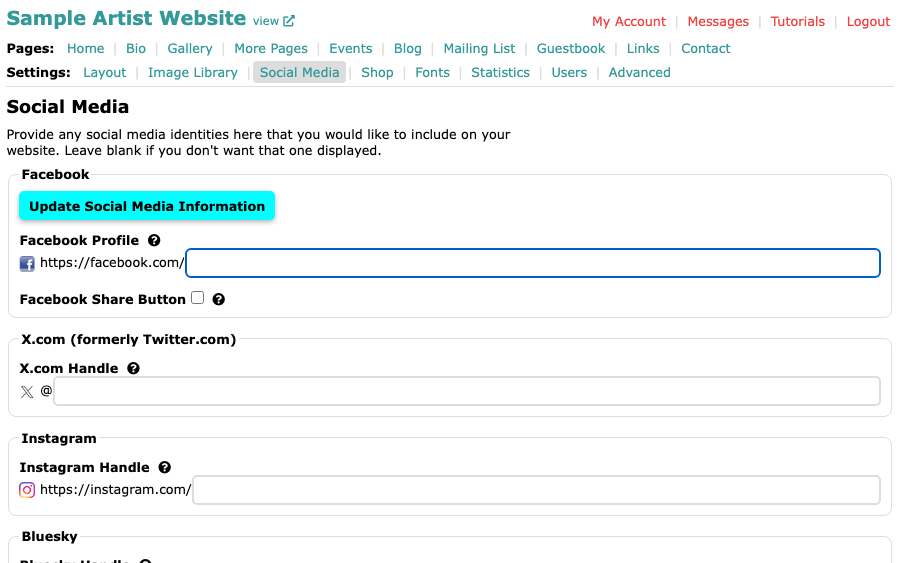
The Social Media page, with an empty Facebook Profile box and boxes for X.com, Instagram and Bluesky below it Type your name for a network in its box. The start of the web address is already printed beside the box, so you type only what comes after it. Here, a Facebook name goes after https://facebook.com/.
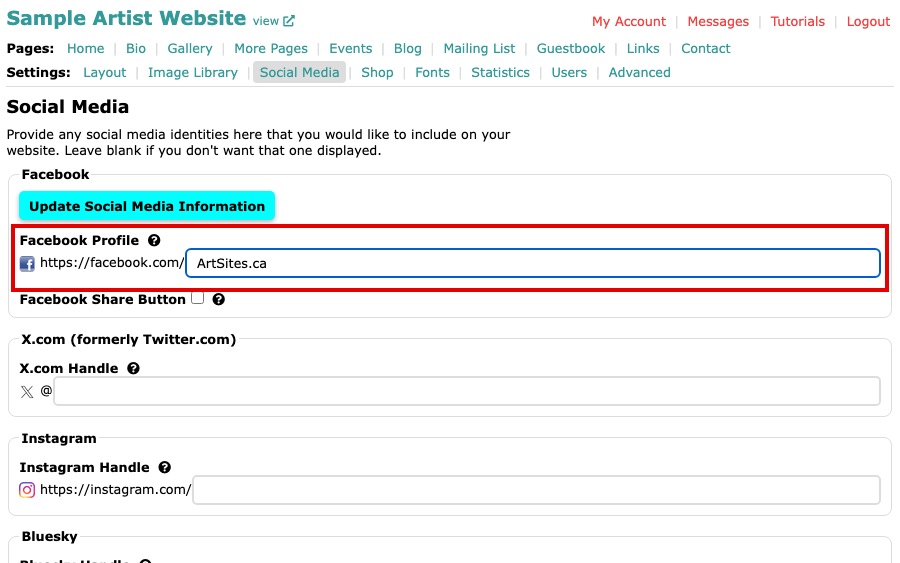
The Facebook Profile box with a name typed in Select Update Social Media Information to save. The button is at the top and at the bottom of the page.
The Social Media page after saving, with the Facebook name still in its box Open your Contact page to see the result. Each network you filled in shows its icon and a link that opens in a new window. The Filmstrip layout also shows the icons in the bar at the top of every page.
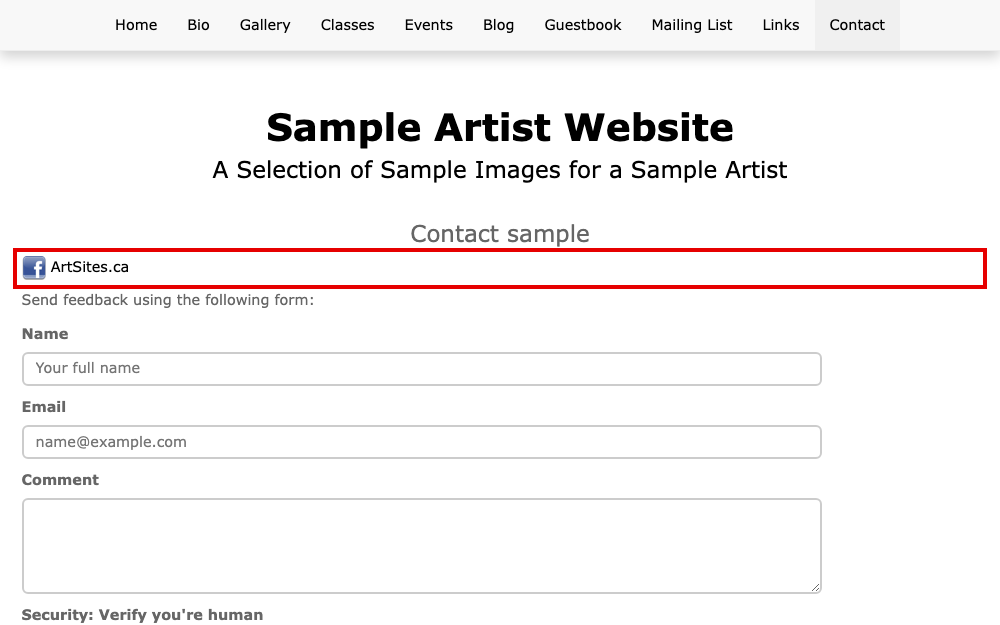
The Contact page with the Facebook icon and name above the contact form
To remove a link, clear its box and save again.
The same page can also put a Share link below your works or a Pin It button on your images. Add Facebook Share and Pin It Buttons to Your Work explains them.